🏆 Bot Club, $9/mo: new copy-paste bot recipes and ready-made templates every month, plus a monthly “get unstuck” Q&A post in the members area. Cancel anytime.
Join Bot ClubWhat “Grok Bot in Slack” actually means
Per xAI’s computer-and-apps docs and Cursor’s Connect apps help (checked Nov 6, 2026):
| You want… | Use this |
|---|---|
| The Bot to draft or post in channels you can already post in | Connect the Slack app (posts as your Slack user) |
| The Bot to wake up when someone says a phrase in a channel | A routine with a Slack trigger (narrow channel + phrase) |
| Teammates to @mention a shared Bot in Slack | Share the Bot, then Bring to your team’s Slack (Cursor team) |
| Just chat with your Bot in the Grok Bot app | No Slack needed yet — see Grok Bot for beginners |
Step 1: Connect the Slack app (personal use)
Cursor’s Connect apps page and xAI’s computer-and-apps page give the same flow:
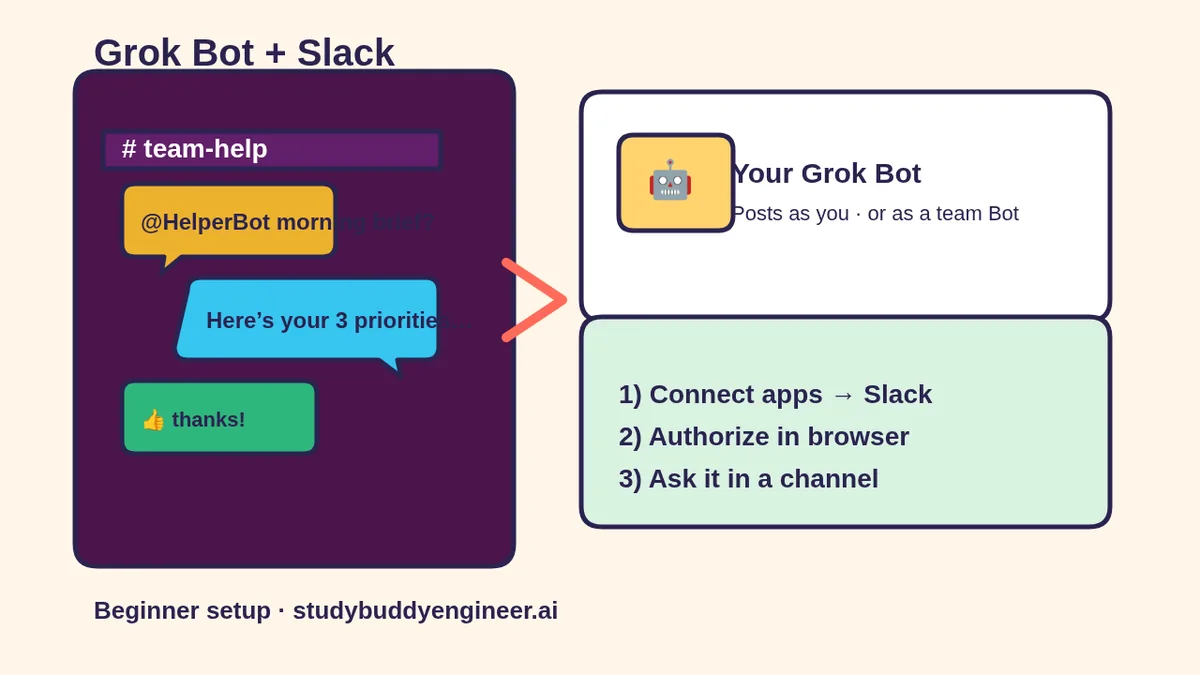
- In Grok Bot, open Connect apps from the sidebar (or follow an in-chat Connect card). On the phone, tap your avatar (top left) → Connect apps.
- Search for Slack, then add it.
- When Grok Bot asks you to Authorize or Authenticate, finish Slack’s login in your browser.
- If sign-in doesn’t finish, choose Reconnect on the app, or Reopen on the in-chat card.
- Confirm Slack appears under Installed. “Added” means installed — if it still says Needs auth / Disconnected, Authenticate again.
- In chat, type @ to attach Slack to a task when you want the Bot to use it.
What it can do (official): the Slack app posts as the Slack user you connected, not as a separate bot you invite. It can post only in channels that user can post in. It cannot post in a private channel you aren’t in, or where the workspace blocks posting. To use another workspace, connect that workspace.
🧰 Want the shortcut? Get the Starter Kit ($29)
Everything from our guides in one download: a 2-minute “pick your assistant” chart, step-by-step setup checklists for ChatGPT Projects, Claude Projects and agent-style assistants, 24 copy-paste bot recipes (personal and small business), a safety and permissions checklist, and troubleshooting fixes. Includes a ZIP of every recipe as a ready-to-paste text file.
Get the Starter Kit: $29 See what’s inside →
One-time payment, secure checkout by Stripe, instant download page right after checkout.
Step 2: Teach standing Slack rules (before any posts)
Paste this as a message to your Bot, then ask it to keep these as standing rules:
Slack rules for you:
1) Draft first. Never post to Slack until I say "post this" for that exact draft.
2) Only use channels I name. Default draft channel: #[CHANNEL].
3) Keep replies under 120 words unless I ask for detail.
4) Never invent prices, deadlines, or who said what.
5) If you're unsure, ask me ONE question before drafting.
6) When you draft, show: channel, who it's to, and the full message text.
More on standing instructions: Grok Bot for beginners. Stuck on Connect apps? Grok Bot setup help.
Step 3: Your first safe Slack job (draft only)
- Pick a low-risk channel (a private one you own, or a quiet team channel).
- Ask the Bot to draft a short update — do not say “post” yet.
- Read the draft. Edit it in the draft card if Grok Bot shows one (xAI’s chat docs say outbound Slack drafts wait for Send / Send message).
- Only then say post this (or press Send on the draft card).
Example ask:
Using Slack (@Slack), draft a short update in #[CHANNEL]
for the team: [WHAT HAPPENED]. Friendly, under 80 words,
no @everyone. Show me the draft only — do not post yet.
Step 4 (optional): A Slack trigger on a routine
xAI’s skills-and-routines docs say a routine can start from a Slack message. Important facts from that page:
- A Slack trigger is part of a routine, not the Slack app.
- Connect Slack on the Cursor account that owns the Bot before you rely on the trigger.
- A routine can start when the Bot is mentioned, when a word/phrase appears, when you react, or on any message — for one channel or all of Slack.
- Keep it narrow. Docs warn that “any message” in a busy channel burns usage and creates noise.
- Only new activity counts; older messages don’t backfill.
Copy-paste ask:
Create a routine: when a message in #[QUIET-CHANNEL] contains
the phrase "needs bot help", draft a reply in this Grok Bot
chat with 3 clarifying questions. Never post back to Slack
without my approval. Keep the trigger on that channel + phrase only.
Then open the routine and check When to run matches what you meant. Pause it anytime. If it offers Test, use safe input — tests do real work.
Step 5 (teams): Bring a shared Bot to Slack
If you’re on a Cursor team with shared Bots, xAI’s Shared Bots page and Cursor’s Shared Bots help describe this path:
- Share the Bot with your team (or the people who need it) first.
- Owner or Manager: click the Bot’s name → find Bring to your team’s Slack → Connect.
- If it says Awaiting admin approval, a Slack workspace admin must approve the app.
- Once Connected, teammates can message the Bot directly or mention it in channels.
- Each teammate should Link Slack: Settings → General → Shared Bots (Cursor help also labels this Team Bots in places) → Link, so the Bot knows who you are.
Official notes worth remembering: in a channel thread or DM, a shared Bot acts for the teammate who mentioned it; Slack guests / Slack Connect / other workspaces are never included; a personal Bot only chats with its owner in Slack.
6 copy-paste prompts for Slack + Grok Bot
Fill in the [BRACKETS]. Prefer draft-only until you trust the result.
1. 🧵 “Draft a channel update”
@Slack Draft (do not post) a message for #[CHANNEL]:
Topic: [TOPIC]
Tone: [friendly / brief / grateful]
Max 90 words. No @everyone. List any facts I still need to fill in.
2. 🙋 “Turn a long Slack thread into next steps”
I'll paste a Slack thread (names ok, no secrets). Summarize:
1) Decision made (or "none yet")
2) Open questions
3) My suggested next 3 actions with owners if named
Don't invent owners. Thread: [PASTE]
3. ⏰ “Narrow Slack routine”
Set up a routine: when I'm @mentioned in #[CHANNEL],
draft a reply in this chat only. Never post to Slack
without my yes. Ignore jokes and emoji-only messages.
4. 🧭 “Explain Slack permissions in plain English”
Explain like I'm new: with the Slack app connected as me,
which channels can you post in, and which can you not?
Then list 3 safety rules I should keep in my standing instructions.
5. 🧪 “Practice draft vs post”
Quiz me: give 4 example asks. For each, say whether you
should DRAFT only or could POST after my yes, and why.
Use plain words. No real posts.
6. 🤝 “Team shared Bot checklist”
I'm adding a shared Bot to Slack. Give me a checklist:
share settings to verify, Bring to Slack steps, admin
approval, teammate Link step, and a first safe test message
that cannot spend money or delete anything.
🔒 Members-only
Members get the full pack: 8 more Slack+Bot prompts + a fill-in “My Slack + Grok Bot Setup” card
Extra prompts for a standup draft, a polite “I’ll get back to you” reply, a meeting notes → Slack bullets handoff, a “who asked for this Slack post?” audit question, a routine-pause reminder, a channel-rename safe update, a weekend-off auto-reply draft, and a weekly Slack hygiene review. Plus a printable setup card with workspace, default channel, draft-first rule, and trigger phrase.
Bot Club · $9/mo · cancel anytime. Your Member Library opens right after checkout.
Join Bot Club, unlock the full pack · $9/moCommon snags (calm fixes)
- “Added” but Bot says Slack is missing. Open the app → Authenticate / Authorize if it shows Needs auth or Disconnected.
- Can’t post in a private channel. Official docs: it posts as you, only where you can post, and only if you’re in that private channel.
- Awaiting admin approval on Bring to Slack. A Slack workspace admin must approve the app, then connect again.
- Routine never fires. Check it isn’t Paused; When to run matches channel + phrase; message is new; Slack is connected on the owning account.
- Usage disappearing. xAI warns busy-channel Slack triggers can spend a week of usage in a day — narrow the phrase and channel, or pause.
- Sign-in loop / computer stuck. Use the safe order in Grok Bot setup help (quit/reopen before Reset).
Why Bot Club is only $9 a month
This guide gives you six Slack prompts free. Bot Club unlocks the 8 extras above plus the printable setup card, and every other members-only pack in the Member Library, with a new recipe each month. Cancel anytime from your Stripe receipt.
Want it done faster?
🧰 Starter Kit: $29
24 copy-paste bot recipes, setup checklists and a safety checklist, with a ZIP of every recipe as a text file.
Get the Starter Kit: $29🏆 Bot Club: $9/month
The 8 Slack prompts and setup card above, every other members-only pack, and a new recipe every month. Cancel anytime.
Join Bot Club: $9/mo🛠️ Done-for-you setup
$199 setup + $49/month. Want a Slack-ready Bot with draft-first rules, a quiet-channel routine, and monthly tuning? We build it with you, then keep it updated.
Get set up: $199Study Buddy Engineer is independent and is not affiliated with xAI, X Corp., Slack, Salesforce or Cursor. Grok and Grok Bot are trademarks of their owners. Slack is a trademark of Salesforce, Inc. Features vary by plan, app version and workspace admin settings, and can change. Prefer official docs linked below.
Official sources
- xAI Docs: Use the computer and apps (Slack app posts as connected user; separate from routine triggers; checked Nov 6, 2026)
- xAI Docs: Skills and routines (Slack triggers, narrow matching, Test warning; checked Nov 6, 2026)
- xAI Docs: Shared Bots (Bring to your team’s Slack; Link step; checked Nov 6, 2026)
- Cursor Help: Connect apps (Authorize flow, Slack phone note; checked Nov 6, 2026)
- Cursor Help: Shared Bots (team Slack connect + who can talk; checked Nov 6, 2026)
- xAI Docs: Message and collaborate (Slack draft cards / Send message; checked Nov 6, 2026)
Keep going: related guides
- Grok Bot for beginners
- Grok Bot setup help
- 25 fun things to try
- Is my AI assistant safe?
- ChatGPT scheduled tasks
🎁 Free: 10 copy-paste ChatGPT prompts
Ten short copy-paste prompts from our free guides, each with a Copy button:
- Reply to a customer review (good or bad)
- A week of social posts in 5 minutes
- Match your resume to one job posting
- Practice the interview out loud
- “Use up my fridge” dinners
- A “tight week” budget dinner plan
- Fill in your “trip card”
- Plan a road trip like a human
- “Explain it like I’m 10”
- “Grade my answer, don’t write it”
Free with an email signup. We never sell your email.
Pick the easiest way to get going
Three simple options. Secure checkout by Stripe.
🧰 Starter Kit
- Pick-your-assistant chart
- Setup checklists
- 24 copy-paste bot recipes
- Safety checklist + troubleshooting
🏆 Bot Club
- New bot recipes every month
- Ready-made templates
- Monthly “get unstuck” Q&A in the members area
- Cancel anytime
🛠️ Done-for-you setup
- We set up your assistant with you
- Monthly tuning: fixes, updates
- New recipes as you go
📬 Get one fun bot trick every week
The Bot Whisperer newsletter: free, plain English, unsubscribe anytime.
Coming soon: sign-ups open shortly. Follow @teachbots to hear when they do.