🏆 Bot Club, $9/mo: new copy-paste bot recipes and ready-made templates every month, plus a monthly “get unstuck” Q&A post in the members area. Cancel anytime.
Join Bot ClubFix #0: the 60-second restart (try this first)
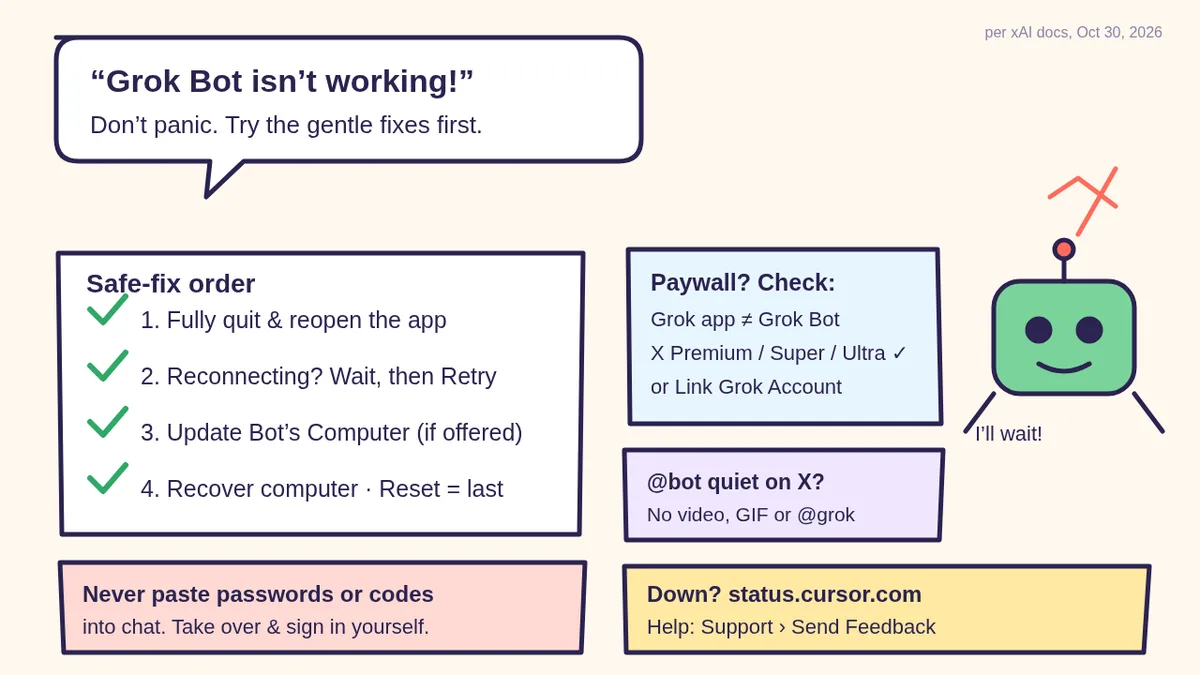
xAI’s troubleshooting page says to start with the least destructive step. Your Bot’s work runs on a cloud computer, so closing the app doesn’t stop it or lose anything.
- Fully quit Grok Bot. On a Mac use Quit from the menu bar. On Windows, Linux or a phone, close the app completely.
- Reopen it and send your message again.
- Still stuck? Find your snag below. Each one starts with the safe step.
New to Grok Bot? Read Grok Bot for total beginners first: pick one job, write plain standing rules, and require approval before it sends or buys anything.
Snag 1: “I pay for Grok (or X), but Grok Bot shows a paywall”
This is the most common mix-up. xAI’s FAQ says Grok (the chat app) and Grok Bot are two different apps, and a paywall or a “Weekly SuperGrok Limit” in the Grok app isn’t about Grok Bot. Grok Bot signs in with your Cursor account; there’s no separate Grok Bot login.
- On The X Subscription: Grok Bot is included with Premium, Super and Ultra (individual or team seats). Plus and Free don’t include it. If you pay for X and don’t see Grok Bot, check which plan you’re on.
- Paying for SuperGrok, SuperGrok Plus, SuperGrok Heavy or X Premium+? You can link it. On iPhone and Android, the access screen offers Link Grok Account, then Finished Linking? Refresh My Status. On desktop it’s Settings → Usage & Billing → under Manage Plan, Get Access with Grok (it only shows when linking would raise your usage). It’s also on the Get Started page at cursor.com/bot/onboarding.
- SuperGrok Lite and Grok Enterprise can’t link. On a self-serve Grok Business seat, don’t link: sign out and sign back in with Sign in with Grok using the account that holds the seat.
- Check the account before you link. xAI says a link is permanent and you can’t move it yourself; if it went to the wrong Cursor account, support has to fix it.
- Just upgraded SuperGrok? Allow up to 24 hours for your Grok Bot usage to move to the new tier. You don’t need to link again.
- Two subscriptions don’t add together. On a legacy Cursor account, Grok Bot uses whichever one gives more weekly usage, and both keep billing on their own.
Snag 2: Sign-in won’t finish (or loops)
- Keep Grok Bot open while the browser sign-in runs, and check the browser says you signed in to Cursor.
- Go back to the app yourself if it doesn’t pop back up, and choose Sign in again.
- Stuck in a loop? Update the app, sign out and back in. Then clear cache and cookies for cursor.com and x.ai and try a private/incognito window, or sign in at x.ai/bot with the same account. If the phone loops, sign in on desktop first.
- Started recently? xAI says to wait 30 to 60 minutes and retry; some sign-in errors clear on their own.
xAI notes that reinstalling usually doesn’t fix sign-in loops. If it keeps happening, contact support with the exact error text (see the support checklist below).
🧰 Want the shortcut? Get the Starter Kit ($29)
Everything from our guides in one download: a 2-minute “pick your assistant” chart, step-by-step setup checklists for ChatGPT Projects, Claude Projects and agent-style assistants, 24 copy-paste bot recipes (personal and small business), a safety and permissions checklist, and troubleshooting fixes. Includes a ZIP of every recipe as a ready-to-paste text file.
Get the Starter Kit: $29 See what’s inside →
One-time payment, secure checkout by Stripe, instant download page right after checkout.
Snag 3: “Setting up your Grok Bot…” is taking forever
First setup can take several minutes. Keep the app open while it shows progress (on a phone: Starting your computer…). If you see Update still running or Taking longer than usual, xAI says Keep waiting is the safe choice. If progress is still changing, wait. Only choose Recover if it truly stopped and the app offers Recover computer.
Snag 4: “Reconnecting” or “Couldn’t Reach Grok Bot’s Computer”
Your Bots and chats are not lost. xAI says chats are stored separately from the computer, and Bots, files and logins are safe while it reconnects. Go in this order, and don’t skip ahead:
- Wait, then choose Retry. Don’t Reset during this.
- Fully quit and reopen Grok Bot.
- If an update is offered: Settings → Computer → Update Bot’s Computer.
- Still can’t connect? Choose Recover computer.
- Reset only after all of that.
Snag 5: My Bot stopped replying
- Is it down? The app doesn’t show service status. Check status.cursor.com (in our check it opened xAI’s status page at status.x.ai) and look for the Grok Bot row. If there’s an incident, wait and resend. Don’t Reset or reinstall: neither fixes a service problem.
- “Bot failed to respond” or “Model provider is overloaded”? Wait a moment and send the message again, then fully quit and reopen if needed.
- It says you hit your usage limit? It isn’t broken. Your weekly usage ran out and resets each week. To keep going now you can add prepaid credit (The X Subscription), turn on on-demand usage (legacy Cursor plans) or move to a bigger plan.
Snag 6: My Bot seems stuck halfway
Usually it’s waiting for you. xAI suggests checking the status in the sidebar and chat, opening the computer to see the page it’s on, and looking for a question, approval, login, CAPTCHA or secret request. Send a short redirect if it’s on the wrong track, or a direct “Stop now” if the work should end.
Approval disappeared? An approval in a chat you’re in waits for you. But approvals from work that started without you (a routine, a trigger, or another Bot) expire after about 30 minutes, and the action doesn’t run. Turn on Notifications for Bots that run routines, then ask the Bot to try again.
Snag 7: A website keeps asking me to log in (or won’t load)
- Take over the Bot’s computer and sign in yourself, including any two-factor code or CAPTCHA.
- Wait for the signed-in page to load, return control, and tell the Bot to continue from that page.
Good to know: xAI says fingerprint, Face ID, Windows Hello and passkeys saved on your laptop or phone don’t work on the Bot’s computer (here’s what passkeys are). If a site times out or won’t connect at all, some sites block cloud computers. xAI says Update, Recover and Reset won’t change that. Instead, look in Settings → Computer → Your computer for Route traffic through this computer, which lets the Bot’s browser use your desktop’s connection while the desktop app is open.
Snag 8: An app says “Added” but the Bot can’t use it
xAI says Added means installed, not signed in. Open Connect apps from the sidebar and check the app’s status:
- Needs auth or Disconnected → choose Authenticate (Authorize on the phone) and finish signing in with the right account within about 10 minutes.
- Connected → send the Bot a new message and ask it to try the app again.
- Disabled by team admin → ask your admin.
- Still broken? Choose Remove, add the app again and sign in.
Snag 9: I tagged @bot on X and nothing happened
If @bot doesn’t reply, your Bot didn’t get the request. xAI’s “Tag @bot on X” page lists what you need: a Grok account with your X account connected (on grok.com: Settings → Account → Connect next to X Account), Grok Bot access on that same account, and at least one Bot of your own (Bots shared with you can’t take tagged requests).
@bot also stays quiet when:
- your X account is based in a region where tagging isn’t available yet (xAI lists Australia, the United Kingdom, the European Union, Iceland, Liechtenstein and Norway; a VPN doesn’t change this),
- you replied in a thread that already has @bot but didn’t tag @bot yourself,
- the post also tags @grok, or the post (or the one it replies to or quotes) has a video or GIF,
- Grok Bot isn’t linked to your Grok account, or your weekly usage is used up.
If @bot replies “Sign up for Grok Bot”, your X account isn’t connected to a Grok account. If it says “Grok Bot isn’t set up yet”, create a Bot of your own and tag again.
Snag 10: My chats or Bots disappeared
They’re usually not deleted. Fully quit and reopen; check the same account on another device (they sync); open Hidden Bots in the sidebar (on the phone, Show Hidden Bots), because hiding only removes a Bot from the list; and make sure you’re in the same Cursor account. xAI says don’t use Recover or Reset to look for them.
Snag 11: “Update required”
xAI says the app requires an update when your version is more than 14 days old and a newer one is out. Choose Update, wait, then Restart to update. Your Bots keep running in the cloud the whole time. On a phone, choose Update Grok Bot to get it from the App Store or Google Play.
Snag 12: My routine didn’t run
Open the routine and check: it isn’t Paused; When to run shows the time zone you expect; the Bot that owns it still exists; its apps are still signed in; and your usage hasn’t run out. Careful with Test: xAI warns a test run can perform real actions, so only test with safe input.
3 free prompts that get you unstuck
Paste these into your Bot’s chat. Change the words in [BRACKETS].
1. 🔎 “What are you waiting on?”
Stop and tell me in 3 short lines:
1) what you were trying to do,
2) exactly what you're waiting on (a login,
an approval, a CAPTCHA, a question, or an
error), and 3) the one thing I should do
next. Don't retry anything until I answer.
2. 🛑 “Approval-first rules” (stops surprises)
Remember these as standing rules: never
send, post, delete, buy, book or change any
account setting without my "yes" for that
exact action. If a site asks for a login,
code or CAPTCHA, hand me the computer and
wait. Never ask me to type a password in
chat. Confirm you saved these rules.
3. 🧾 “Write my support message for me”
Use this in your Bot (or in ChatGPT if your Bot won’t answer). Don’t include passwords, codes or keys:
Help me write a short, polite support email
about a Grok Bot problem. Here's what
happened: [WHAT YOU TRIED, THE EXACT ERROR,
ABOUT WHAT TIME + TIME ZONE, MAC / WINDOWS /
LINUX / IPHONE / ANDROID]. Steps I already
tried: [RESTART, RETRY, UPDATE...]. Put it
in this order: what I was doing, the exact
error, what I tried, and what I need. Under
150 words. Leave out any passwords or codes.
🔒 Members-only
Members get the full pack: 12 more “get unstuck” Grok Bot prompts + a fill-in “My Grok Bot Help Card”
Copy-paste prompts for the moments beginners get stuck: a first-day health check, a “why did this cost so much usage?” review, a scope-it-small rewrite, a login hand-off script, a “show me what you remember” check, a routine double-check, a safe test-run plan, a connected-apps audit, a @bot on X pre-flight check, a “redo it, but smaller” recovery, a weekly tidy-up and a plain-English “explain that error” helper. Plus a fill-in My Grok Bot Help Card with everything support asks for.
Bot Club · $9/mo · cancel anytime. Your Member Library opens right after checkout.
Join Bot Club, unlock the full pack · $9/moBefore you contact support
From the desktop app, open the account menu and choose Support → Send Feedback (keep Include current conversation ID selected). On the phone: Settings → Send Feedback. For help from the team, xAI says to email support@x.ai from the email on your Grok Bot account; billing and cancellation questions go to the same address.
Have this ready: your account email; your app version and platform (Support → About → Copy version info); what you were trying to do and the Bot or routine name; the exact error or a screenshot; the approximate time and time zone; the request ID if one is shown (right-click the message → Copy request ID); and what you already tried. Never include passwords, one-time codes, private keys or secret values.
Stop surprise charges
Worried a stuck task will run up a bill? xAI’s FAQ says: on The X Subscription, leave Auto Top-up off or set a monthly limit under Additional usage credits at grok.com/dashboard/billing. On a legacy Cursor plan, turn off on-demand or set Settings → Usage & Billing → On-demand monthly limit. A cap doesn’t stop a Bot in the middle of a run, so a running task can go a little past it.
Why Bot Club is only $9 a month
This guide gives you the 12 fixes and three unstick prompts free. Bot Club is for getting your Bot from “set up” to “saving me time”: the 12 extra prompts above (a first-day health check, a usage review, a scope-it-small rewrite, a login hand-off script, a memory check, a routine double-check, a safe test-run plan, a connected-apps audit, a @bot on X pre-flight, a redo-it-smaller recovery, a weekly tidy-up and an explain-that-error helper) and the fill-in My Grok Bot Help Card, plus every other members-only pack in one Member Library, and a new bot recipe each month. Cancel anytime from your Stripe receipt.
Want it done faster?
🧰 Starter Kit: $29
24 copy-paste bot recipes, setup checklists and a safety checklist, with a ZIP of every recipe as a text file.
Get the Starter Kit: $29🏆 Bot Club: $9/month
The 12 get-unstuck prompts and My Grok Bot Help Card above, every other members-only pack, and a new recipe every month. Cancel anytime.
Join Bot Club: $9/mo🛠️ Done-for-you setup
$199 setup + $49/month. Want an AI assistant set up for your family or business and tested on your real everyday tasks? We build it with you, then keep it tuned every month.
Get set up: $199More Grok Bot basics: Grok Bot for beginners, 25 fun things to try with your AI bot, Do I need a Mac mini? and Is my AI assistant safe?
Study Buddy Engineer is independent and is not affiliated with, endorsed by or sponsored by xAI, X or Cursor. Grok and Grok Bot are trademarks of their owners. Menus, plans and settings change often, so always check the official pages below.
Slack app says Added but won’t post, or Bring to Slack is waiting on admin approval? Walk through the calm fixes in Grok Bot in Slack for beginners (Authorize vs trigger vs shared Bot), then come back here for quit/reopen and computer reconnect order.
Sources
- xAI Docs: Grok Bot Troubleshooting (checked Oct 30, 2026)
- xAI Docs: Grok Bot FAQ (checked Oct 30, 2026)
- xAI Docs: Get Started with Grok Bot (checked Oct 30, 2026)
- xAI Docs: Tag @bot on X (checked Oct 30, 2026)
- xAI Docs: Grok Bot on mobile (checked Oct 30, 2026)
- xAI Docs: Grok Bot overview (checked Oct 30, 2026)
- Grok Bot service status (status.cursor.com, redirects to status.x.ai) (checked Oct 30, 2026)
Keep going: related guides
- Grok Bot in Slack for beginners
- Grok Bot for beginners
- Is my AI assistant safe?
- Passkeys explained
- 25 fun things to try with your AI bot
🎁 Free: 10 copy-paste ChatGPT prompts
Ten short copy-paste prompts from our free guides, each with a Copy button:
- Reply to a customer review (good or bad)
- A week of social posts in 5 minutes
- Match your resume to one job posting
- Practice the interview out loud
- “Use up my fridge” dinners
- A “tight week” budget dinner plan
- Fill in your “trip card”
- Plan a road trip like a human
- “Explain it like I’m 10”
- “Grade my answer, don’t write it”
Free with an email signup. We never sell your email.
Pick the easiest way to get going
Three simple options. Secure checkout by Stripe.
🧰 Starter Kit
- Pick-your-assistant chart
- Setup checklists
- 24 copy-paste bot recipes
- Safety checklist + troubleshooting
🏆 Bot Club
- New bot recipes every month
- Ready-made templates
- Monthly “get unstuck” Q&A in the members area
- Cancel anytime
🛠️ Done-for-you setup
- We set up your assistant with you
- Monthly tuning: fixes, updates
- New recipes as you go
📬 Get one fun bot trick every week
The Bot Whisperer newsletter: free, plain English, unsubscribe anytime.
Coming soon: sign-ups open shortly. Follow @teachbots to hear when they do.