🏆 Bot Club, $9/mo: new copy-paste bot recipes and ready-made templates every month, plus a monthly “get unstuck” Q&A post in the members area. Cancel anytime.
Join Bot ClubWhat a passkey is (in one minute)
In his video “Say Goodbye to Passwords: Passkeys Explained!” (Oct 29, 2026, 6:35), Trevor Nace calls passwords “old technology.” More and more sites on iPhone, Android and computers now offer to save a passkey instead.
- A password is a secret string. Anyone who learns your username and password can sign in as you, whether they peeked over your shoulder, tricked you, or stole it from a hacked website.
- A passkey is more like a door that only opens for your face or fingerprint. There’s no string for someone to steal and reuse.
Microsoft’s help page puts it simply: instead of typing a password, “you use your phone or device to confirm it’s really you, using your face or a fingerprint.” Apple calls passkeys “a replacement for passwords” that are “faster to sign in with, easier to use, and much more secure.”
🧰 Want the shortcut? Get the Starter Kit ($29)
Everything from our guides in one download: a 2-minute “pick your assistant” chart, step-by-step setup checklists for ChatGPT Projects, Claude Projects and agent-style assistants, 24 copy-paste bot recipes (personal and small business), a safety and permissions checklist, and troubleshooting fixes. Includes a ZIP of every recipe as a ready-to-paste text file.
Get the Starter Kit: $29 See what’s inside →
One-time payment, secure checkout by Stripe, instant download page right after checkout.
How it works (no math needed)
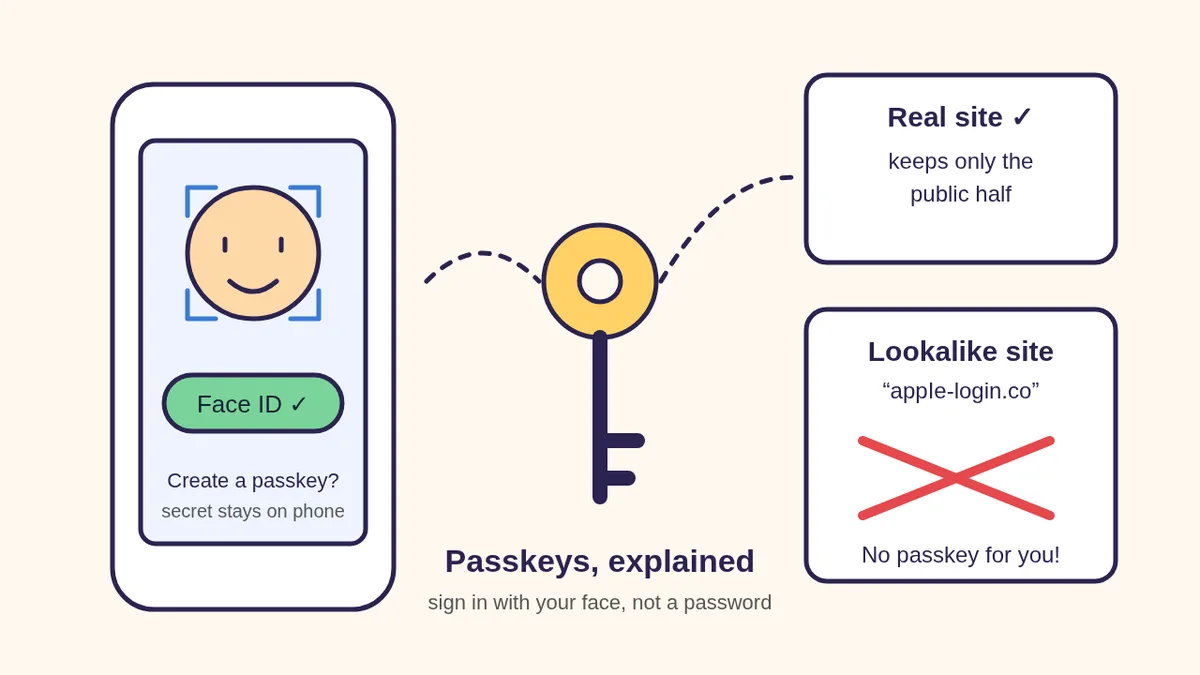
- When you create a passkey, your device makes a matched pair of keys just for that one website or app.
- The private key stays on your device. On iPhone, the video explains, it’s kept in the Secure Enclave, a separate, protected area of the hardware that regular apps can’t read.
- The website keeps only the public key. Apple says the public key “is not a secret” and the website “never learns what the private key is.”
- When you sign in, the website sends your device a challenge. You unlock with Face ID, a fingerprint or your PIN, and your device answers. The video describes that answer as one-time: copying it doesn’t let someone sign in later.
Why that matters: if hackers steal a website’s data, they only get public keys, which can’t be turned into your private key. Google adds that your fingerprint or face data “stays on your device and is never shared with Google.”
Why passkeys beat fake login pages
Scammers love lookalike websites: a link in a text that goes to a page that looks just like your bank or Apple. If you type a password there, they have it.
A passkey is tied to the real website. Microsoft’s example: a passkey made for netflix.com can only be used with netflix.com, and “while you may be tricked into landing on a similar looking website, your device won’t present your passkey to the malicious website.” In the video, Trevor Nace says a spoofed site gets “immediately” kicked back. Google says the same idea: passkeys “can’t be shared, copied, written down, or accidentally given to someone else.”
Still not sure if a text or email is real? Check it first with our scam-check guide.
See the passkeys you already have (iPhone)
Phone-ok. These are the steps shown in the video:
- On your Home Screen, swipe down to open search and type Passwords.
- Open the Passwords app and unlock it with Face ID or your passcode.
- Tap Passkeys.
- You’ll see a list of the sites where you already have a passkey.
Google account (needs-a-login): Google lists your passkeys at myaccount.google.com/
Say yes to a passkey, safely
- Say yes on devices you own. When a site you trust shows “Create a passkey?” on your own phone or computer, the video and Microsoft both recommend accepting it.
- Not on shared devices. Google says to only create passkeys on devices you personally own and use.
- Make a spare. Microsoft suggests saving passkeys to a synced password manager so they’re on all your devices, or creating passkeys on your other devices too “to act as a digital spare key.” Apple says passkeys sync across your Apple devices with iCloud Keychain.
- Your password usually still exists. Google says adding a passkey doesn’t remove your other sign-in or recovery methods, and you can still choose to sign in with your password.
- Lost a phone? Google says to remove that passkey from your Google Account. Apple says iCloud Keychain passkeys can be recovered even if you lose all your devices (with your Apple Account and a code to your trusted phone number).
- School accounts can be different. Google says school or work Google Workspace accounts may not let you sign in with just a passkey, and Microsoft says work/school passkeys depend on your organization. Ask the school’s IT team; don’t guess.
3 copy-paste prompts to try today
1. 🔑 “Explain this passkey pop-up to me”
Phone-ok. Take a screenshot of the pop-up (cover your email address or name), or type what it says:
I'm not very techy. A website or app just
asked me: "[PASTE THE WORDS OR DESCRIBE THE
SCREEN]". The site is: [SITE NAME].
In plain, short sentences:
1) What is it asking me to do?
2) What happens if I say yes, and if I
   say no?
3) What should I check first (is this the
   real site, is this my own device)?
Don't ask me for any password or code.
2. 👪 “Make a passkey plan for our family”
Phone-ok. Great for a parent helping a teen, or a grown-up helping a grandparent:
Help me make a simple passkey checklist for
my family. People: [E.G. ME, MY MOM WHO IS
78, MY 15-YEAR-OLD]. Devices: [E.G. IPHONE,
ANDROID, A SHARED FAMILY LAPTOP].
For each person, list in big numbered steps:
- which of their important accounts to
  check first (email, phone account,
  banking app),
- which devices are theirs alone and which
  are shared (no passkeys on shared ones),
- a backup sign-in plan if a phone is lost.
Remind us never to share unlock codes.
Don't invent steps for a specific website;
tell me to check that site's help page.
3. 🛡️ “Is this sign-in page real?”
Phone-ok. Before you sign in from a link in a text or email:
I got a message telling me to sign in here:
[PASTE THE LINK ADDRESS ONLY, NOT YOUR
PASSWORD]. The message says: [PASTE].
Does the web address match the real company
I think it is? List any warning signs in
plain words, and tell me the safest way to
check (for example, opening the company's
app myself instead of tapping the link).
ChatGPT can be wrong. If it says something different from the Apple, Google or Microsoft help page, the official page wins.
🔒 Members-only
Members get the full pack: 12 more passkey prompts + a fill-in “Our Family Sign-In Plan” card
Copy-paste prompts for the whole family: a slow walk-through to check passkeys on iPhone, Android or a computer, a “which accounts first?” list, a script to help a grandparent over the phone, a teen-and-parent school-account talk, a lost-phone plan, a shared-computer check, a “passkey vs password manager vs two-step codes” explainer, a calm reply to a scary “your account is locked” text, a weekly 5-minute security habit, a Spanish explanation for a family member, a kid-friendly explanation, and a practice quiz. Plus a fill-in Our Family Sign-In Plan card.
Bot Club · $9/mo · cancel anytime. Your Member Library opens right after checkout.
Join Bot Club, unlock the full pack · $9/moTroubleshooting
- “I don’t see a passkey option.” Not every site offers passkeys yet. Keep using a strong, unique password there.
- “My passkey isn’t working on a computer.” Google says to make sure your operating system and browser are up to date, that passkeys may not work in Incognito/private mode, and to turn on Bluetooth when using a phone’s passkey to sign in on another computer.
- “The computer shows a QR code.” That’s normal: Google and Microsoft both describe scanning a QR code with your phone to use your phone’s passkey on a nearby computer (needs-a-login, both devices nearby).
- “Windows doesn’t show the passkey options I read about.” Microsoft says the latest passkey features need Windows 11, and work or school-managed PCs may hide some options.
- “I made a passkey on the library computer by mistake.” Google says to remove a passkey you made on a shared device from your account’s passkey list.
Why Bot Club is only $9 a month
This guide gives you the first three passkey prompts free. Bot Club is for having the right prompt ready when you’re helping family: the 12 extra prompts above (checking passkeys step by step, which accounts first, a grandparent phone script, a teen-and-parent school talk, a lost-phone plan, a shared-computer check, passkey vs password manager vs codes, a “your account is locked” text check, a weekly habit, a Spanish explanation, a kid version and a practice quiz) and the fill-in Our Family Sign-In Plan card, plus every other members-only pack in one Member Library, and a new recipe each month. Cancel anytime from your Stripe receipt.
Want it done faster?
🧰 Starter Kit: $29
24 copy-paste bot recipes, setup checklists and a safety checklist, with a ZIP of every recipe as a text file.
Get the Starter Kit: $29🏆 Bot Club: $9/month
The 12 passkey prompts and Family Sign-In Plan card above, every other members-only pack, and a new recipe every month. Cancel anytime.
Join Bot Club: $9/mo🛠️ Done-for-you setup
$199 setup + $49/month. Want an AI assistant set up for your family or business and tested on your real everyday tasks? We build it with you, then keep it tuned every month.
Get set up: $199More safety help: Is this a scam? Check it with ChatGPT, ChatGPT for seniors and Is my AI assistant safe?
Credit: the explainer, the door analogy and the iPhone steps on this page follow Trevor Nace’s YouTube video “Say Goodbye to Passwords: Passkeys Explained!” (Oct 29, 2026). Watch it for the full walkthrough. Study Buddy Engineer is independent and is not affiliated with Trevor Nace, Apple, Google, Microsoft or OpenAI. Menus and options can change, so always check the official help pages below.
New phone for Mom or Dad? Our guide to set up a new phone for a parent or grandparent covers the setup-day checklist, Emergency SOS, Medical ID and scam-call settings, and when to set up passkeys together.
Sources
- Trevor Nace (YouTube): Say Goodbye to Passwords: Passkeys Explained! (Oct 29, 2026, 6:35) (checked Oct 30, 2026)
- Apple Support: About the security of passkeys (checked Oct 30, 2026)
- Google Account Help: Sign in with a passkey instead of a password (checked Oct 30, 2026)
- Microsoft Support: What are passkeys and why they matter (checked Oct 30, 2026)
Keep going: related guides
🎁 Free: 10 copy-paste ChatGPT prompts
Ten short copy-paste prompts from our free guides, each with a Copy button:
- Reply to a customer review (good or bad)
- A week of social posts in 5 minutes
- Match your resume to one job posting
- Practice the interview out loud
- “Use up my fridge” dinners
- A “tight week” budget dinner plan
- Fill in your “trip card”
- Plan a road trip like a human
- “Explain it like I’m 10”
- “Grade my answer, don’t write it”
Free with an email signup. We never sell your email.
Pick the easiest way to get going
Three simple options. Secure checkout by Stripe.
🧰 Starter Kit
- Pick-your-assistant chart
- Setup checklists
- 24 copy-paste bot recipes
- Safety checklist + troubleshooting
🏆 Bot Club
- New bot recipes every month
- Ready-made templates
- Monthly “get unstuck” Q&A in the members area
- Cancel anytime
🛠️ Done-for-you setup
- We set up your assistant with you
- Monthly tuning: fixes, updates
- New recipes as you go
📬 Get one fun bot trick every week
The Bot Whisperer newsletter: free, plain English, unsubscribe anytime.
Coming soon: sign-ups open shortly. Follow @teachbots to hear when they do.