🏆 Bot Club, $9/mo: new copy-paste bot recipes and ready-made templates every month, plus a monthly “get unstuck” Q&A post in the members area. Cancel anytime.
Join Bot ClubWhy a little planning makes this gift a hit
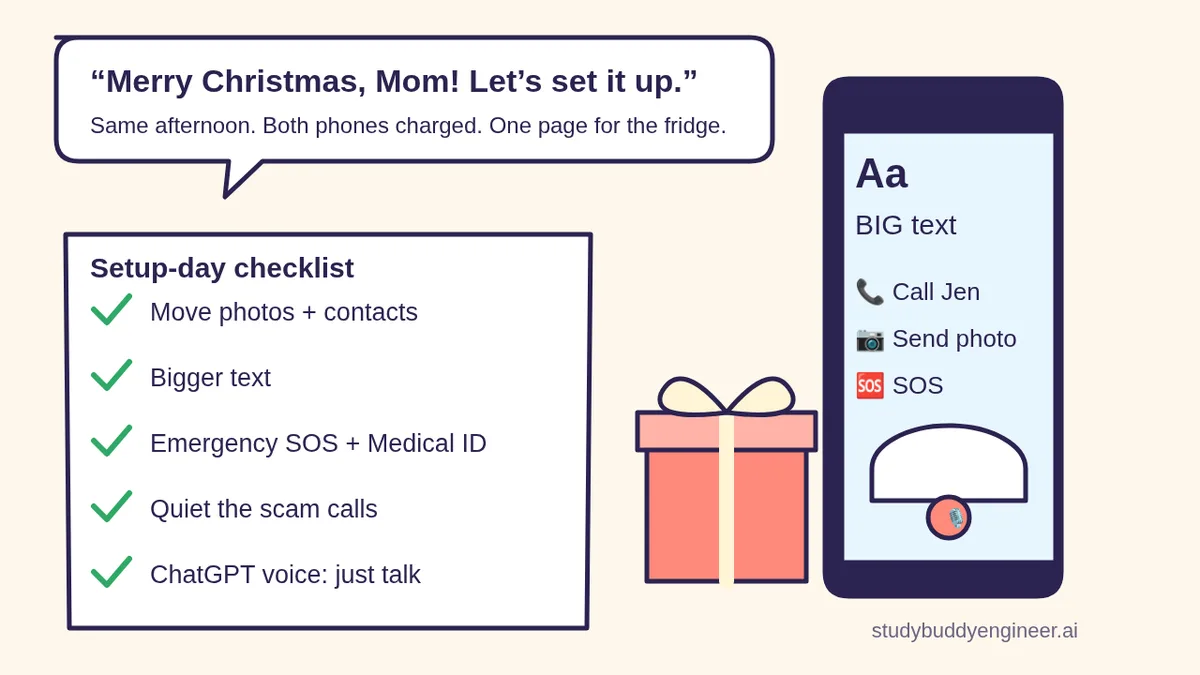
A new phone can be the best gift of the year or a drawer full of frustration. The difference is usually the first afternoon: their photos and contacts come across, the text is big enough to read, the people they love can reach them and the scam callers can’t, and there’s one page on the fridge that says how to do the five things they actually do.
ChatGPT is good at exactly that kind of planning. You tell it which phone they have now, which phone they’re getting and what they use it for; it turns the official Apple or Google steps into a checklist for setup day and a plain-English cheat sheet for afterward.
Step 1: Before setup day (10 minutes)
- Charge both phones and have the charger and cable handy. Apple says to keep both iPhones near each other and plugged in until the transfer finishes; Google says make sure both Android phones are charged.
- Update the old phone if you can. Apple says Quick Start works from an iPhone with iOS 11 or later, and to update both devices to the latest version first.
- Find their account info. They’ll need their Apple Account or Google Account sign-in. If they’ve forgotten it, Apple’s setup screen has a “Forgot password or don’t have an Apple Account?” option. Keep this on paper, not in a chat.
- Android? Google says to get a SIM card tool to swap SIMs, check storage on both phones, and note that Samsung phones have their own transfer tool (Smart Switch).
- Pick a time when nobody needs their phone for a while. Apple says Quick Start occupies both devices; Google says an Android copy can take from a few minutes to a few hours.
Step 2: Let ChatGPT build your setup-day plan
Paste these into a new chat and fill in the [BRACKETS]. Do the first two the night before.
🧰 Want the shortcut? Get the Starter Kit ($29)
Everything from our guides in one download: a 2-minute “pick your assistant” chart, step-by-step setup checklists for ChatGPT Projects, Claude Projects and agent-style assistants, 24 copy-paste bot recipes (personal and small business), a safety and permissions checklist, and troubleshooting fixes. Includes a ZIP of every recipe as a ready-to-paste text file.
Get the Starter Kit: $29 See what’s inside →
One-time payment, secure checkout by Stripe, instant download page right after checkout.
6 copy-paste prompts to try today
1. 📋 “Make my setup-day checklist”
I'm setting up a new [NEW PHONE MODEL] for my
[MOM / DAD / GRANDPARENT], age [AGE]. Their old
phone is a [OLD PHONE MODEL]. They mostly use it
for [CALLS, TEXTS, PHOTOS, VIDEO CALLS, ETC].
Things that are hard for them: [SMALL TEXT,
HEARING, MEMORY, SHAKY HANDS, SCAM CALLS].
Search the web for the official Apple or Google
help pages and link each one. Make a numbered
setup-day checklist in 3 parts: before we start,
moving their data, and settings to turn on after.
Mark anything that can only be done during setup.
Keep it to one page.
2. 📦 “What will and won’t move to the new phone?”
Search the web for the official Apple or Google
help page about moving data from a [OLD PHONE] to
a [NEW PHONE] and link it. In plain words, tell
me what moves over and what doesn't, and give me
a short "check before you erase the old phone"
list (photos, contacts, texts, voicemails, apps
they paid for, two-factor or banking apps).
Don't guess. If the page doesn't say, tell me
to check.
For Android-to-Android, Google’s help page says apps and certain app data, photos, videos, music, contacts, texts and call history copy during setup, while things like downloads (such as PDF files), ringtones, apps that aren’t from the Google Play Store and data from apps that don’t use Android backup don’t. Keep the old phone for a few weeks before you erase or trade it in, just in case.
3. 🔎 “Which settings would help my parent?”
Interview me one question at a time (max 8)
about how my [MOM / DAD] uses a phone: eyesight,
hearing, memory, hands, how often they get scam
calls, who they call most. Then recommend which
built-in [iPhone / Android] settings to turn on,
ranked by how much they'd help, with the exact
menu path for each from the official help page
(link it). Mark which ones I should ask them
about first because they're personal.
4. 🖨️ “Write a large-print cheat sheet”
Write a one-page cheat sheet in very large print
for my [MOM / DAD] for their new [PHONE MODEL].
Short steps, no jargon, one task per box:
1. Answer and hang up a call
2. Call [NAME] (pinned favorite)
3. Send a photo to [NAME]
4. Make the text bigger if it's hard to read
5. Call for help in an emergency
6. Ask ChatGPT out loud (tap the voice button)
7. "If a call or text asks for money, gift
   cards or a code: hang up and call [NAME]."
Leave blank lines for me to write in anything
that looks different on their screen.
5. 📇 “Who should be in their Contacts?”
Help me make a list of the people and places my
[MOM / DAD] should have saved in Contacts on
their new phone, so calls from them still ring
if we silence unknown callers: family, close
friends, doctor's office, pharmacy, dentist,
neighbors, church or club, utilities. Make a
table: name, relationship, why they'd call. I'll
fill in the numbers myself. Then tell me which
3 to mark as favorites.
6. 🎓 “Plan three 10-minute practice sessions”
My [MOM / DAD] gets overwhelmed easily. Plan
three 10-minute practice sessions for the first
week with their new [PHONE MODEL]: one task per
day, in this order: [CALLING / TEXTING A PHOTO /
VIDEO CALL / ASKING CHATGPT BY VOICE]. For each:
what I say, what they tap, and one way to check
they've got it. Gentle, patient, no tech words.
🔒 Members-only
Members get the full pack: 10 more new-phone prompts + a fill-in “My New Phone Card”
Copy-paste prompts for a phone-call scam script your parent can keep by the phone, setting up video calls with the grandkids, sharing photo albums with the family, a hearing-friendly setup plan to discuss with their audiologist, a safe password and passkey plan you set up together, a plan for paying bills or banking on the phone (or deciding not to), choosing a simpler home screen, a “phone stopped working” first-aid list, a long-distance help plan for adult kids who live far away, and a guide for gifting a phone to someone with memory loss. Plus a fill-in My New Phone Card to print and tape inside a cupboard.
Bot Club · $9/mo · cancel anytime. Your Member Library opens right after checkout.
Join Bot Club, unlock the full pack · $9/moStep 3: Moving their photos and contacts
iPhone to new iPhone (Quick Start)
- On the old iPhone, make sure Wi-Fi is connected and Bluetooth is on, then unlock it.
- Turn on the new iPhone and place it next to the old one. Follow the onscreen prompts (Apple says if the prompt disappears from the old phone, restart both).
- Set up Face ID or Touch ID, then choose how to move the data. Apple says Download from iCloud lets them start using the new phone right away while apps and data download in the background; Transfer directly means waiting for it to finish on both phones.
- Keep both phones close together and plugged in until it’s done.
Coming from Android to iPhone? Apple says to tap Set Up Without Another Device, then on the Transfer Apps & Data screen choose the option to move data from Android.
Android to new Android
- Turn on the new phone and tap Start. Google says you can change language or vision settings right here.
- Connect to Wi-Fi (Google recommends both phones be online) and insert the SIM or download the eSIM from the carrier.
- Tap Copy and follow the prompts. Google recommends a cable if one fits both phones; there’s also a wireless option.
- Google says the copy can only be done once, during setup, so do it now rather than “later.”
Step 4: The 5 settings that matter most
1. Bigger text
iPhone: Apple’s setup now asks you to choose a text and icon size (Default, Medium or Large) on an Appearance screen, with a preview. Later, go to Settings > Display & Brightness > Text Size, or for even bigger text, Settings > Accessibility > Display & Text Size > Larger Text. Apple notes text that’s too large can make buttons hard to tap, so find the sweet spot together.
Android: Google says open Settings, search Font size and move the slider; search Display size to make everything on screen bigger. Google notes the font size setting doesn’t apply to some apps, and that these settings can also be chosen in the setup wizard.
2. Emergency SOS and trusted emergency contacts
iPhone: go to Settings > Emergency SOS. Apple describes two options: Call with Hold and Release (hold and release the side and volume buttons) and Call with 5 Button Presses (press the side button five times quickly); each starts a countdown to call emergency services. After an emergency call ends, Apple says the iPhone texts the emergency contacts and shares the current location if available. Apple’s advice: make sure the emergency contacts are people you trust.
Android: Google says Emergency SOS is on Android 12 and later: Settings > Safety & emergency > Emergency SOS, then press the power button 5 times or more in an emergency. Google notes Emergency SOS doesn’t work in airplane mode or when Battery Saver is on. Practice the gesture together, then cancel during the countdown, so it never surprises them.
3. Medical ID or emergency info
iPhone: Apple says to open the Health app, tap the profile picture, then Medical ID. Add medicines, allergies and conditions, and emergency contacts. Turning on Show When Locked lets first responders see it from the Lock Screen without the passcode, and Share During Emergency Call sends it automatically when they call or text emergency services.
Android: Google says to open the Safety app (called Personal Safety in the Play Store) and tap Medical information and Emergency contacts. Google’s warning: anyone who picks up the phone can see this emergency info even while it’s locked, so decide together what goes on it.
4. Quiet the scam calls (without missing the doctor)
First, add the important numbers to Contacts (prompt 5 makes the list). Apple recommends adding family, friends and your doctor’s office so you always see those calls.
iPhone: go to Settings > Apps > Phone > Screen Unknown Callers and pick Ask Reason for Calling (the caller is asked why they’re calling before the phone rings) or Silence (calls from unsaved numbers go to voicemail). Under Call Filtering, you can also turn on the spam filter. Apple says call screening turns off for 24 hours after a call to emergency services. Then read our scam check guide together.
5. ChatGPT with voice, so they can just talk
Install the official ChatGPT app (from chatgpt.com/download), sign in or sign up, then tap the Voice icon in the message bar. OpenAI says the app will ask for microphone access and, the first time, to pick a voice; then they just start talking. The Free plan includes limited Voice use, and OpenAI says ChatGPT can make mistakes, so teach the rule: check anything important with a real person or an official site. On iPhone, they can also ask ChatGPT through Siri.
Optional: a simpler iPhone for someone with memory loss
Apple’s Assistive Access is a simplified iPhone experience designed for people with cognitive disabilities: bigger onscreen items and fewer, more focused features. Apple says it’s easiest to set up with a trusted supporter: Settings > Accessibility > Assistive Access > Set Up Assistive Access, choose the apps, pick Rows or Grid, and set an Assistive Access passcode. To leave it, triple-click the side button (Face ID iPhones) or Home button, tap Exit Assistive Access and enter that passcode; Apple says the same triple-click also lets them make an emergency call without the passcode. Talk it through with your parent first: it changes how the whole phone works.
Privacy: what to share with ChatGPT
ChatGPT only needs the phone models and what your parent finds hard. Don’t share their passcode, account passwords, verification codes, address, Medicare or Social Security number, or their medical details (put those in Medical ID on the phone, not in a chat). Want fewer chats saved? See ChatGPT Memory and Temporary Chat and Is my AI assistant safe? Setting up new sign-ins? Our passkeys guide explains the face-or-fingerprint way to sign in.
Troubleshooting
- The Quick Start prompt never shows up. Apple says restart both iPhones, and check that Wi-Fi and Bluetooth are on on the old phone.
- The menu names don’t match. Ask ChatGPT: “Search the web for the current official [Apple / Google] help page for [SETTING] on [PHONE MODEL] and link it.” Trust the official page over the chat.
- Android didn’t copy everything. Google says the copy option may not be there after setup. Ask ChatGPT to find the official help page for restoring from a backup on their phone model.
- They keep missing calls after silencing unknown callers. The caller probably isn’t in Contacts yet. Add them, or switch to Ask Reason for Calling instead of Silence.
- Something else is acting up. Our fix tech problems guide walks through Wi-Fi, printers and phones step by step.
Why Bot Club is only $9 a month
This guide gives you six setup prompts free. Bot Club is for the weeks after the gift, when the questions start: the 10 extra prompts above (a hang-up-and-call scam script, video calls with the grandkids, family photo sharing, a hearing-friendly setup, passwords and passkeys together, bills and banking, a simpler home screen, phone first aid, helping from far away, and a phone for someone with memory loss) and the fill-in My New Phone Card, plus every other members-only pack (scam checks, budgeting, bills and paperwork, holiday planning and more) in one Member Library, and a new recipe each month. Cancel anytime from your Stripe receipt.
Want it done faster?
🧰 Starter Kit: $29
24 copy-paste bot recipes, setup checklists and a safety checklist, with a ZIP of every recipe as a text file.
Get the Starter Kit: $29🏆 Bot Club: $9/month
The 10 new-phone prompts and My New Phone Card above, every other members-only pack, and a new recipe every month. Cancel anytime.
Join Bot Club: $9/mo🛠️ Done-for-you setup
$199 setup + $49/month. Run a small business, senior center, club or community group? We set up an AI assistant for your member questions, how-to handouts and everyday messages, tested on your real tasks, then keep it tuned every month.
Get set up: $199Helping an older parent with more than the phone? See AI for seniors and grandparents for gentle guides on voice, scams, letters and doctor visits.
Study Buddy Engineer is independent and is not affiliated with OpenAI, Apple, Google or Samsung. iPhone, Siri and Assistive Access are trademarks of Apple Inc.; Android is a trademark of Google LLC. Menus and features vary by phone model, software version, carrier and region. ChatGPT can make mistakes. In an emergency, call 911.
Next step after setup day: show them how to let AI help with phone calls, from Hold Assist and call screening to calling ChatGPT by phone at 1-800-CHATGPT.
Sources
- Apple Support: Use Quick Start to transfer data to a new iPhone or iPad (checked Nov 2, 2026)
- Apple Support: Set up your iPhone or iPad (checked Nov 2, 2026)
- Apple Support: Change the font size on your iPhone (checked Nov 2, 2026)
- Apple Personal Safety User Guide: Make an emergency call or text on iPhone or Apple Watch (checked Nov 2, 2026)
- Apple Support: Set up your Medical ID in the Health app (checked Nov 2, 2026)
- Apple Support: Manage unknown callers on iPhone (checked Nov 2, 2026)
- Apple Support: Set up Assistive Access on iPhone (checked Nov 2, 2026)
- Apple Support: Enter and exit Assistive Access on iPhone (checked Nov 2, 2026)
- Android Help: Copy apps & data from an Android to a new Android device (checked Nov 2, 2026)
- Android Accessibility Help: Change text & display settings (checked Nov 2, 2026)
- Android Help: Get help during an emergency with your Android phone (checked Nov 2, 2026)
- OpenAI Help: ChatGPT Voice (checked Nov 2, 2026)
- ChatGPT: Download page (checked Nov 2, 2026)
Keep going: related guides
- ChatGPT for seniors
- Is this a scam? Check it with ChatGPT
- Passkeys explained
- ChatGPT voice mode for beginners
- Fix tech problems with ChatGPT
🎁 Free: 10 copy-paste ChatGPT prompts
Ten short copy-paste prompts from our free guides, each with a Copy button:
- Reply to a customer review (good or bad)
- A week of social posts in 5 minutes
- Match your resume to one job posting
- Practice the interview out loud
- “Use up my fridge” dinners
- A “tight week” budget dinner plan
- Fill in your “trip card”
- Plan a road trip like a human
- “Explain it like I’m 10”
- “Grade my answer, don’t write it”
Free with an email signup. We never sell your email.
Pick the easiest way to get going
Three simple options. Secure checkout by Stripe.
🧰 Starter Kit
- Pick-your-assistant chart
- Setup checklists
- 24 copy-paste bot recipes
- Safety checklist + troubleshooting
🏆 Bot Club
- New bot recipes every month
- Ready-made templates
- Monthly “get unstuck” Q&A in the members area
- Cancel anytime
🛠️ Done-for-you setup
- We set up your assistant with you
- Monthly tuning: fixes, updates
- New recipes as you go
📬 Get one fun bot trick every week
The Bot Whisperer newsletter: free, plain English, unsubscribe anytime.
Coming soon: sign-ups open shortly. Follow @teachbots to hear when they do.