🏆 Bot Club, $9/mo: new copy-paste bot recipes and ready-made templates every month, plus a monthly “get unstuck” Q&A post in the members area. Cancel anytime.
Join Bot ClubWhy ChatGPT is good at this
Most everyday tech problems aren’t hard; they’re confusing. The error message is vague, the menus have changed since the last time, and the person who usually helps isn’t around. ChatGPT is good at the parts that make people give up: reading the exact error, explaining it in plain words, and turning a long help article into a short checklist you can follow while you stand next to the printer.
It can also see. OpenAI’s help pages say ChatGPT can understand photos you add to a chat, on the Free plan and paid plans, on the web and in the iPhone and Android apps. You can take a picture of the router lights, the printer screen or the strange message on the TV and ask, “What does this mean and what do I try first?” OpenAI even suggests marking up a photo (circling the important part) before you upload it so ChatGPT knows where to look.
Step 1: Describe the problem the right way
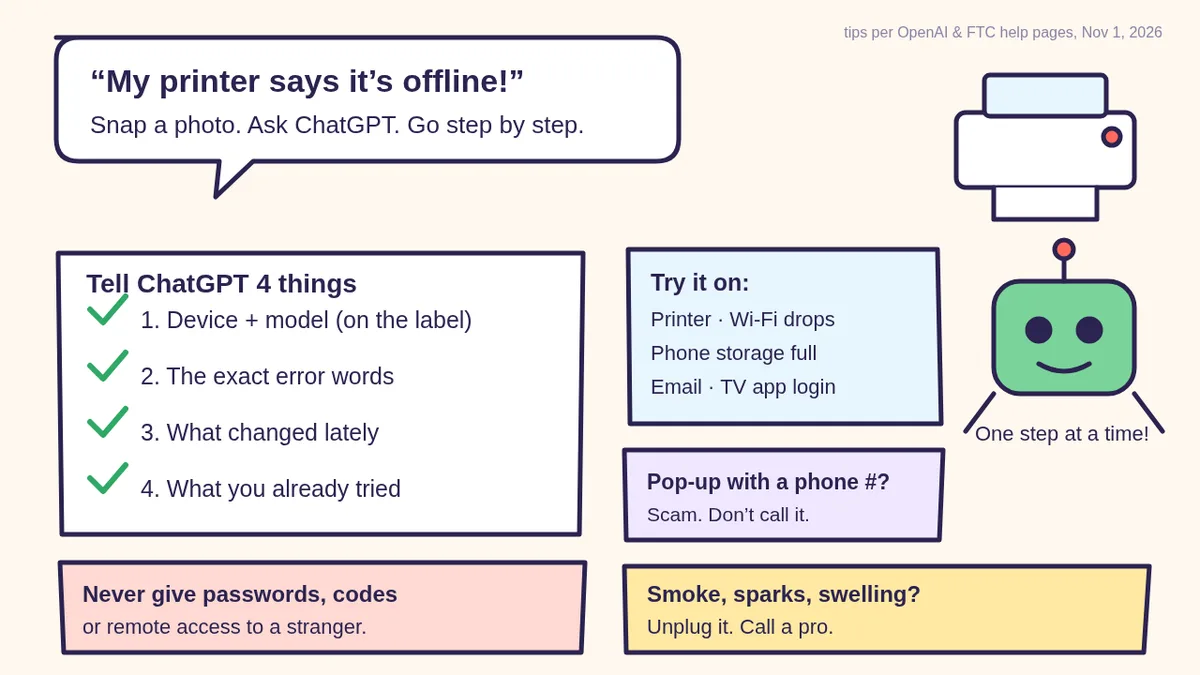
A vague question (“my internet is broken”) gets a vague answer. Give ChatGPT the same four things a good repair person would ask for:
- The device and model. “HP printer” is OK; the model name or number from the label or the box is much better. Add your phone or computer type too (iPhone, Android, Windows, Mac, Chromebook).
- The exact words of the error. Copy them letter by letter, or take a photo. “Printer offline” and “Driver unavailable” are different problems.
- What changed lately. A power cut, a new router, a phone update, a new password, moving the device to another room.
- What you already tried. So it doesn’t send you in circles.
Then add one magic line: “Give me one step at a time and wait for me to say what happened.” That turns a wall of instructions into a calm back-and-forth.
Step 2: Snap a photo or screenshot of the error
- Screenshot on a phone: on most iPhones, press the side button and the volume-up button together; on most Android phones, press the power and volume-down buttons together. The picture lands in your Photos or Gallery.
- Photo of a screen or device: get close, hold steady and keep it straight. OpenAI says ChatGPT can misread rotated or upside-down text, and that bigger text reads better, so zoom in on the words without cutting off important details.
- Cover private stuff first: use your phone’s photo editor (Markup on iPhone, Edit on Android) to cover your name, email address, account numbers, Wi-Fi password and any codes.
- Check the file type: OpenAI lists PNG, JPEG and non-animated GIF images, up to 20 MB each. Normal phone screenshots and photos are fine.
- Free plan limit: OpenAI’s help page says Free users can upload 3 files per day. If you hit the limit, type the error words instead.
🧰 Want the shortcut? Get the Starter Kit ($29)
Everything from our guides in one download: a 2-minute “pick your assistant” chart, step-by-step setup checklists for ChatGPT Projects, Claude Projects and agent-style assistants, 24 copy-paste bot recipes (personal and small business), a safety and permissions checklist, and troubleshooting fixes. Includes a ZIP of every recipe as a ready-to-paste text file.
Get the Starter Kit: $29 See what’s inside →
One-time payment, secure checkout by Stripe, instant download page right after checkout.
6 copy-paste prompts for the most common problems
Paste one into a new chat, fill in the [BRACKETS], and add your photo if you have one.
1. 🖨️ “My printer says it’s offline”
My printer says it's offline (or won't print).
Printer brand and model: [E.G. HP DESKJET 2755E]
I print from: [IPHONE / ANDROID / WINDOWS PC / MAC]
It connects by: [WI-FI / USB CABLE / NOT SURE]
Exact message I see: [TYPE IT OR SEE MY PHOTO]
What changed lately: [E.G. NEW ROUTER, POWER CUT]
What I tried: [E.G. TURNED IT OFF AND ON]
Give me ONE step at a time, starting with the
easiest, and wait for me to say what happened.
Tell me where each button or menu is in plain
words. Don't suggest anything that costs money or
asks me to call a number unless you tell me it's
the manufacturer's official support.
2. 📶 “My Wi-Fi keeps dropping”
My Wi-Fi keeps dropping. Help me figure out why.
Which devices: [JUST MY PHONE / EVERYTHING IN THE
HOUSE / ONLY ONE ROOM]
When it happens: [E.G. EVERY EVENING, RANDOMLY]
My router or internet box: [BRAND/MODEL, OR "FROM
MY INTERNET COMPANY"] (photo of the lights attached)
What I tried: [E.G. RESTARTED THE ROUTER]
1. Explain what the lights in my photo probably
   mean, in plain words.
2. Walk me through simple checks one at a time.
3. Tell me clearly when it's time to call my
   internet company, and what to say to them.
Don't ask for my Wi-Fi password.
3. 📱 “My phone says storage is full”
My phone says storage is almost full.
Phone: [IPHONE OR ANDROID, MODEL IF YOU KNOW IT]
Screenshot of my storage screen attached (Settings
› General › iPhone Storage, or Settings › Storage
on Android).
1. Tell me what's using the most space, from my
   screenshot.
2. Give me the safest ways to free up space first,
   one at a time, starting with things I can get
   back (like offloading apps I don't use).
3. Before I delete any photos or videos, tell me
   how to check they're backed up.
I don't want to lose any family photos.
Apple and Google both have this screen built in: on iPhone, Settings › General › iPhone Storage shows recommendations and lets you offload an app (frees space but keeps its documents and data); on Android, Settings › Storage, then Free up space. Menus vary by phone model and software version.
4. 📧 “My email stopped showing new messages”
My email stopped updating (new messages don't show
up, or it won't send).
Email service: [GMAIL / OUTLOOK / YAHOO / ICLOUD /
FROM MY INTERNET COMPANY]
Where I read it: [PHONE MAIL APP / GMAIL APP /
WEBSITE ON MY COMPUTER]
Exact error, if any: [TYPE IT OR SEE MY SCREENSHOT]
What changed lately: [E.G. CHANGED MY PASSWORD,
NEW PHONE, UPDATE]
Walk me through it one step at a time. First help
me check whether the problem is my app or my
account by trying the email website in a browser.
Never ask me for my password or a login code; if I
need to sign in again, tell me to do it myself on
the official website or app.
5. 📺 “My TV or streaming app won’t log in”
I can't sign in to [STREAMING APP] on my
[TV BRAND / ROKU / FIRE TV / APPLE TV / GOOGLE TV].
What I see: [TYPE IT OR SEE MY PHOTO]
The app may show a code or QR code to type on my
phone. Walk me through it one step at a time:
1. How to tell the real sign-in website from a
   fake one (I'll type the address myself, not
   search for "activate").
2. What to do if the code expired.
3. What to check if it says my account or payment
   has a problem. I'll check that only inside the
   official app or website.
Don't ask me for my password.
Typing the sign-in address yourself matters: the FTC warns that tech support scammers try to get their websites to show up in search results and run their own ads, hoping you’ll call their number.
6. 🚨 “A scary pop-up says I have a virus”
A pop-up on my [COMPUTER / PHONE / TABLET] says:
[TYPE THE WORDS, OR SEE MY PHOTO OF THE SCREEN]
It shows a phone number. I have NOT called it and
NOT clicked anything.
1. Tell me honestly if this looks like a tech
   support scam.
2. Tell me how to close it safely on my device
   (closing the browser tab or window, or
   restarting).
3. Tell me how to check my computer the real way,
   with my own security software.
Do NOT tell me to call the number on the screen.
The FTC is blunt about this one: real security pop-up warnings and messages will never ask you to call a phone number, and legitimate tech companies won’t contact you by phone, email or text to say there’s a problem with your computer. More on spotting fakes in Is this a scam? Check it with ChatGPT.
🔒 Members-only
Members get the full pack: 12 more fix-it prompts + a fill-in “My Tech Help Card”
Copy-paste prompts for Bluetooth headphones or a hearing aid that won’t connect, a slow computer, a phone or computer update that’s stuck, a battery that drains fast, texts that won’t send, a video call where nobody can hear or see you, a smart speaker or doorbell camera that went offline, backing up photos before you clean up, moving to a new phone, resetting a forgotten password the safe way, writing a clear message to the manufacturer’s support, and a “should I repair or replace it?” checklist. Plus a fill-in My Tech Help Card for the fridge.
Bot Club · $9/mo · cancel anytime. Your Member Library opens right after checkout.
Join Bot Club, unlock the full pack · $9/moStep 3: Follow the safety rules (every time)
- You start the conversation. The FTC says legitimate tech companies won’t contact you by phone, email or text to tell you there’s a problem with your computer. If someone calls you about your computer, hang up.
- Never call a number in a pop-up. The FTC says real security pop-ups never ask you to call a phone number. Close the tab or browser, or restart.
- Never give remote access to someone you didn’t contact first. Remote access lets a person control your computer from far away. The FTC says that’s exactly what tech support scammers ask for, then they “find” a problem and charge you to fix it.
- Never share passwords, login codes or PINs, not with ChatGPT, not with a caller, not with a “technician” in a text. Sign in yourself on the official app or website.
- Never pay with gift cards, a wire transfer, cryptocurrency or a payment app for tech help. The FTC says scammers insist on these because, like cash, once you pay it’s hard to get your money back.
- Ignore “your subscription renewed, call to cancel” messages. The FTC warns about fake invoices using names like Geek Squad, McAfee and Norton. Check your card or bank statement yourself, and contact the company using a number you know is real.
- Write down what you changed. If ChatGPT’s step makes things worse, you (or a pro) can undo it.
- Stop before anything that erases data (“reset to factory settings,” “erase all content”) unless your photos and files are backed up and you’re sure.
When to stop and call a pro or the manufacturer
- Anything that smokes, sparks, smells hot or burnt, or a battery that’s swollen or puffy. Don’t keep troubleshooting; unplug it if it’s safe to do so and contact the manufacturer or a qualified repair shop.
- Water damage, a cracked screen or anything that means opening the case.
- The device is under warranty. Home fixes can sometimes cause more trouble; check the manufacturer’s official support first.
- The internet is out for the whole house after a router restart: call your internet company using the number on your bill or in its official app.
- Your photos, files or business records are at risk and you don’t have a backup.
- You’ve tried the easy steps twice and it keeps coming back.
Finding real help: use the support phone number or website printed on the device, the box, your receipt or your bill, or type the manufacturer’s website yourself. The FTC says many software companies offer support online or by phone, stores that sell computer equipment also offer technical support in person, and if you need help, go to someone you know and trust. Not sure if it’s a scam? The FTC suggests talking to a friend, family member or neighbor first.
Already let someone in or paid? Do this now
- Hang up and stop all contact.
- Change your passwords. The FTC says if you gave a tech support scammer your username and password, change it right away, and change it anywhere else you used the same one.
- Check your card and bank statements. The FTC says to report an unauthorized charge to your card company or bank and ask them to reverse it. Call them using the number on your card.
- Run your own security software. The FTC says to update your computer’s security software and run a scan. If someone had remote access, consider having a trusted local repair shop check it.
- Report it at ReportFraud.ftc.gov. Our scam-check guide has a prompt that turns what happened into a clear report.
Privacy: what to share with ChatGPT
Share the problem, not your secrets. Device models, error messages, photos of router lights and screenshots of settings are fine. Cover or leave out passwords, Wi-Fi passwords, login codes, account and card numbers, and your home address. Want fewer chats saved? Use a Temporary Chat; see ChatGPT Memory and Temporary Chat and Is my AI assistant safe?
Troubleshooting ChatGPT itself
- It can’t read my photo. Retake it closer and straighter, crop to just the message, or type the error words. OpenAI says the model can misread rotated text and does better when text is enlarged.
- The menus it describes don’t match my screen. Say so, and add your exact model and software version. Ask: “My screen shows [WHAT YOU SEE]. What’s the closest option?”
- It gave me 15 steps at once. Reply: “Too many. One step at a time, please, and wait for me.”
- It says upload limit reached. OpenAI says Free users are limited to 3 file uploads per day. Type the error words instead, or try again later.
- I’m helping a parent over the phone. Ask them to send you a photo of the screen. Run the prompt yourself, then read them one step at a time.
Why Bot Club is only $9 a month
This guide gives you six fix-it prompts free. Bot Club is for having the right prompt ready the moment something stops working: the 12 extra prompts above (Bluetooth, a slow computer, stuck updates, battery drain, texts that won’t send, video calls, offline smart devices, photo backups, a new phone, safe password resets, a clear message to support and repair-or-replace) and the fill-in My Tech Help Card, plus every other members-only pack (scam checks, bills and paperwork, budgeting, emails and more) in one Member Library, and a new recipe each month. Cancel anytime from your Stripe receipt.
Want it done faster?
🧰 Starter Kit: $29
24 copy-paste bot recipes, setup checklists and a safety checklist, with a ZIP of every recipe as a text file.
Get the Starter Kit: $29🏆 Bot Club: $9/month
The 12 fix-it prompts and My Tech Help Card above, every other members-only pack, and a new recipe every month. Cancel anytime.
Join Bot Club: $9/mo🛠️ Done-for-you setup
$199 setup + $49/month. Want an AI assistant set up for your business and tested on your real everyday tasks? We build it with you, then keep it tuned every month.
Get set up: $199Setting up a parent or grandparent? Start with ChatGPT for seniors (big text, voice and safe habits). Not sure which assistant fits you? Take the 2-minute AI sidekick quiz.
Study Buddy Engineer is independent and is not affiliated with OpenAI, the FTC, Apple, Google or any device maker, internet company or streaming service named here. ChatGPT can make mistakes, and menus differ by device and software version. This guide is general information, not professional repair advice. For electrical, battery or water-damage problems, or anything under warranty, contact the manufacturer or a qualified repair professional.
Winter storm coming? Charge your phone and power bank, print your plan, and see how to get ready for winter storms and power outages with ChatGPT: a Ready.gov supply list, what in your home needs electricity, and the generator and carbon monoxide rules to keep handy.
New phone in the house? See how to set up a new phone for a parent or grandparent, step by step for iPhone and Android, including what will and won’t transfer from the old phone.
Sources
- OpenAI Help: ChatGPT Image Inputs FAQ (checked Nov 1, 2026)
- OpenAI Help: Uploading files and audio to ChatGPT (checked Nov 1, 2026)
- FTC Consumer Advice: How To Spot, Avoid, and Report Tech Support Scams (checked Nov 1, 2026)
- FTC: ReportFraud.ftc.gov (checked Nov 1, 2026)
- Apple Support: How to check the storage on your iPhone and iPad (checked Nov 1, 2026)
- Android Help: Free up storage on your Android device (checked Nov 1, 2026)
Keep going: related guides
- Upload a photo or PDF to ChatGPT
- Is this a scam? Check it with ChatGPT
- ChatGPT for seniors: a gentle setup
- Talk to ChatGPT out loud (voice mode)
🎁 Free: 10 copy-paste ChatGPT prompts
Ten short copy-paste prompts from our free guides, each with a Copy button:
- Reply to a customer review (good or bad)
- A week of social posts in 5 minutes
- Match your resume to one job posting
- Practice the interview out loud
- “Use up my fridge” dinners
- A “tight week” budget dinner plan
- Fill in your “trip card”
- Plan a road trip like a human
- “Explain it like I’m 10”
- “Grade my answer, don’t write it”
Free with an email signup. We never sell your email.
Pick the easiest way to get going
Three simple options. Secure checkout by Stripe.
🧰 Starter Kit
- Pick-your-assistant chart
- Setup checklists
- 24 copy-paste bot recipes
- Safety checklist + troubleshooting
🏆 Bot Club
- New bot recipes every month
- Ready-made templates
- Monthly “get unstuck” Q&A in the members area
- Cancel anytime
🛠️ Done-for-you setup
- We set up your assistant with you
- Monthly tuning: fixes, updates
- New recipes as you go
📬 Get one fun bot trick every week
The Bot Whisperer newsletter: free, plain English, unsubscribe anytime.
Coming soon: sign-ups open shortly. Follow @teachbots to hear when they do.