🏆 Bot Club, $9/mo: new copy-paste bot recipes and ready-made templates every month, plus a monthly “get unstuck” Q&A post in the members area. Cancel anytime.
Join Bot ClubWhy this is the most underrated beginner trick
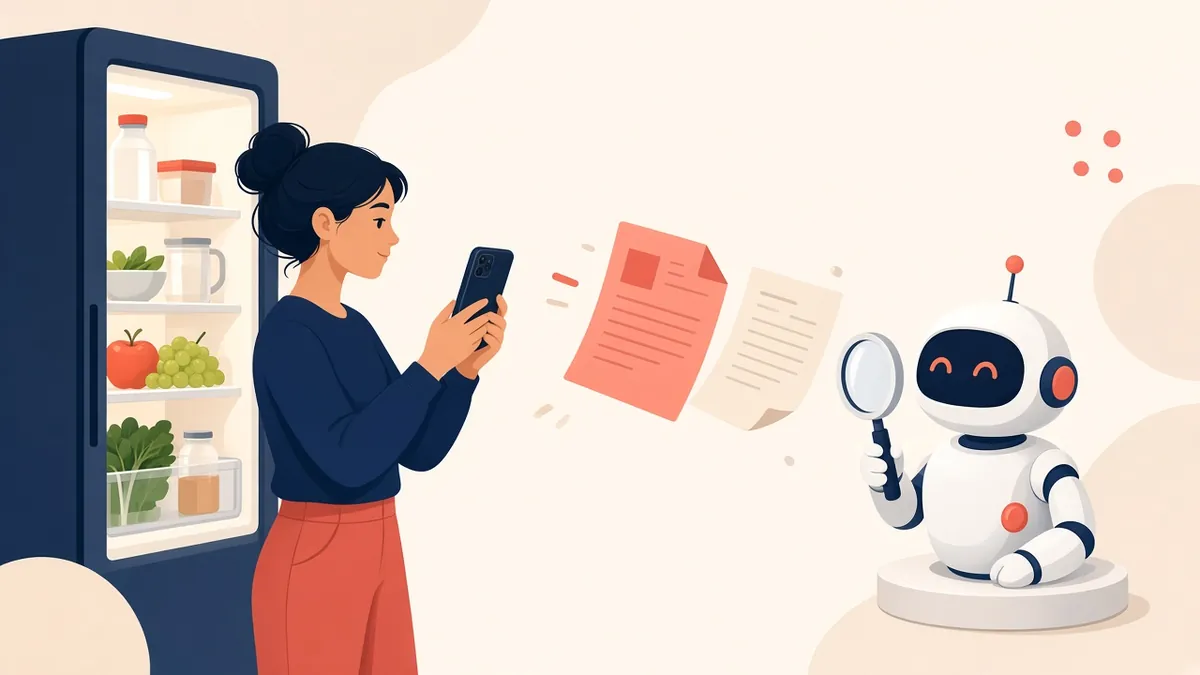
Most people only ever type to their AI assistant. But the moment you show it a photo or a document, it gets way more useful: it can read the confusing letter, explain the error on your screen, turn your handwritten notes into flashcards, or tell you what to make with the sad half-onion in your fridge. No retyping.
What you can upload
📸 Photos and screenshots
PNG, JPEG and non-animated GIF, up to 20 MB per image. Phone photos are fine.
📄 Documents
PDF, Word (DOCX) and plain text (TXT), up to 512 MB per file. A Google Doc can’t be uploaded directly: export it as PDF or DOCX first.
📊 Spreadsheets and slides
Excel (XLSX, XLS), CSV and TSV (about 50 MB), and PowerPoint (PPTX).
Those types and limits come from OpenAI’s own help pages (linked at the bottom). Paid plans can also upload audio files, but we’ll keep this guide to photos and documents.
Step 1: Add your photo or file
📱 On your phone (ChatGPT app)
- Open the ChatGPT app and start a new chat.
- Tap the + next to the message box.
- Pick where your picture or file is: your photos, the camera (to snap one right now) or your files. The exact labels can change between app versions.
- If your phone asks whether ChatGPT can use your photos or camera, allow it.
💻 On a computer (chatgpt.com)
- Click the + in the message box and choose Add photos & files.
- Or just drag the file into the message box.
- Or take a screenshot, copy it, and paste it straight into the message box.
Step 2: Tell it exactly what you want (the magic part)
An upload with no instructions gets a generic answer. Use this 4-part formula: what it is, what you want, how you want it, and permission to say “I can’t read that.”
This is a photo of [my electric bill / a letter from my insurance /
my kid's math worksheet].
Please [explain it in plain words / list what I need to do / tell me
the deadline].
Keep it short, use bullet points, and quote the exact line you're
talking about.
If any part is blurry or you can't read it, tell me instead of
guessing.
That last line matters most. It turns a confident wrong answer into a helpful “I can’t read the second paragraph, can you retake it?”
Step 3: Check its work (30 seconds)
OpenAI’s image help page is refreshingly honest about what trips it up. Retake the photo or double-check when:
- The photo is rotated, upside down, blurry or tiny. Hold the phone straight and fill the frame with the text.
- The text is in a non-Latin alphabet like Japanese or Korean (it does less well with those).
- You need an exact count of things in a photo (counts can be approximate).
- It’s a tricky chart with lots of colors or dashed lines.
- It’s a medical scan like a CT scan. OpenAI says image inputs aren’t suitable for that or for medical advice. Ask your doctor.
Quick check: ask “Which numbers in your answer came straight from the photo?” and compare those to the original.
10 fun, useful things to try
🧾 1. The mystery bill explainer
[Photo of the bill, with account number covered.]
Explain this bill like I'm 12. What am I paying for, what changed
from a normal month, and is there a due date or late fee?
🥡 2. “What can I make with this?”
[Photo of the inside of your fridge or pantry.]
Suggest 3 easy dinners I can make mostly from what you see.
List anything you're not sure you identified correctly.
Want a whole week planned? Our meal planner guide takes it from here.
🌱 3. Plant doctor
[Close-up photo of the leaves, plus one of the whole plant.]
What might be going on with my plant? Give me the 3 most likely
causes and one simple thing to try for each.
🔧 4. “What does this button do?”
[Photo of the washer, thermostat or remote, with the button circled.]
What is the circled button or symbol probably for? If you're not
sure of my exact model, say so and tell me where to find the model
number.
📑 5. The long-PDF summary (lease, policy, manual)
[Upload the PDF.]
Summarize this in 10 bullet points. Then list every deadline, fee
and "what happens if I cancel" rule, with the page number for each.
📚 6. Notes to flashcards
[Photo of your handwritten notes or a textbook page.]
Make 10 flashcards from this as a Question | Answer table. Only use
what's on the page, and list any words you couldn't read.
Then have it quiz you, step by step, with our study buddy guide.
🧮 7. Receipts to a tidy table
[Photos of 3 receipts.]
Make a table: date, store, total, and a category (food, gas,
supplies). Add a total at the bottom. Mark anything you can't read
as [CHECK].
💻 8. The scary error message
[Screenshot of the error.]
What does this error mean in plain words? Give me the safest
first thing to try. Don't suggest anything that deletes my files.
🍽️ 9. Menu translator
[Photo of the menu.]
Translate this menu into English and tell me which dishes are
vegetarian or might contain nuts. Flag anything you're unsure of.
Allergies are serious: always confirm with the restaurant staff, whatever the translation says.
⚖️ 10. Compare two quotes
[Upload both PDFs or photos.]
Compare these two quotes for [the roof repair] in a table: price,
what's included, what's NOT included, warranty and start date.
Then list 3 questions I should ask each company.
PDF tips that save headaches
- Scanned PDFs can be a problem. OpenAI says that outside ChatGPT Enterprise, it reads the digital text in a document and doesn’t read images inside it. If your PDF is really a scan or photos of pages, upload clear photos or screenshots of the pages instead.
- Ask for page numbers. “Quote the sentence and give the page number” makes it easy to check the original.
- Big document? Ask about one part at a time. “Just section 4, the cancellation part” gets a sharper answer than “summarize all 80 pages.”
Same idea in Claude (and Grok Bot)
In Claude, click the + in the lower left of the chat box and choose Add files or photos, or drag files in, or paste a copied image. Anthropic’s help page lists up to 20 files per chat, and Claude reads both the text and the charts or pictures in PDFs of 100 pages or fewer. One handy tip from Anthropic: when you ask about a page, use the page number your PDF viewer shows, not the one printed on the page. Want the same files available in every chat? Put them in a Claude Project.
Grok Bot can work with files too: xAI’s FAQ says Bots can use files, connected tools and websites on a persistent cloud computer. Start with our Grok Bot beginner guide.
Privacy rules before you upload (please read)
- Cover or crop the private stuff first: account numbers, Social Security numbers, passwords, card numbers, your full address and anyone’s ID. ChatGPT almost never needs those to help.
- Ask before sharing other people’s photos or documents, especially kids and medical info.
- Want it kept out of training? In ChatGPT, go to Settings → Data controls and turn off Improve the model for everyone. Or use a Temporary Chat: OpenAI says those aren’t used to improve its models, don’t show up in your history, and may be kept for up to 30 days for safety.
- Deleting a chat doesn’t always delete the file. OpenAI notes that a file saved in your Library stays there until you delete it from Library too.
More simple rules in our AI safety guide.
Troubleshooting
- “Upload limit reached”? Free users can upload 3 files a day. Paid plans can upload up to 80 files every 3 hours, and OpenAI says it may lower limits at busy times. Failed upload attempts can sometimes count too, so wait a bit and try again.
- Can’t pick a Google Doc? Export it as PDF or Word (DOCX) and upload that.
- Can’t find the + button? Update the app, make sure you’re signed in to the right account, and check status.openai.com for outages.
- Answer looks wrong? Retake the photo straight on, in good light, closer to the text, and add “tell me what you can’t read.”
Want a ready-made “explain this for me” bot?
🧰 Starter Kit: $29
Setup checklists for ChatGPT Projects, Claude Projects and agent-style assistants, a safety checklist, and 24 copy-paste bot recipes, including “The Bot That Writes Your Bot” so you can save your favorite photo prompts as your own helper.
Get the Starter Kit: $29🏆 Bot Club: $9/month
New bot recipes and templates every month, plus a monthly “get unstuck” Q&A in the members area. Cancel anytime.
Join Bot Club: $9/mo🛠️ Done-for-you setup
$199 setup + $49/month. We build an assistant around your goals with you, test it, then keep it tuned every month.
Get it set up: $199 + $49/moNot sure which assistant fits you? Take the 2-minute AI sidekick quiz, or browse 25 fun things to try with your AI bot.
Want ChatGPT to change your photo instead of just reading it, like turning your pet into a watercolor? See ChatGPT image generation for beginners.
Uploading a spreadsheet? See ChatGPT for Excel and Google Sheets for how to set up the columns so ChatGPT reads it right, and how to get formulas you can paste straight in.
Uploading a bill, a notice or a form? Our guide to understand confusing letters, bills and forms with ChatGPT has prompts for what it means, what’s due and when, scam red flags (from the FTC) and a polite reply.
Selling something? Upload photos of the item, its label and any flaws, then follow our guide to write resale listings with ChatGPT for a title, an honest description and the measurements buyers want.
Got a stack of lab results or a visit summary? See how to prepare for a doctor’s appointment with ChatGPT: a one-page symptom summary and a short list of questions to bring.
Got a whole stack of PDFs on one topic? Google’s free Gemini Notebook (formerly NotebookLM) keeps up to 50 sources in one notebook and answers with clickable citations; see Gemini Notebook for beginners.
Use Google’s assistant instead? The Gemini app takes photos and files too (Add files), and on your phone Gemini Live can look through your camera. See Gemini app for beginners.
Printer, Wi-Fi or phone acting up? A photo of the error message is the fastest way to get help. See Fix everyday tech problems with ChatGPT for 6 copy-paste prompts (printer offline, Wi-Fi drops, storage full, email, TV app login, scary pop-ups) and when to call a pro instead.
On an iPhone? With a photo or PDF open, you can say “Hey Siri, ask ChatGPT to summarize this,” and Siri asks before the file is sent. See ChatGPT with Siri on iPhone.
Got a menu, sign or school note in another language? Snap a photo and ask ChatGPT to explain it in plain words. More tricks in our guide to how to use AI as a translator, including Google Translate’s camera and iPhone Live Translation.
Uploading a VA letter? Cover your Social Security and VA file numbers first. Our guide to how to use ChatGPT for VA letters and claims prep has six safe prompts.
Try it on a travel day: screenshot an airline’s “your flight has changed” message (cover your confirmation code), upload it, and ask whether it’s a significant change. Walk-through: flight canceled or delayed? refund rights + ChatGPT help.
Try it on a shipping update: screenshot the store’s “where’s my order?” page (cover card digits), upload it, and ask whether you’re past the ship deadline. Walk-through: delayed or missing package? delivery rights + ChatGPT help.
Sources
- OpenAI Help: ChatGPT Image Inputs FAQ
- OpenAI Help: Uploading files and audio to ChatGPT
- OpenAI Help: Data controls in ChatGPT
- Claude Help Center: Upload files to Claude
- xAI Docs: Grok Bot FAQ
🎁 Free: 10 copy-paste ChatGPT prompts
If this guide helped, these two free study prompts pair well with it, with a Copy button:
- “Explain it like I’m 10”
- “Grade my answer, don’t write it”
The pack also has 8 more copy-paste prompts from our other free guides (job search, meals, trips, study and small business).
Free with an email signup. We never sell your email.
Pick the easiest way to get going
Three simple options. Secure checkout by Stripe.
🧰 Starter Kit
- Pick-your-assistant chart
- Setup checklists
- 24 copy-paste bot recipes
- Safety checklist + troubleshooting
🏆 Bot Club
- New bot recipes every month
- Ready-made templates
- Monthly “get unstuck” Q&A in the members area
- Cancel anytime
🛠️ Done-for-you setup
- We set up your assistant with you
- Monthly tuning: fixes, updates
- New recipes as you go
📬 Get one fun bot trick every week
The Bot Whisperer newsletter: free, plain English, unsubscribe anytime.
Coming soon: sign-ups open shortly. Follow @teachbots to hear when they do.