🏆 Bot Club, $9/mo: new copy-paste bot recipes and ready-made templates every month, plus a monthly “get unstuck” Q&A post in the members area. Cancel anytime.
Join Bot ClubWhat is Gemini Notebook (and what happened to NotebookLM)?
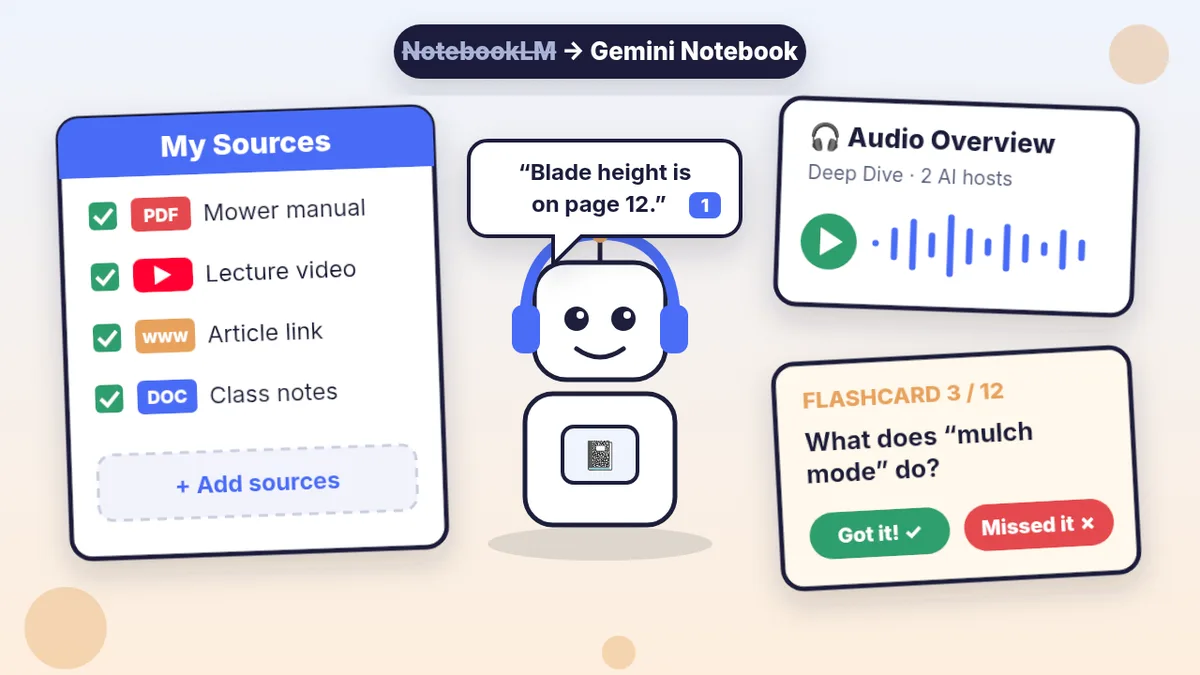
Think of it as a very fast reading buddy for a stack of papers. You make a notebook for one topic (a class, a big appliance manual, your HOA rules, a trip, a hobby), drop in your sources, and then ask it questions. Unlike a regular chatbot, its answers come from your sources, with little numbered citations that jump to the exact spot it’s quoting.
On July 16, 2026 Google renamed NotebookLM to Gemini Notebook. Google says it’s “the same standalone product,” now working more closely with the Gemini app and Google Search. Google’s Workspace team says automatic redirects keep existing links and shared notebooks working, and phone users may need to update the app. So if a friend sends you a NotebookLM link, it still works; you’ll just see the new name.
Who can use it, and is it free?
- You need a Google Account. Google says a personal account you manage works, and so do most work or school accounts (an admin may need to turn it on). You must be above the age of consent in your country, and you may need to verify your age in your Google Account first. Google says users under 18 get stricter content rules, and some features are 18+.
- Free to start. Google’s plans page says you can sign up free with your Gmail account. The free (“Standard”) level allows 100 notebooks with up to 50 sources each. Each source can be up to 500,000 words or 200 MB for uploaded files.
- Usage limits refresh. Google says limits are “compute-based”: bigger requests use more. They refresh every 5 hours, up to a weekly limit, and you can check yours under Settings, Usage. Google AI Plus is listed at 2x the standard limits and AI Pro at 4x (Google says limits may change). You don’t need to pay to try everything in this guide.
- Available in many countries and 80+ languages, Google says, including the United States, Canada, the UK and Australia.
What can you put in a notebook?
Google lists these source types (checked Oct 27, 2026):
- Files: PDF, Word (.docx), text (.txt), Markdown, CSV, PowerPoint (.pptx), ePub, and audio files like MP3 and WAV.
- Google files: Google Docs, Google Slides (up to 100 slides) and Google Sheets.
- Web links and YouTube links to public videos.
- Pictures (JPG, PNG, HEIC and more), copied-and-pasted text, and eligible Google Play Books ebooks (text only).
- Can’t find good sources? Type a research question in the Add sources search box and it can discover sources from the web for you.
Each notebook is separate: Google says it can’t look across multiple notebooks at once. So make one notebook per topic.
🧰 Want the shortcut? Get the Starter Kit ($29)
Everything from our guides in one download: a 2-minute “pick your assistant” chart, step-by-step setup checklists for ChatGPT Projects, Claude Projects and agent-style assistants, 24 copy-paste bot recipes (personal and small business), a safety and permissions checklist, and troubleshooting fixes. Includes a ZIP of every recipe as a ready-to-paste text file.
Get the Starter Kit: $29 See what’s inside →
One-time payment, secure checkout by Stripe, instant download page right after checkout.
Step 1: Make your first notebook (5 minutes)
- Go to notebook.google.com and sign in with your Google Account.
- Choose Create new notebook.
- In the pop-up, choose Upload a source and pick 1 to 3 things on one topic. Good first tries: a long PDF manual, a class handout, a public YouTube lecture, or a news article link. (To add several web links at once, put each on its own line.)
- Look at the three areas: Sources (your stuff, with checkboxes), Chat (it starts with a summary of your sources) and Studio (where it makes Audio Overviews, flashcards, quizzes, reports and more).
- Ask your first question in Chat. Hover over a citation number to see the quote, or click it to jump right to that spot.
3 copy-paste prompts to try today
1. 📄 Explain my papers like I’m brand new
Paste this into the Chat box after you add your sources.
I'm a complete beginner on this topic. Using only my
sources:
1. Explain what they're about in 5 short sentences.
2. List the 5 most important points, each with a
   citation.
3. Make a mini dictionary of up to 8 words or terms I
   probably don't know, in plain English.
4. Tell me what my sources DON'T cover that I might
   need to find somewhere else.
Use short, simple words.
Want it to teach rather than tell? Google’s help page says you can choose Configure Chat and pick the Learning Guide style, which is made for learning new ideas. Then ask, “Quiz me one question at a time.”
2. 🎧 Turn it into a podcast you can listen to on a walk
In Studio, choose Audio Overview (or the pencil icon to customize). Google lists four formats: Deep Dive (two hosts, the default), The Brief (one speaker, under two minutes), The Critique and The Debate, plus Shorter, Default or Longer length (length is English only). Paste this into the prompt box:
The listener is a total beginner. Start with a one-
sentence "why this matters." Explain every piece of
jargon the first time you use it, with an everyday
example. Focus on: [THE PART I CARE ABOUT].
Skip: [THE PART I DON'T NEED].
End with the 3 things I should remember.
It can take a couple of minutes. Google says you can keep working while it makes the audio, change the playback speed, and download it. Want to talk back? Choose Interactive mode on a new Audio Overview (English only), press Join, and ask the hosts a question out loud.
3. 📝 Make flashcards and a practice quiz from your own notes
In Studio, click the pencil icon next to Flashcards or Quizzes, pick easy, medium or hard, and paste this:
Make these for a beginner preparing for [TEST / TASK]
on [DATE]. Focus only on [CHAPTERS OR TOPICS].
Use plain words. Mix simple "what is" questions with
"what would you do if" questions. For each answer,
point back to the part of my sources it comes from.
Then study: mark cards Got it! or Missed it!, press Explain on anything confusing, and when you finish choose Only cards you missed. Google says it remembers your progress if you leave and come back, and you can download flashcards as a CSV file. Students: check your class rules on AI and use it to practice, not to hand in work. More study ideas in our study buddy guide.
🔒 Members-only
Members get the full pack: 12 more Gemini Notebook prompts + a fill-in “My First Notebook” card
Copy-paste prompts for real life: a manual-to-checklist, a class “what will be on the test” brief, a meeting or lecture recording to action list, a YouTube video explained step by step, a two-source compare table, a “find the catch” in rules or terms, a family-history or hobby notebook, a slide deck outline, a custom Audio Overview for a commute, a one-page report to export to Google Docs, a data table for Google Sheets and a “what’s missing” research check. Plus a fill-in My First Notebook card.
Bot Club · $9/mo · cancel anytime. Your Member Library opens right after checkout.
Join Bot Club, unlock the full pack · $9/moStep 2: Share it (or keep it private)
- Private by default. Google’s FAQ says a lock icon on the share menu means the notebook is private. It changes when you share it with people, and shows a globe when it’s public.
- Share with one person: open the notebook, choose Share, add their email and pick Viewer or Editor.
- Share just the audio: in the audio player choose Share, or Download the Audio Overview and send the file. Google notes that sharing a link to the audio requires the notebook to be shared or public, so think twice if your sources are personal.
Step 3: It’s in the Gemini app too
Google’s help page says notebooks you create now also appear in the Gemini app, and changes sync both ways. The difference: in Gemini Notebook, answers come only from your sources; in the Gemini app, answers start from your sources but may also use web search and other tools. The Studio extras (Audio Overviews, Video Overviews, slide decks and so on) are only in Gemini Notebook. New to Gemini itself? See ChatGPT vs Claude vs Gemini.
Privacy tips
- Training: Google says your notebook content isn’t used to train Gemini Notebook unless you give feedback. If you press thumbs up or down, Google may collect the full context (your questions, uploads and answers), have trained reviewers look at it, and keep it for up to 3 years, disconnected from your account. So don’t send feedback on anything private.
- Work or school accounts: Google says Workspace users’ uploads and chats aren’t reviewed by people or used to train AI models.
- Chats inside the Gemini app follow your Gemini Keep Activity setting. Google notes that turning off or deleting Gemini Apps activity does not delete what’s in Gemini Notebook; delete it there too.
- Clean your files first. Cover or delete account numbers, Social Security or Medicare numbers and anything about other people before you upload. More in Is my AI assistant safe?
Troubleshooting
- “Gemini Notebook can’t answer this question.” Google says this happens when the answer isn’t in your sources, the question is unclear, or a source trips a safety flag (even for history topics). Ask something more specific, or add a better source. It also won’t do creative jobs like rewriting the end of a story.
- My PDF won’t upload. Google says imports fail if a source is over 500,000 words or 200 MB, or if the PDF is copy-protected.
- No citations on an answer. If a source is very short, Google says it cites the whole document instead of a specific quote.
- “Limit reached.” Wait for the reset time shown at the bottom of the chat (limits refresh every 5 hours up to a weekly cap), or on the web choose Generate later on a Studio item and it’ll notify you when it’s done.
- I deleted a note by accident. Google’s FAQ says deleted notes can’t be recovered right now. Save important answers with Save to note and export reports to Google Docs.
- Can’t open it with a school or work email. Your admin has to turn it on; try a personal Google Account for home projects.
Why Bot Club is only $9 a month
This guide gives you the first three Gemini Notebook prompts free. Bot Club is for having the right prompt ready the moment you need it: the 12 extra prompts above (manual to checklist, “what will be on the test,” recording to action list, YouTube how-to steps, two-source compare, find the catch in rules or terms, family history timeline, slide outline, commute audio, one-page report for Docs, data table for Sheets and a “what’s missing” check) and the fill-in My First Notebook card, plus every other members-only pack (study, emails, spreadsheets, bills and paperwork and more) in one Member Library, and a new recipe each month. Cancel anytime from your Stripe receipt.
Want it done faster?
🧰 Starter Kit: $29
24 copy-paste bot recipes, setup checklists and a safety checklist, with a ZIP of every recipe as a text file.
Get the Starter Kit: $29🏆 Bot Club: $9/month
The 12 Gemini Notebook prompts and My First Notebook card above, every other members-only pack, and a new recipe every month. Cancel anytime.
Join Bot Club: $9/mo🛠️ Done-for-you setup
$199 setup + $49/month. Want an AI assistant set up for your business and tested on your real everyday tasks? We build it with you, then keep it tuned every month.
Get set up: $199Not sure which assistant fits you? Take the 2-minute AI sidekick quiz.
Study Buddy Engineer is independent and is not affiliated with Google. Gemini Notebook, NotebookLM and Gemini are Google products; features, limits and availability can change, so check Google’s help pages for the latest. This guide is general information, not legal, medical or financial advice.
New to the Gemini app itself? Start with Gemini app for beginners: first chat, talking out loud with Gemini Live, and saving reusable skills.
Sources
- Google blog: NotebookLM is now Gemini Notebook (Jul 16, 2026) (checked Oct 27, 2026)
- Google Workspace Updates: NotebookLM is now Gemini Notebook (checked Oct 27, 2026)
- Gemini Notebook Help: Learn about Gemini Notebook (checked Oct 27, 2026)
- Gemini Notebook Help: Create a notebook (checked Oct 27, 2026)
- Gemini Notebook Help: Add or discover new sources (checked Oct 27, 2026)
- Gemini Notebook Help: Use chat (checked Oct 27, 2026)
- Gemini Notebook Help: Generate Audio Overview (checked Oct 27, 2026)
- Gemini Notebook Help: Generate Flashcards or Quizzes (checked Oct 27, 2026)
- Gemini Notebook Help: Manage your usage limits (checked Oct 27, 2026)
- Gemini Notebook Help: Learn about Gemini Notebook’s plans (checked Oct 27, 2026)
- Gemini Notebook Help: Get started with the mobile app (checked Oct 27, 2026)
- Gemini Notebook Help: Notebooks in Gemini Apps (checked Oct 27, 2026)
- Gemini Notebook Help: Privacy and Terms of Use (checked Oct 27, 2026)
- Gemini Notebook Help: Frequently asked questions (checked Oct 27, 2026)
Keep going: related guides
- Use ChatGPT as your study buddy
- Upload a photo or PDF to ChatGPT
- ChatGPT vs Claude vs Gemini
- ChatGPT Projects: one folder per job
🎁 Free: 10 copy-paste ChatGPT prompts
If this guide helped, these two free study prompts pair well with it, with a Copy button:
- “Explain it like I’m 10”
- “Grade my answer, don’t write it”
The pack also has 8 more copy-paste prompts from our other free guides (job search, meals, trips, study and small business).
Free with an email signup. We never sell your email.
Pick the easiest way to get going
Three simple options. Secure checkout by Stripe.
🧰 Starter Kit
- Pick-your-assistant chart
- Setup checklists
- 24 copy-paste bot recipes
- Safety checklist + troubleshooting
🏆 Bot Club
- New bot recipes every month
- Ready-made templates
- Monthly “get unstuck” Q&A in the members area
- Cancel anytime
🛠️ Done-for-you setup
- We set up your assistant with you
- Monthly tuning: fixes, updates
- New recipes as you go
📬 Get one fun bot trick every week
The Bot Whisperer newsletter: free, plain English, unsubscribe anytime.
Coming soon: sign-ups open shortly. Follow @teachbots to hear when they do.