🏆 Bot Club, $9/mo: new copy-paste bot recipes and ready-made templates every month, plus a monthly “get unstuck” Q&A post in the members area. Cancel anytime.
Join Bot ClubWhat is the Gemini app (in plain English)?
Think of Gemini as a helpful, very fast assistant you can text or talk to. Google says it can help you brainstorm, make a plan, explain a complicated topic in simple words, and write first drafts of emails, outlines and more. You can type, use your voice, add a photo or file, or point your phone’s camera at something and ask about it. It can also work with connected apps like Google Workspace (Gmail, Docs, Drive) and YouTube Music when you turn them on.
There’s one Gemini, two easy doors: the website gemini.google.com (Google lists Chrome, Safari, Firefox, Opera and Edge as supported browsers) and the Gemini mobile app. On Android, Gemini can also be your phone’s main assistant.
Who can use it, and is it free?
- You need a Google Account to get the good stuff. On some devices you can ask simple questions without signing in, but Google says signed-out users don’t get chat history, file uploads, image making, Gems or connected apps. On an Android phone, signing in is required.
- Which accounts work: a personal Google Account works. Google says work accounts need a qualifying Workspace edition (and you must be 18+), and school accounts work only if the school turns it on. On iPhone, Google says a child’s account managed by Family Link can’t use the Gemini app.
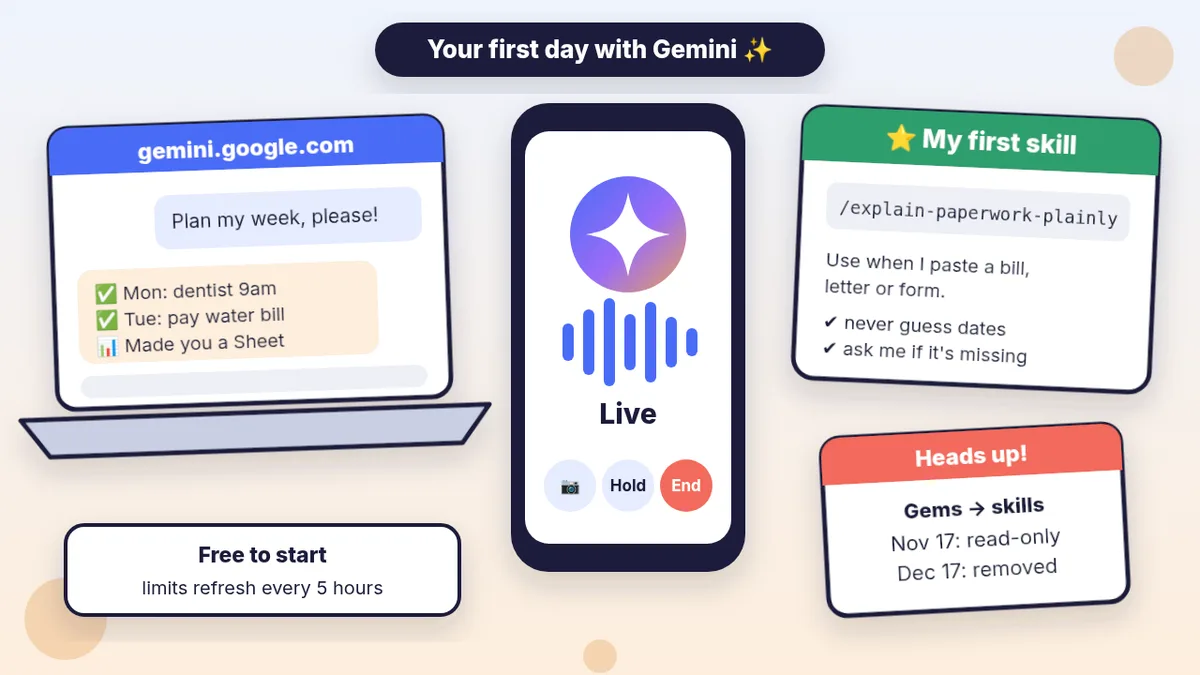
- Free to start, with limits. Google says Gemini uses “compute-based” limits: short simple questions use very little, while long chats, big files, Deep Research and video making use a lot. Your limit refreshes every 5 hours until you hit a weekly limit. Check yours on the web under Settings, Usage Limits.
- Paid plans raise the limits. Google’s limits page lists Google AI Plus at 2x the standard limits and AI Pro at 4x, and says some features are only on paid plans. We don’t list prices here because they vary by country and change; check Google’s own plans page before you pay. You don’t need to pay for anything in this guide.
- How much it can “read” at once: Google lists the free context window (its short-term reading capacity) as 32k tokens, versus 128k on AI Plus and 1 million on AI Pro and Ultra. Google says 1 million tokens is about 1,500 pages of text, so the free window is much smaller: for a thick binder or a long manual, work one chapter at a time.
🧰 Want the shortcut? Get the Starter Kit ($29)
Everything from our guides in one download: a 2-minute “pick your assistant” chart, step-by-step setup checklists for ChatGPT Projects, Claude Projects and agent-style assistants, 24 copy-paste bot recipes (personal and small business), a safety and permissions checklist, and troubleshooting fixes. Includes a ZIP of every recipe as a ready-to-paste text file.
Get the Starter Kit: $29 See what’s inside →
One-time payment, secure checkout by Stripe, instant download page right after checkout.
Step 1: Your first chat (3 minutes)
- On a computer, go to gemini.google.com. On a phone, open the Gemini app. Sign in with your Google Account.
- In the text box at the bottom, type a question. Want it to look at something? Click or tap Add files to add a photo or file.
- Press Submit (the arrow). Read the answer, then just keep talking: “shorter,” “simpler words,” “make it a checklist.”
- Not quite right? Click Edit next to your question to change it and Gemini rewrites its answer. For some questions you can also click Show drafts to see other versions.
- To start fresh, click New chat (top left; open the Menu first if you don’t see it).
Two fun tricks from Google’s help page: ask Gemini to make a chart from numbers in a reply (“make a bar chart showing the amount per category”), or ask it to put the answer in a file: Google lists Docs and Sheets, PDF, Word (.docx), Excel (.xlsx), CSV and more, which you can download or export to Google Drive.
3 copy-paste prompts to try today
1. 🗂️ Turn my messy list into a plan (and a Google Sheet)
Paste this into a new chat, then paste your list underneath.
I'm new to Gemini. Here's my messy to-do list for
this week. Please:
1. Group it into Home, Work and Errands.
2. Put the 3 most urgent things at the top and
   tell me why in one short line each.
3. Suggest which day to do each thing (Mon-Sun).
4. Ask me about anything that's unclear instead
   of guessing.
Then put the final plan in a Google Sheet with
columns: Task | Group | Day | Done?
My list: [PASTE YOUR LIST]
That last line uses Gemini’s file feature from Google’s help page (“create a spreadsheet…”). Don’t include anything private, like account numbers, in the list.
2. 🎙️ Gemini Live: practice out loud (with your camera, if you like)
On your phone, open the Gemini app and tap Live (or swipe left). Google says Live is for natural back-and-forth talking, and you can interrupt it anytime, like a real conversation. Say something like this:
Hi! I'm practicing for [A JOB INTERVIEW / A TOAST /
A HARD PHONE CALL]. Play the other person. Ask me
one question at a time and wait for my answer.
After each answer, give me one thing I did well
and one thing to try next time. Keep it friendly
and short. Start now.
Want to show it something? Tap the Camera button in Live and point at a gadget, a plant or the back of a label and ask, “What am I looking at, and what should I do first?” Google says to ask permission before including other people in a Live chat. When you’re done, tap End to see the transcript.
3. ⭐ Make your first skill (so you never retype it)
A skill is Google’s new way to save reusable instructions, like a cheat sheet Gemini can use in any chat. Google says you can simply ask Gemini to make one in a chat (you need to be 18+, signed in, with Keep Activity on). Paste this into a new chat on the web or in the app:
Create a skill based on these instructions.
Name: explain-paperwork-plainly
Description: Explains confusing letters, bills and
forms in plain English. Use when I paste or upload
a letter, bill, notice or form and ask what it means.
Instructions:
- Start with one sentence: what this paper is.
- Then list: what I must do, by when, and how much
  (if any money is mentioned).
- Use short, simple words; explain any jargon.
- Common mistakes to avoid: never guess a date or
  amount; if it's missing, ask me. Never ask me for
  passwords or full account numbers.
- End with "Questions to ask them:" and 3 questions.
That follows Google’s own advice for skills: a verb-first, lowercase-with-hyphens name, a description that says “Use when…”, a common-mistakes list and what to do when information is missing. Next time, type / (Google says it’s changing to @) in any chat and pick your skill, or just paste a letter and Gemini may use it automatically. For more on paperwork, see understand bills, letters and forms.
🔒 Members-only
Members get the full pack: 12 more Gemini prompts + a fill-in “My Gemini Setup” card
Copy-paste prompts for everyday life: a morning plan from your calendar, a Gmail inbox catch-up, a “what’s this?” camera check, a fix-it helper for a household problem, a grocery list from a photo of your fridge, a polite text to a neighbor, a gift brainstorm with a budget, a 20-minute Live language or speech practice, a starter skill for your writing voice, a skill for weekly meal plans, a spreadsheet from receipts and a “check Gemini’s answer” fact-check. Plus a fill-in My Gemini Setup card.
Bot Club · $9/mo · cancel anytime. Your Member Library opens right after checkout.
Join Bot Club, unlock the full pack · $9/moStep 2: Get comfy with Gemini Live
- Phone only, for now. Google says Gemini Live is in the Gemini mobile app on iPhone, iPad and Android, and isn’t in the Gemini web app yet. You need to be signed in and over 13 (or your country’s age).
- Hold, Mute, End. Hold turns off the mic. Mute turns off your mic but lets Gemini keep talking. End (or swipe right) closes the session and shows you a transcript. Tap Live again in that chat to pick up where you left off, or keep going by typing.
- Show, don’t tell. Tap Camera to share what you see (switch between front and back cameras), or share your screen (Google says you have to turn on notifications for Gemini Live first). The camera turns off if you put Live on hold, leave the app or lock your screen.
- It can do small jobs. Google lists apps Live can use, like Google Calendar, Keep, Tasks, Gmail, Google Drive, YouTube and Spotify, for things like adding a calendar event. If it does something you didn’t mean, tap Undo while Live is on screen, or ask it to undo.
- Gems don’t work in Live. Google’s Live page says Gems can’t be used with Gemini Live for now.
Prefer ChatGPT’s version? See ChatGPT voice mode for beginners.
Step 3: Gems are going away. Here’s what to do
A Gem was Gemini’s saved helper for one job (like a “Brainstormer” or “Writing editor”). Google’s help center now says:
- November 17, 2026: for personal Google accounts (18 and over), Gems turn into skills and become read-only. You can still open them, but can’t use, edit or create Gems.
- December 17, 2026: Gems are removed. You won’t be able to open them.
- Google will recreate your Gems as skills automatically, including supported files. Under 18? Google says your switch comes later. Work accounts follow in March 2027 and school accounts in June 2027.
- Some files won’t move over: Google lists audio and video files, older Office files (.doc, .xls, .ppt), zip and other archives, and GitHub files. Skills also have a 100 MB file limit (bigger Gems lose their largest files first). So download any Gem knowledge files you care about before December 17.
- Want to move early? Open the Gem, copy its name, description and instructions, then on the sidebar choose Customize, Skills, Create, Create manually and paste them in.
How skills differ: you can use a skill in any chat by typing / (soon @), Gemini can pick the right one automatically, and you can stack several. Google says you can make as many as you like, with up to 100 active at a time, and that skills are available without a Google AI subscription. Google also says skills don’t yet work with some tools, like Canvas and Deep Research. If you used ChatGPT’s custom GPTs, this is a similar idea; see make your first custom GPT.
Privacy settings worth 2 minutes
- Keep Activity (on by default if you’re 18+) saves your chats to your Google Account. Google says it uses your activity to improve its services, including training AI, with help from human reviewers. Find it on the web under Settings & help, Activity, or at myactivity.google.com/
product/ .gemini - Turn it off and Google says future chats aren’t used to train its AI models (unless you send feedback), but they’re still kept for up to 72 hours so Gemini can answer you. The trade-off: skills need Keep Activity on, and many connected apps stop working.
- Temporary chat (personal accounts): click Temporary chat next to New chat. Google says these don’t appear in your history and aren’t used to train its models, but you can’t use Gems, personalization or most connected apps in them.
- Auto-delete: Google deletes activity older than 18 months by default; you can choose 3 or 36 months, or turn it off.
- Deleting doesn’t erase reviewed chats. Google says chats already reviewed by people are kept up to 3 years, disconnected from your account. That’s why the golden rule is: never type secrets. Your Live audio and video aren’t used to improve Google’s services by default.
More safety habits in Is my AI assistant safe?
Troubleshooting
- “You’ve reached your limit.” Google says Gemini tells you when your limit refreshes. Wait (limits refresh every 5 hours, up to a weekly cap), start a new chat for new topics, or upgrade if you use it a lot.
- I don’t see the Live button. Live isn’t on the website yet; use the phone app. Google rolls out Live updates gradually, so update the app (on Android, Google says also update the Google app).
- File upload or image making is missing. You’re probably signed out. Sign in with your Google Account.
- My work or school account can’t do something. Google says some features (like temporary chats) aren’t available on work or school accounts, and your admin controls access. Use a personal account for personal stuff.
- My skill file won’t upload. Google says skill uploads accept plain-text files plus PDFs and images, but not .docx or .xlsx, and hidden files like .DS_Store can make an upload fail. Or skip uploads and create the skill in a chat.
- Gemini gave a confident wrong answer. Ask, “Which parts are you least sure about?” and check an official source. Never act on medical, legal or money advice without a professional.
Why Bot Club is only $9 a month
This guide gives you the first three Gemini prompts free. Bot Club is for having the right prompt ready the moment you need it: the 12 extra prompts above (morning plan, inbox catch-up, camera check, fix-it helper, fridge-photo grocery list, neighbor text, gift brainstorm, Live practice, two starter skills, receipts to a spreadsheet and a self fact-check) and the fill-in My Gemini Setup card, plus every other members-only pack (study, emails, spreadsheets, bills and paperwork and more) in one Member Library, and a new recipe each month. Cancel anytime from your Stripe receipt.
Want it done faster?
🧰 Starter Kit: $29
24 copy-paste bot recipes, setup checklists and a safety checklist, with a ZIP of every recipe as a text file.
Get the Starter Kit: $29🏆 Bot Club: $9/month
The 12 Gemini prompts and My Gemini Setup card above, every other members-only pack, and a new recipe every month. Cancel anytime.
Join Bot Club: $9/mo🛠️ Done-for-you setup
$199 setup + $49/month. Want an AI assistant set up for your business and tested on your real everyday tasks? We build it with you, then keep it tuned every month.
Get set up: $199Not sure which assistant fits you? Take the 2-minute AI sidekick quiz, or compare all three in ChatGPT vs Claude vs Gemini. Got a stack of PDFs? Try Gemini Notebook.
Study Buddy Engineer is independent and is not affiliated with Google. Gemini, Gemini Live, Gems and Google AI plans are Google products; features, limits, dates and availability can change, so check Google’s help pages for the latest. This guide is general information, not legal, medical or financial advice.
On a Windows PC instead? Microsoft’s assistant is built in: see Microsoft Copilot for beginners (the Copilot key, “Hey Copilot” and your first 3 chats).
Sources
- Gemini Apps Help: Use Gemini Apps (checked Oct 28, 2026)
- Gemini Apps Help: Get started with the Gemini mobile app (iPhone & iPad) (checked Oct 28, 2026)
- Gemini Apps Help: Get started with the Gemini mobile app (Android) (checked Oct 28, 2026)
- Gemini Apps Help: Talk naturally with Gemini Live (iPhone & iPad) (checked Oct 28, 2026)
- Gemini Apps Help: Talk naturally with Gemini Live (Android) (checked Oct 28, 2026)
- Gemini Apps Help: Gemini Apps limits & feature availability (checked Oct 28, 2026)
- Gemini Apps Help: About the transition from Gems to skills (checked Oct 28, 2026)
- Gemini Apps Help: Use Gems in Gemini Apps (checked Oct 28, 2026)
- Gemini Apps Help: Create & manage skills for Gemini Apps (checked Oct 28, 2026)
- Gemini Apps Help: Write effective skills for Gemini Apps (checked Oct 28, 2026)
- Gemini Apps Help: Manage & delete your activity in Gemini Apps (checked Oct 28, 2026)
- Gemini Apps Privacy Hub (checked Oct 28, 2026)
- Gemini Apps Help: Where you can use the Gemini web app (checked Oct 28, 2026)
Keep going: related guides
- ChatGPT vs Claude vs Gemini
- Gemini Notebook: ask your own PDFs
- ChatGPT voice mode for beginners
- Is my AI assistant safe?
🎁 Free: 10 copy-paste ChatGPT prompts
Ten short copy-paste prompts from our free guides, each with a Copy button:
- Reply to a customer review (good or bad)
- A week of social posts in 5 minutes
- Match your resume to one job posting
- Practice the interview out loud
- “Use up my fridge” dinners
- A “tight week” budget dinner plan
- Fill in your “trip card”
- Plan a road trip like a human
- “Explain it like I’m 10”
- “Grade my answer, don’t write it”
Free with an email signup. We never sell your email.
Pick the easiest way to get going
Three simple options. Secure checkout by Stripe.
🧰 Starter Kit
- Pick-your-assistant chart
- Setup checklists
- 24 copy-paste bot recipes
- Safety checklist + troubleshooting
🏆 Bot Club
- New bot recipes every month
- Ready-made templates
- Monthly “get unstuck” Q&A in the members area
- Cancel anytime
🛠️ Done-for-you setup
- We set up your assistant with you
- Monthly tuning: fixes, updates
- New recipes as you go
📬 Get one fun bot trick every week
The Bot Whisperer newsletter: free, plain English, unsubscribe anytime.
Coming soon: sign-ups open shortly. Follow @teachbots to hear when they do.