🏆 Bot Club, $9/mo: new copy-paste bot recipes and ready-made templates every month, plus a monthly “get unstuck” Q&A post in the members area. Cancel anytime.
Join Bot ClubWhat is Microsoft Copilot (and is it already on my PC)?
Copilot is a chat helper, like ChatGPT or Gemini, built by Microsoft. You type or say a question in everyday words and it answers, writes, explains and plans with you. It’s the same assistant on every device; what you see depends on how you sign in.
- Windows PC: Microsoft says the Copilot app should already be installed on new Windows 11 PCs, pinned to the taskbar or in the Start menu. If it isn’t there, download Microsoft Copilot from the Microsoft Store.
- Mac: there’s a Copilot desktop app for Mac too.
- Web: go to copilot.com in any browser.
- Phone: the Microsoft Copilot app for iPhone (iOS 16 or later) and Android.
Is it new? Microsoft released an updated Copilot app for web, desktop and mobile on August 18, 2026. If your screens don’t match this guide, update the app from the Microsoft Store (or your phone’s app store) first.
Which sign-in should I use? (the #1 beginner mix-up)
Microsoft says the account you sign in with shapes what you get:
- Personal account: a personal Microsoft account (the one you use for Outlook.com, OneDrive or Xbox), or an Apple ID or Google account. Use this at home. It works with or without a Microsoft 365 Personal, Family or Premium subscription.
- Work or school account: the login your employer or school gave you. Use it only for work or school things, since your organization manages it.
Not sure which you’re in? Look for the “Work” or “Personal” label next to your profile at the bottom of the left-side menu.
Why sign in at all? Microsoft says signing in unlocks your chat history, more image creation, longer conversations, extended voice sessions and other features. You must be at least 13 (older in some countries). Microsoft says Copilot is available in over 170 markets; new features may reach some regions later.
🧰 Want the shortcut? Get the Starter Kit ($29)
Everything from our guides in one download: a 2-minute “pick your assistant” chart, step-by-step setup checklists for ChatGPT Projects, Claude Projects and agent-style assistants, 24 copy-paste bot recipes (personal and small business), a safety and permissions checklist, and troubleshooting fixes. Includes a ZIP of every recipe as a ready-to-paste text file.
Get the Starter Kit: $29 See what’s inside →
One-time payment, secure checkout by Stripe, instant download page right after checkout.
Step 1: Open Copilot and say hello
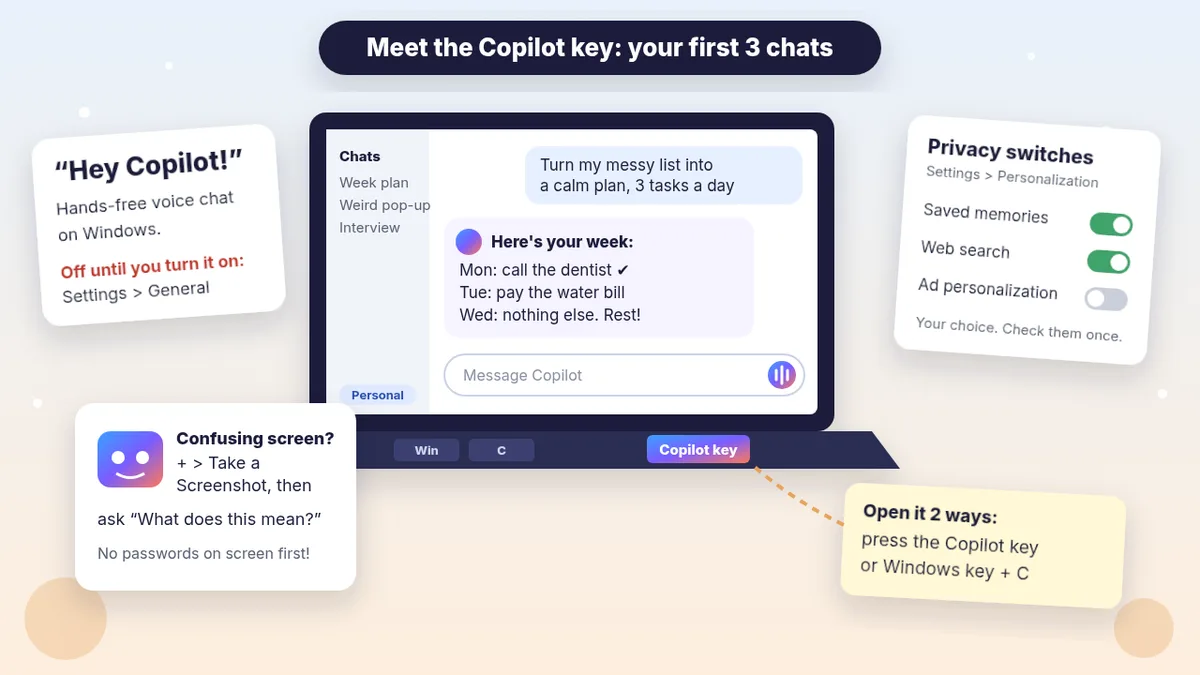
- Open it: press the Copilot key on your keyboard (if you have one) or Windows key + C. Or click Copilot on the taskbar or Start menu. On a phone, open the Copilot app. On any computer, go to copilot.com.
- Sign in with your personal account (see above).
- Type your question in the box at the bottom and press Enter. Write like you’d text a helpful friend: who it’s for, what you need, and how long.
- Ask a follow-up instead of starting over: “Shorter.” “Make it a checklist.” “Explain step 2 like I’m new to computers.”
- Find old chats in the Chats list on the left. Select … More next to a chat to rename or delete it.
Handy Windows extras Microsoft lists for the Copilot app: select + then Take a Screenshot to ask about part of your screen; ask it to find a file on your PC (it can read .docx, .xlsx, .pptx, .txt, .pdf and .json files, and you control this in Account > Settings > File Search and File Read); and ask for help with Windows settings, like “Make my screen easier to read.” The Copilot key can open the full app or a smaller quick view: change it in Account > Settings > Copilot Keyboard Shortcuts.
3 copy-paste prompts to try today
1. 🧹 Turn a messy to-do list into a calm plan
Paste this into a new chat and fill in the brackets.
Here's everything on my mind this week, in no
order: [PASTE YOUR MESSY LIST]
My time: [E.G. "free after 3 pm on weekdays"]
Please:
1) Group it into Must do / Should do / Can wait.
2) Give me a simple day-by-day plan, no more
   than 3 tasks a day.
3) Point out anything with a deadline I gave you.
4) Ask me 2 questions if anything is unclear.
Plain words, short lines. Don't add tasks I
didn't list.
Then try: “Turn Monday into a checklist I can print.” Signed in, you can come back to this chat later from the Chats list.
2. 🖥️ “What does this screen mean?” (screenshot help)
For error messages, pop-ups and settings pages that make no sense. On Windows, select + > Take a Screenshot, drag over the confusing part, then paste:
I'm new to computers. Look at this screenshot.
1) In one sentence, what is this message or
   screen telling me?
2) Is it safe to ignore, or do I need to act?
3) If I need to act, give me numbered steps,
   one click at a time, using the exact button
   names you can see.
4) If it asks me to call a number, pay, or
   install something, tell me if that looks
   like a scam warning sign.
Don't guess. If you can't see something
clearly, say so.
Before you take the screenshot, make sure no passwords, account numbers or private messages are showing. Copilot can explain the screen, but you do the clicking.
3. 🎙️ A 5-minute voice “practice buddy”
Select the Voice icon in the chat box (allow the microphone if asked), wait for Copilot’s greeting, then say:
Hi Copilot. I want to practice [A PHONE CALL TO
MY DOCTOR'S OFFICE / A JOB INTERVIEW / ASKING MY
LANDLORD FOR A REPAIR]. You play the other
person. Ask me one question at a time and wait
for my answer. Keep it friendly and realistic.
After 5 questions, stop and give me 3 things I
did well and 1 thing to say more clearly.
Talk naturally; you can interrupt it any time. When you’re done, select X to end. Microsoft says a text transcript of the voice conversation is available afterward, so you can reread the feedback.
🔒 Members-only
Members get the full pack: 12 more Copilot prompts + a fill-in “My Copilot Setup” card
Copy-paste prompts for everyday Copilot jobs: a morning plan by voice, fixing a slow or noisy PC the safe way, making text bigger and easier to read, finding that file you saved “somewhere,” understanding a bill or letter, a polite email reply, a weekly meal plan and grocery list, a simple Excel-ready budget table, a birthday or event plan, learning a Windows skill one step at a time, a “Hey Copilot” hands-free kitchen helper, and a self fact-check before you trust an answer. Plus a fill-in My Copilot Setup card with your sign-in, shortcuts and privacy choices.
Bot Club · $9/mo · cancel anytime. Your Member Library opens right after checkout.
Join Bot Club, unlock the full pack · $9/moStep 2: Talk to Copilot (Voice and “Hey Copilot”)
Copilot Voice is a real back-and-forth spoken conversation. Microsoft lists it for both personal and work accounts. To start: open Copilot, select the Voice icon in the chat box, allow the microphone if asked, and wait for Copilot’s greeting. Select the microphone icon to mute, and the X to end. Afterward you get a text transcript. Microsoft notes voice conversations may have session limits and can disconnect when the limit is reached.
“Hey Copilot” (hands-free on Windows):
- It’s off by default. Turn it on in the Copilot app: at the bottom of the left-side menu select … Settings, then General, then turn on Listen for “Hey Copilot.”
- It only works while the Copilot app is running (open, minimized or in the background), and when the setting is on, Windows shows in the system tray that Copilot is using your microphone.
- Microsoft says your PC listens for the wake word on the device, using a 10-second audio buffer in memory that is never recorded or stored. Audio is sent to Copilot only after it hears “Hey Copilot.”
- It won’t start a new chat when your screen is locked or another app is playing audio, and it needs the internet.
- The wake word is English only (“Hey Copilot”), but you can keep talking in any supported language.
- If you stop talking, Copilot warns you after 30 seconds and ends the voice chat after one minute. You can also say “Goodbye” or select Mute or Dismiss.
Step 3: Show Copilot your screen or camera (Copilot Vision)
Copilot Vision lets Copilot see what you share (your desktop screen, or your phone’s camera) during a voice conversation, then explain it or walk you through it. What Microsoft says you need to know:
- It needs a subscription on a personal account: Vision is available with a Microsoft 365 Personal, Family or Premium subscription (or a work account with a Microsoft Copilot license).
- It works only during a voice conversation. Start Copilot Voice, then select the screen share arrow on a computer or the camera icon on your phone. Select Stop sharing (or tap the camera icon again) to stop; the voice chat keeps going.
- It looks, it doesn’t click. Copilot may highlight parts of the screen, but it won’t click, type or scroll for you.
- Each Vision chat starts fresh. It doesn’t reuse screens or camera views from earlier chats. Keep the thing you’re asking about on screen, and don’t switch windows too fast.
Try: “I’m stuck on this screen. Walk me through the next steps.” No subscription? Use the free screenshot trick in prompt 2 instead.
Privacy: the switches worth checking
These are Microsoft’s steps for the updated app (August 18, 2026 or later) when you’re signed in with a personal Microsoft account. Open Copilot, then Settings > Personalization:
- Saved memories: Copilot can remember details like your favorite topics and goals. Select Manage to delete one memory or Delete all memories. Turning the switch off stops new memories but doesn’t delete the old ones.
- One shared experience: lets your Bing, Edge and MSN activity personalize Copilot (and your Copilot chats personalize those). Turn it off if you’d rather keep them separate.
- Web search: lets Copilot look up current information on the web. You can turn it off.
- Allow ads personalization: Microsoft says you might see ads in Copilot if you don’t have a Microsoft 365 subscription. Turn this off for generic ads based only on your current chat. Copilot doesn’t show personalized ads to anyone under 18.
- Training: Microsoft says prompts, responses and file contents in the updated Copilot app aren’t used to train foundation models. (Still on the older app? Microsoft’s older privacy page lists Settings > Privacy > Training on conversation activity and Training on voice conversations switches.)
- Delete chats: one at a time from the Chats list (… More > Delete), or all at once in the Microsoft privacy dashboard (account.
microsoft.com/ privacy): Privacy > Empower your productivity > Copilot > Your Copilot app activity history > Copilot apps > Delete all activity history. You can also export it as a CSV file there.
For families: Microsoft says parents can use Microsoft Family Safety (or Apple or Google device settings) to block Copilot, set time limits, or choose which features a child can use, like image generation, voice mode, group chat or AI companions. For teens, Microsoft says Copilot doesn’t personalize answers from chat history and doesn’t show personalized ads. More in Is my AI assistant safe?
Don’t want Copilot on your PC?
That’s fine, and you can bring it back from the Microsoft Store any time. Microsoft’s steps: on Windows 11, open Settings > Apps > Installed apps, find Copilot, select … (More options) and choose Uninstall. On Windows 10, open Settings > Apps, find Copilot and choose Uninstall. If you just don’t want it listening, leave “Hey Copilot” off (it’s off unless you turn it on).
Troubleshooting
- Nothing happens when I press the Copilot key. Make sure the Copilot app is installed (Microsoft Store) and updated. Windows key + C works too.
- It opens a small window, not the full app. That’s “quick view.” Change it in Account > Settings > Copilot Keyboard Shortcuts.
- “Hey Copilot” doesn’t answer. Check that it’s turned on in Settings > General, the app is running, the screen is unlocked, no other app is playing sound, you’re online, and you’re saying it in English.
- My chats disappeared. You may be signed out, or signed in with a different account (look for the Work or Personal label).
- I can’t find Vision. On a personal account it needs a Microsoft 365 Personal, Family or Premium subscription, and it only appears during a voice chat.
- The voice chat cut off. Microsoft says voice sessions may have limits. Start a new one, or type.
- The answer looks wrong. Ask: “Where did that come from? Show me the source,” and check it yourself. Members get a ready fact-check prompt above.
Why Bot Club is only $9 a month
This guide gives you the first three Copilot prompts free. Bot Club is for having the right prompt ready the moment you need it: the 12 extra prompts above (a morning plan by voice, safe fixes for a slow PC, making the screen easier to read, finding a lost file, explaining a bill, a polite email reply, meals and groceries, a budget table for Excel, a party plan, learning one Windows skill, a hands-free kitchen helper and a self fact-check) and the fill-in My Copilot Setup card, plus every other members-only pack (Gemini, ChatGPT, emails, budgeting and more) in one Member Library, and a new recipe each month. Cancel anytime from your Stripe receipt.
Want it done faster?
🧰 Starter Kit: $29
24 copy-paste bot recipes, setup checklists and a safety checklist, with a ZIP of every recipe as a text file.
Get the Starter Kit: $29🏆 Bot Club: $9/month
The 12 Copilot prompts and My Copilot Setup card above, every other members-only pack, and a new recipe every month. Cancel anytime.
Join Bot Club: $9/mo🛠️ Done-for-you setup
$199 setup + $49/month. Want an AI assistant set up for your business and tested on your real everyday tasks? We build it with you, then keep it tuned every month.
Get set up: $199Not sure which assistant fits you? Take the 2-minute AI sidekick quiz, or compare the big three in ChatGPT vs Claude vs Gemini. Using Google’s helper too? See Gemini app for beginners. Prefer talking? Try ChatGPT voice mode. Wondering if you need a new computer for AI? Read Do I need a Mac mini for my AI assistant? (short answer: no).
Study Buddy Engineer is independent and is not affiliated with Microsoft. Microsoft Copilot, Copilot Voice, Copilot Vision, Windows and Microsoft 365 are Microsoft products; features, subscriptions and availability vary by account and region and can change, so check Microsoft’s help pages for the latest. This guide is general information, not legal, medical or financial advice.
Using a Windows or Mac PC and curious about ChatGPT’s own desktop app too? See our ChatGPT desktop app for beginners guide: official download, sign-in, first chat, and when desktop beats the phone.
Sources
- Microsoft Support: Get started with the Microsoft Copilot app (checked Oct 29, 2026)
- Microsoft Support: Access Microsoft Copilot on Windows (checked Oct 29, 2026)
- Microsoft Support: Get started with voice features in Microsoft Copilot (checked Oct 29, 2026)
- Microsoft Support: How “Hey Copilot” wake word works (checked Oct 29, 2026)
- Microsoft Support: Get started with vision in Microsoft Copilot (checked Oct 29, 2026)
- Microsoft Support: Microsoft Copilot for individuals: your privacy controls and choices (checked Oct 29, 2026)
- Microsoft Support: Microsoft Copilot for individuals: your activity history (checked Oct 29, 2026)
- Microsoft Support: Microsoft Copilot for individuals: Copilot for young people (checked Oct 29, 2026)
- Microsoft Support: Manage your Copilot activity history in the privacy dashboard (checked Oct 29, 2026)
- Microsoft Support: Microsoft Copilot privacy controls (older app) (checked Oct 29, 2026)
- Microsoft Support: Supported regions and languages for Microsoft Copilot (checked Oct 29, 2026)
- Microsoft Windows Learning Center: Copilot on Windows 11 (checked Oct 29, 2026)
Keep going: related guides
- ChatGPT vs Claude vs Gemini
- Google Gemini app for beginners
- ChatGPT voice mode for beginners
- Is my AI assistant safe?
🎁 Free: 10 copy-paste ChatGPT prompts
Ten short copy-paste prompts from our free guides, each with a Copy button:
- Reply to a customer review (good or bad)
- A week of social posts in 5 minutes
- Match your resume to one job posting
- Practice the interview out loud
- “Use up my fridge” dinners
- A “tight week” budget dinner plan
- Fill in your “trip card”
- Plan a road trip like a human
- “Explain it like I’m 10”
- “Grade my answer, don’t write it”
Free with an email signup. We never sell your email.
Pick the easiest way to get going
Three simple options. Secure checkout by Stripe.
🧰 Starter Kit
- Pick-your-assistant chart
- Setup checklists
- 24 copy-paste bot recipes
- Safety checklist + troubleshooting
🏆 Bot Club
- New bot recipes every month
- Ready-made templates
- Monthly “get unstuck” Q&A in the members area
- Cancel anytime
🛠️ Done-for-you setup
- We set up your assistant with you
- Monthly tuning: fixes, updates
- New recipes as you go
📬 Get one fun bot trick every week
The Bot Whisperer newsletter: free, plain English, unsubscribe anytime.
Coming soon: sign-ups open shortly. Follow @teachbots to hear when they do.