🏆 Bot Club, $9/mo: new copy-paste bot recipes and ready-made templates every month, plus a monthly “get unstuck” Q&A post in the members area. Cancel anytime.
Join Bot ClubWhy put ChatGPT on your desktop?
The website works fine. The phone app is great in the car or the kitchen. The desktop app shines when you’re already at a computer and want ChatGPT one shortcut away: ask about a spreadsheet, drop in a screenshot of a confusing error, keep a long project open next to your other apps, or use ChatGPT Work for a finished document. OpenAI’s learn page for the desktop app says you can run projects in parallel, work with files, and keep long-running work moving from one workspace.
Desktop vs phone vs web (pick the right one)
| You’re… | Try this |
|---|---|
| At your Mac or Windows PC, juggling files or a long task | Desktop app (Chat Bar / companion window + main window) |
| On the couch, walking, or want to talk out loud | Phone app (Voice) — see voice mode for beginners |
| On a borrowed or work computer you can’t install apps on | Web at chatgpt.com in your browser |
| On iPhone and want hands-free through Siri | ChatGPT with Siri (Apple Intelligence phones) |
| Building a finished spreadsheet, doc or report | Desktop or web with ChatGPT Work (OpenAI lists Work on Plus, Pro, Business and Enterprise) |
Step 1: Check your computer, then download
OpenAI’s macOS help page (checked Nov 5, 2026) says the ChatGPT macOS app needs macOS 14 and either Apple Silicon (M1 or better) or an Intel processor, and that OpenAI will not release a version for older systems. OpenAI’s Windows help page lists Windows 10 (x64 and arm64) version 17763.0 or higher.
- Open chatgpt.com/download in your browser. OpenAI says the Mac download page detects Apple Silicon vs Intel and offers the right installer. (When we checked on Nov 5, 2026 with a Mac browser identity, the page showed Download for macOS; with a Linux machine it offered Linux. Use the button that matches your computer.)
- Mac: download the installer, open it, drag ChatGPT into Applications if asked, then open ChatGPT from Applications (or Spotlight).
- Windows: OpenAI’s Windows help page describes downloading from the Microsoft Store (and a winget option for IT). OpenAI’s newer “moving to the new desktop app” article says first-time users should download the ChatGPT desktop app for their operating system from the official download page, open it and sign in. Prefer the official OpenAI / Microsoft Store path; skip random websites.
- If you already had the older Mac app, OpenAI says the new app may install alongside it. You’ll see ChatGPT (new: Chat, Work and Codex) and ChatGPT Classic (the previous app, which OpenAI says still gets model updates, bug fixes and security patches). You can keep using Classic; new agent features may be only in the new app.
Step 2: Sign in and send your first chat
OpenAI’s desktop quickstart (learn.chatgpt.com/docs/app) is four steps: install, open and sign in, choose where to work, send your first message.
- Open the ChatGPT app and sign in with your ChatGPT account (the same email you use on chatgpt.com). No account yet? Create one from the sign-in screen, then come back.
- Choose where to work: start a chat, create a Project, or open a folder. OpenAI says ChatGPT can use the files and context in the location you choose.
- In ChatGPT, use the toggle above the message box to pick Chat or Work. OpenAI describes Chat as asking questions, searching and having conversations; Work as researching, analyzing and creating documents, spreadsheets, presentations, reports and Sites. (Codex is a separate view for software work; OpenAI says it isn’t selectable on web or mobile.)
- Type a plain question and press Return. Example: “Explain [THING ON MY SCREEN] like I’m new to computers, in short steps.”
- For a quick side question, OpenAI’s learn page says you can point to New chat and select the Quick chat icon on its right.
🧰 Want the shortcut? Get the Starter Kit ($29)
Everything from our guides in one download: a 2-minute “pick your assistant” chart, step-by-step setup checklists for ChatGPT Projects, Claude Projects and agent-style assistants, 24 copy-paste bot recipes (personal and small business), a safety and permissions checklist, and troubleshooting fixes. Includes a ZIP of every recipe as a ready-to-paste text file.
Get the Starter Kit: $29 See what’s inside →
One-time payment, secure checkout by Stripe, instant download page right after checkout.
Step 3: Instant answers with Chat Bar (Mac) or companion window (Windows)
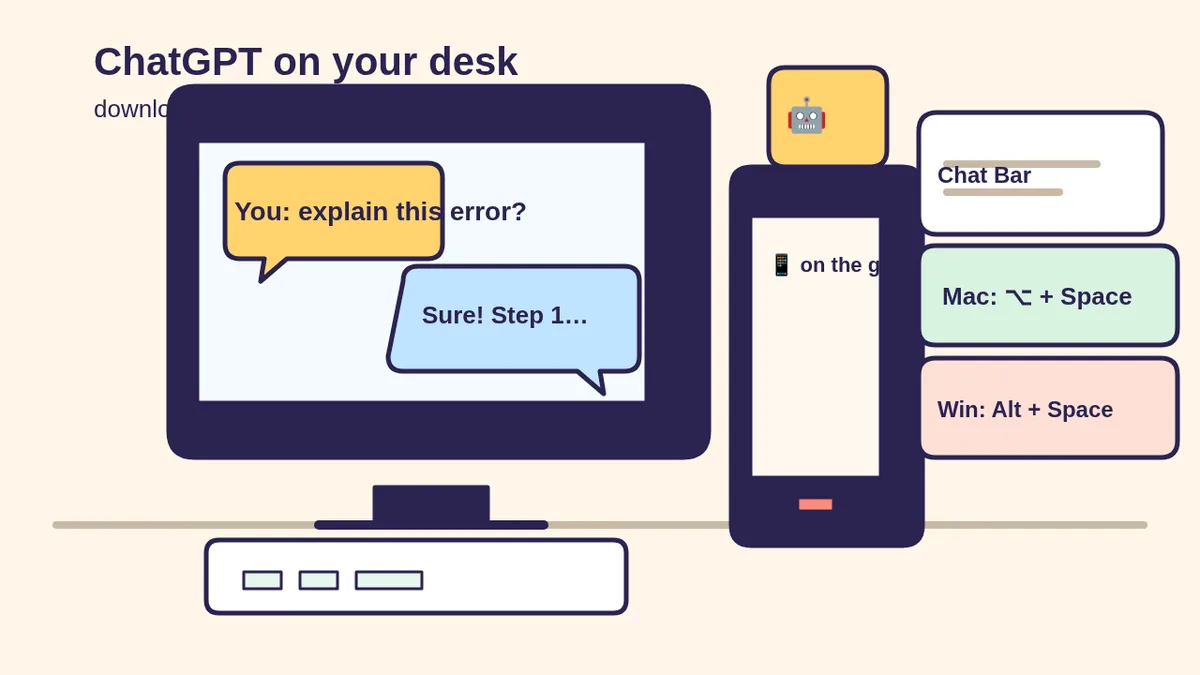
On a Mac, OpenAI’s Chat Bar help page says you can instantly ask ChatGPT anything, upload files, take a screenshot or take a photo. Default shortcut: press ⌥+Space (Option + Space). You can also open it from the menu bar icon, drag the Chat Bar anywhere, start a new conversation there, and change the shortcut in Settings. Click the plus sign to attach a file, photo, screenshot or camera photo.
On Windows, OpenAI’s Windows help page says the Companion Window opens with Alt + Space when the ChatGPT app is open. Use it to ask anything, upload files, generate a new image or start a new conversation. Pick New chat at the top to clear it. If the shortcut is already used by another app, change it under Settings > App > Companion window hotkey.
6 copy-paste prompts to try on desktop today
Paste these into the main ChatGPT window or the Chat Bar / companion window. Fill in the [BRACKETS].
1. 🖥️ “Explain this confusing screen”
I just took a screenshot of something on my
computer that confuses me. Look at the image.
1) In one sentence, what is this screen or
   message telling me?
2) Is it safe to ignore, or do I need to act?
3) If I need to act, give numbered steps using
   the exact button names you can see.
4) If it asks me to call a number, pay, or
   install something, flag scam warning signs.
Don't guess. If you can't see something
clearly, say so.
On Mac Chat Bar, OpenAI says you can take a screenshot from the plus menu. Cover passwords and account numbers before you share.
2. 📄 “Turn this messy note into a plan”
Here's a messy brain-dump from my day:
[PASTE NOTES]
Please:
1) Group into Must do / Should do / Can wait.
2) Give me a simple plan for the next 3 hours,
   max 5 tasks.
3) Ask me 2 clarifying questions.
Plain words, short lines. Don't invent tasks
I didn't mention.
3. 📎 “Help me understand this file”
I attached a [PDF / spreadsheet / photo of a
letter]. Cover any account numbers yourself if
you see them in your reply.
1) What is this document, in one sentence?
2) List dates, amounts, deadlines and anything
   I need to do.
3) Write 3 questions I should ask [THE SENDER /
   MY BOSS / MY DOCTOR] before I act.
Remind me you're not a lawyer, doctor or tax
preparer.
4. ✍️ “Draft an email that sounds like me”
Write a short email to [WHO] about [TOPIC].
Tone: [friendly / firm / grateful]. Max 120
words. Give me 2 versions. Don't invent facts;
only use: [BULLET POINTS OF REAL FACTS].
Then list anything I still need to fill in.
5. 🧭 “Be my desktop coach for 10 minutes”
I want to learn [ONE COMPUTER SKILL, e.g. zip
a folder / find a downloaded file / make text
bigger]. I'm on [Mac / Windows]. Teach me one
step at a time and wait for me to say "done"
before the next step. No jargon; if you use a
menu name, tell me exactly where to click.
6. 🧪 “Desktop vs phone: which should I use?”
I usually use ChatGPT on my [phone / browser].
I just installed the desktop app. Based on my
typical tasks ([LIST 3 THINGS YOU ASK CHATGPT]),
tell me which tasks are better on desktop, which
on phone, and which on the website — in a simple
3-column list. Keep it under 150 words.
🔒 Members-only
Members get the full pack: 10 more desktop prompts + a fill-in “My Desktop ChatGPT Setup” card
Copy-paste prompts for a morning desktop brief, renaming messy download files, a polite reply to a long email, a meeting agenda from messy notes, a spreadsheet cleanup plan (you do the clicks), a “what does this error mean” photo follow-up, a 5-minute keyboard-shortcut lesson, packing a Project with the right files, a Work-mode handoff for a one-page summary, and a weekly “what did I learn” review. Plus a fill-in My Desktop ChatGPT Setup card with your shortcut, Classic vs new app, and privacy habits.
Bot Club · $9/mo · cancel anytime. Your Member Library opens right after checkout.
Join Bot Club, unlock the full pack · $9/moStep 4: Privacy and common snags
- Same account everywhere. Sign in with the ChatGPT account you already use on the phone or website so your history can follow you (Work cloud chats sync across web, mobile and desktop per OpenAI’s moving guide).
- Two apps on Mac? That’s ChatGPT vs ChatGPT Classic. OpenAI says you can keep Classic; use the new app for Chat, Work and Codex.
- Shortcut does nothing on Windows. OpenAI says Alt+Space only works when the ChatGPT app is open, and won’t work if another app already owns that hotkey — change it in Settings.
- Old Mac OS. If you’re below macOS 14, OpenAI says there is no compatible desktop app version; use chatgpt.com in your browser or the phone app instead.
- Windows “early version” note. OpenAI’s Windows help page (checked Nov 5, 2026) still describes an early Windows app for paid plans (Plus, Team, Edu, Enterprise) via the Microsoft Store and notes some macOS/web features may be missing. If the Store or download page won’t offer the app on your account, use the website for now and check OpenAI’s download page again later.
- Reset (Windows). OpenAI’s steps: Settings > Apps > Installed Apps > ChatGPT > three-dot menu > Advanced Options > Reset.
More safety habits: Is my AI assistant safe? and Custom Instructions so every desktop chat already knows your style.
Why Bot Club is only $9 a month
This guide gives you six desktop prompts free. Bot Club unlocks the 10 extra prompts above plus the printable setup card, and every other members-only pack in the Member Library, with a new recipe each month. Cancel anytime from your Stripe receipt.
Want it done faster?
🧰 Starter Kit: $29
24 copy-paste bot recipes, setup checklists and a safety checklist, with a ZIP of every recipe as a text file.
Get the Starter Kit: $29🏆 Bot Club: $9/month
The 10 desktop prompts and setup card above, every other members-only pack, and a new recipe every month. Cancel anytime.
Join Bot Club: $9/mo🛠️ Done-for-you setup
$199 setup + $49/month. Want an AI helper set up around your real computer workflows (files, email drafts, FAQs) with monthly tuning? We build it with you, then keep it updated.
Get set up: $199Study Buddy Engineer is independent and is not affiliated with OpenAI or Microsoft. ChatGPT is a trademark of OpenAI. Windows and Microsoft Store are trademarks of Microsoft. Features vary by plan, device, app version and country, and can change. Always prefer official download links.
Sources
- ChatGPT official download page (checked Nov 5, 2026; Mac UA showed “Download for macOS”)
- ChatGPT Learn: ChatGPT desktop app (checked Nov 5, 2026)
- OpenAI Help: Downloading the ChatGPT macOS app (checked Nov 5, 2026)
- OpenAI Help: Using the ChatGPT Windows app (checked Nov 5, 2026)
- OpenAI Help: Moving to the new ChatGPT desktop app (checked Nov 5, 2026)
- OpenAI Help: How to launch the Chat Bar (checked Nov 5, 2026)
- OpenAI Help: Work with Apps on macOS (checked Nov 5, 2026)
Keep going: related guides
- ChatGPT Work for beginners
- Microsoft Copilot for beginners
- ChatGPT with Siri on iPhone
- Custom Instructions
- Google Gemini app for beginners
🎁 Free: 10 copy-paste ChatGPT prompts
Ten short copy-paste prompts from our free guides, each with a Copy button:
- Reply to a customer review (good or bad)
- A week of social posts in 5 minutes
- Match your resume to one job posting
- Practice the interview out loud
- “Use up my fridge” dinners
- A “tight week” budget dinner plan
- Fill in your “trip card”
- Plan a road trip like a human
- “Explain it like I’m 10”
- “Grade my answer, don’t write it”
Free with an email signup. We never sell your email.
Pick the easiest way to get going
Three simple options. Secure checkout by Stripe.
🧰 Starter Kit
- Pick-your-assistant chart
- Setup checklists
- 24 copy-paste bot recipes
- Safety checklist + troubleshooting
🏆 Bot Club
- New bot recipes every month
- Ready-made templates
- Monthly “get unstuck” Q&A in the members area
- Cancel anytime
🛠️ Done-for-you setup
- We set up your assistant with you
- Monthly tuning: fixes, updates
- New recipes as you go
📬 Get one fun bot trick every week
The Bot Whisperer newsletter: free, plain English, unsubscribe anytime.
Coming soon: sign-ups open shortly. Follow @teachbots to hear when they do.