🏆 Bot Club, $9/mo: new copy-paste bot recipes and ready-made templates every month, plus a monthly “get unstuck” Q&A post in the members area. Cancel anytime.
Join Bot ClubWhat is ChatGPT Work, in plain English?
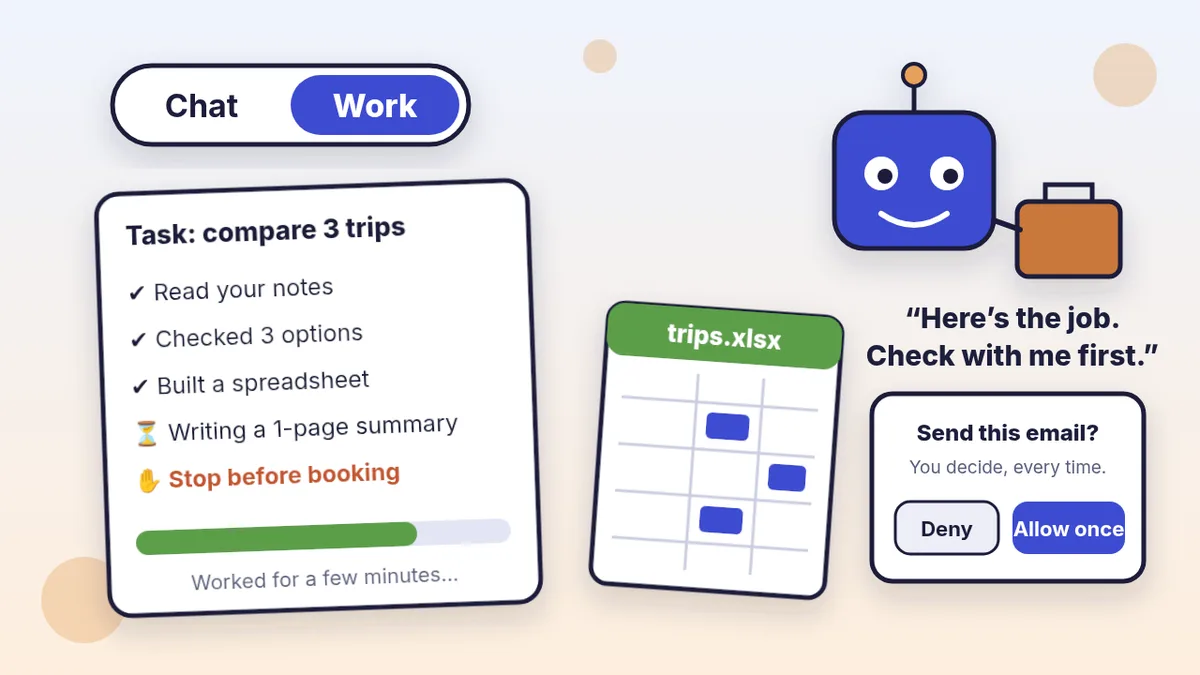
Think of regular ChatGPT as a very smart friend you text questions to. Work is that same friend sitting down at a desk with your notes, a browser and a to-do list. You hand over the job (“compare these three phone plans and give me a spreadsheet”), and it goes step by step: reading, checking, building the file, then handing you the finished thing to review.
OpenAI describes it as “an agent designed for longer, multi-step work and finished deliverables.” According to OpenAI’s help page, Work can research a topic, analyze information, or create a document, spreadsheet, presentation, report or Site. Along the way you can follow its progress, answer questions, change direction and approve important actions.
/agent or pick “Agent mode” from the tools menu in a regular chat, this guide is the updated version.Which plans get Work?
From OpenAI’s ChatGPT pricing page, checked Oct 26, 2026:
Free and Go
Limited ChatGPT Work access, in the desktop app only.
Plus and Pro
ChatGPT Work on desktop, web and mobile. Pro lists “longer” Work sessions.
Business, Enterprise, Edu
Depends on your plan and workspace settings, OpenAI says. Ask your workspace admin if you don’t see it.
Usage: OpenAI says Work follows the same usage structure as Codex, and that longer or more complex tasks use more of your allowance because ChatGPT is doing more on your behalf. OpenAI mentions optional extra credits on some paid plans once included usage runs out; you don’t need them to get started. OpenAI’s tip: check your plan usage before starting a large task, and use Chat for quick questions.
Step 1: Switch to Work
- On the web or phone: open ChatGPT and select Work (on mobile it’s in the dropdown where you pick Chat or Work).
- In the desktop app: select ChatGPT from the menu, then flip the toggle from Chat to Work. Don’t see it? OpenAI suggests updating the app with Menu → Check for Updates.
- Start a new chat, or open a Project. Inside a ChatGPT Project, choose Work to start a job that already knows that project’s files and instructions.
- Add files and context (notes, a PDF, a photo of a flyer), then describe the job.
- Review the result and ask for changes in the same chat.
The 5-part job description that gets good results
OpenAI’s Learn page says to tell ChatGPT five things. We turned them into a fill-in recipe:
- The outcome: “a one-page summary,” “a spreadsheet with a tab per option,” “a 6-slide deck.”
- The sources: the files you attached, specific websites, or a connected app.
- The limits: OpenAI’s own examples: “use only these sources,” “compare the top five options,” or “stop before sending anything.”
- What good looks like: who it’s for, how long, plain English, flag anything uncertain.
- When to stop and check: “show me a draft before you finish,” “never buy, book or send.”
Instead of: “Plan our trip.” Try: the first prompt below. Same idea, but now it knows exactly when it’s done.
🧰 Want the shortcut? Get the Starter Kit ($29)
Everything from our guides in one download: a 2-minute “pick your assistant” chart, step-by-step setup checklists for ChatGPT Projects, Claude Projects and agent-style assistants, 24 copy-paste bot recipes (personal and small business), a safety and permissions checklist, and troubleshooting fixes. Includes a ZIP of every recipe as a ready-to-paste text file.
Get the Starter Kit: $29 See what’s inside →
One-time payment, secure checkout by Stripe, instant download page right after checkout.
3 copy-paste first tasks
1. 🧳 Compare 3 options in a spreadsheet
Help me choose between these options for [A WEEKEND TRIP /
A NEW PHONE PLAN / A USED CAR / A SUMMER CAMP]:
- Option 1: [NAME OR LINK]
- Option 2: [NAME OR LINK]
- Option 3: [NAME OR LINK]
What matters to me: [BUDGET, DISTANCE, REVIEWS, ETC.]

Create a spreadsheet with one row per option and
columns for price, the things I care about, pros, cons
and a link to where you found each fact. Add a short
summary tab with your top pick and why.
Use only official or well-known sources and mark
anything you couldn't confirm as "CHECK".
Do NOT book, buy or sign up for anything.
When it’s done, open the spreadsheet and click a couple of the links yourself. Prices and dates change; the “CHECK” column tells you where to look first.
2. 📊 Turn messy notes into a short slide deck
I attached my notes for [OUR CLUB MEETING / A FAMILY
REUNION / A TALK AT MY CHURCH / A CUSTOMER UPDATE].
Create a [6]-slide presentation for [WHO WILL WATCH IT].
- Slide 1: title and date
- One main idea per slide, big simple words
- Last slide: next steps and who does what
Use only my notes. Don't invent numbers, names or
quotes; if something is missing, put [ASK] on the slide.
Show me a draft before you call it finished.
This is the kind of job OpenAI built Work for: a few source files in, a finished file out that you review. Ask for changes slide by slide (“make slide 3 shorter,” “bigger font”).
3. 🔁 A weekly check that comes to you
Every [MONDAY] at [8 A.M.], check [2-3 WEBSITES, E.G. MY
LIBRARY'S EVENTS PAGE AND MY CITY'S EVENTS PAGE] for
[FREE FAMILY EVENTS / VOLUNTEER SHIFTS / NEW JOB POSTS]
in the next 7 days.
Give me a short list: what, when, where, cost and the
link. Skip anything already listed last week.
Never register, buy or reply for me. If a page won't
load, say so instead of guessing.
OpenAI says Work can run once, repeat on a schedule or monitor for changes through Scheduled Tasks. You manage them on the Scheduled page. OpenAI’s scheduled tasks page (checked Oct 26, 2026) lists 3 active tasks on Free and Go, 5 on Plus and 15 on Pro; Free tasks run at most once a day in flexible windows like “morning,” and exact times need a paid plan. New to tasks? Start with our scheduled tasks guide.
🔒 Members-only
Members get the full pack: 12 more ChatGPT Work tasks + a fill-in “job card”
Copy-paste Work jobs for home, family, clubs and small business: a moving checklist spreadsheet, a grocery price comparison, a family calendar from school emails, an insurance renewal comparison (questions to ask, not advice), a job-search tracker, a yard sale plan, a volunteer schedule, a club newsletter from notes, a one-page research brief with sources, a small-business weekly numbers summary, a customer FAQ document from your policies and a party plan with a shopping list. Plus a fill-in job card so every task has an outcome, sources, limits and a stop point.
Bot Club · $9/mo · cancel anytime. Your Member Library opens right after checkout.
Join Bot Club, unlock the full pack · $9/moStep 2: Stay in control (approvals and permissions)
Work can use connected apps and plugins, like Gmail, Google Drive or Slack, when you add them. OpenAI’s Learn page says to open Customize → Plugins to see the library, install what you need, then type @ and the plugin name in your prompt to point Work at it. That’s powerful, so set it up carefully:
- Pick a cautious default. In Settings → Plugins → Permissions (or Settings → Apps, depending on your account), OpenAI lists options from Always ask and Allow read actions to Allow low-risk actions and Allow all actions. OpenAI says “Allow all actions” carries elevated risk. For beginners, “Always ask” or “Allow read actions” is the comfortable start.
- Read every approval card. Before a supported action runs, ChatGPT may show a card with Deny and Allow once. OpenAI lists sending an email or message, creating, editing or deleting files, changing sharing or security settings, purchases, and sharing sensitive personal information as the kinds of actions that may need extra review.
- Talking instead of typing? OpenAI says that on web and mobile, spoken approval isn’t supported: you tap Allow or Deny on screen.
- Want it to stop? Disconnecting is separate from permissions. OpenAI says to open Settings, choose Apps or Plugins, pick the app and disconnect the account.
The #1 safety habit: give it a specific job
OpenAI’s prompt injection safety page explains that a website or email can hide instructions meant to trick an AI into doing something you didn’t ask for. OpenAI’s tips, in plain English:
- Give it only the access the job needs. Comparing trips? It doesn’t need your email.
- Review before confirming. When it asks to send, buy or share, check the details first.
- Be specific. OpenAI warns that a broad instruction like “review my emails and take whatever action is needed” makes it easier for hidden content to mislead the AI. “Find emails from my kid’s school this week and list the dates” is much safer.
Troubleshooting
- I don’t see Work. On Free or Go, OpenAI lists Work in the desktop app only. In the desktop app, update with Menu → Check for Updates. In a work or school account, your admin may need to turn it on.
- It used up a lot of my allowance. Narrow the job: fewer sources, “top 3 only,” a shorter file. Use Chat for quick questions.
- It stopped halfway. It may be waiting for your answer or an approval. Scroll to the latest message. If a task pauses for a safety review, OpenAI says to follow the notice and review any findings before continuing.
- The file has a mistake. Say exactly what to fix (“row 2’s price is wrong; use the price on this page”). You can keep refining in the same chat.
- It can’t see a file on my computer. On web and phone, upload it. Only the desktop app can open local folders, with your permission.
More help: keep each job’s files together in a ChatGPT Project, set up repeat jobs with scheduled tasks, write better instructions with ChatGPT prompts for beginners, or compare assistants in ChatGPT vs Claude vs Gemini.
Why Bot Club is only $9 a month
This guide gives you three first Work tasks free. Bot Club is for having a ready-made job for whatever comes up: the 12 extra Work tasks above (moving checklist, grocery price comparison, family calendar from school notes, insurance renewal comparison, job tracker, yard sale plan, volunteer schedule, club newsletter, research brief, weekly business numbers, customer FAQ and party plan) and the fill-in job card, plus every other members-only pack (budgeting, Thanksgiving, bills and paperwork, doctor visits, emails, spreadsheets, listings and more) in one Member Library, and a new recipe each month. Cancel anytime from your Stripe receipt.
Want it done faster?
🧰 Starter Kit: $29
24 copy-paste bot recipes, setup checklists and a safety checklist, with a ZIP of every recipe as a text file.
Get the Starter Kit: $29🏆 Bot Club: $9/month
The 12 Work tasks and job card above, every other members-only pack, and a new recipe every month. Cancel anytime.
Join Bot Club: $9/mo🛠️ Done-for-you setup
$199 setup + $49/month. Want an AI assistant set up for your business and tested on your real everyday tasks? We build it with you, then keep it tuned every month.
Get set up: $199Not sure which assistant fits you? Take the 2-minute AI sidekick quiz.
Plan details and features change often. Everything here was checked against OpenAI’s pages on Oct 26, 2026; check the links below for the latest. Study Buddy Engineer is not affiliated with OpenAI.
Want Work on your computer, not just in a browser tab? Install the official ChatGPT desktop app for beginners: download from chatgpt.com/download, sign in, and use Chat or Work from the desktop app. Mac Chat Bar is Option+Space; Windows companion window is Alt+Space.
Sources
- OpenAI Help: ChatGPT Work and Codex (checked Oct 26, 2026)
- ChatGPT Learn: Get started with ChatGPT Work (checked Oct 26, 2026)
- ChatGPT: Plans and Pricing (checked Oct 26, 2026)
- OpenAI Help: ChatGPT agent (checked Oct 26, 2026)
- OpenAI Help: Scheduled tasks in ChatGPT (checked Oct 26, 2026)
- OpenAI Help: Managing app permissions in ChatGPT (checked Oct 26, 2026)
- OpenAI: Understanding prompt injections (checked Oct 26, 2026)
Keep going: related guides
- Scheduled tasks: make ChatGPT check things for you
- ChatGPT Projects: one folder per job
- Plan a trip with ChatGPT
- Is my AI assistant safe?
🎁 Free: 10 copy-paste ChatGPT prompts
Ten short copy-paste prompts from our free guides, each with a Copy button:
- Reply to a customer review (good or bad)
- A week of social posts in 5 minutes
- Match your resume to one job posting
- Practice the interview out loud
- “Use up my fridge” dinners
- A “tight week” budget dinner plan
- Fill in your “trip card”
- Plan a road trip like a human
- “Explain it like I’m 10”
- “Grade my answer, don’t write it”
Free with an email signup. We never sell your email.
Pick the easiest way to get going
Three simple options. Secure checkout by Stripe.
🧰 Starter Kit
- Pick-your-assistant chart
- Setup checklists
- 24 copy-paste bot recipes
- Safety checklist + troubleshooting
🏆 Bot Club
- New bot recipes every month
- Ready-made templates
- Monthly “get unstuck” Q&A in the members area
- Cancel anytime
🛠️ Done-for-you setup
- We set up your assistant with you
- Monthly tuning: fixes, updates
- New recipes as you go
📬 Get one fun bot trick every week
The Bot Whisperer newsletter: free, plain English, unsubscribe anytime.
Coming soon: sign-ups open shortly. Follow @teachbots to hear when they do.