🏆 Bot Club, $9/mo: new copy-paste bot recipes and ready-made templates every month, plus a monthly “get unstuck” Q&A post in the members area. Cancel anytime.
Join Bot ClubWhat “ChatGPT in Siri” actually is
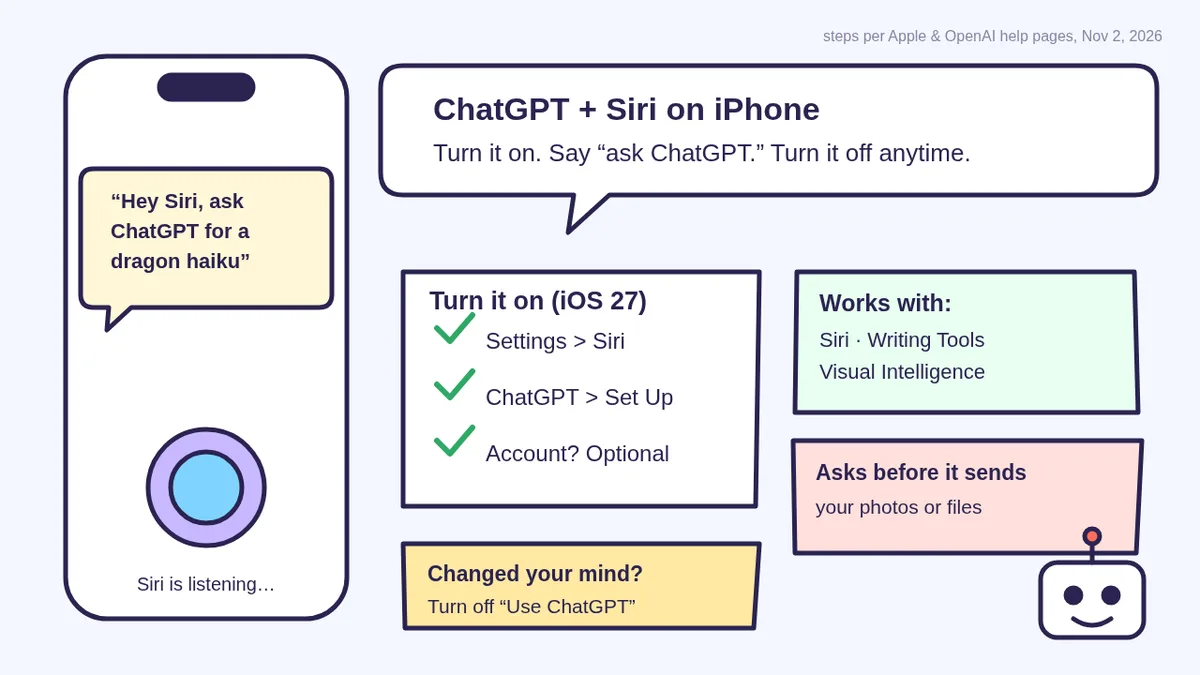
Your iPhone has its own AI, called Apple Intelligence. The ChatGPT extension is an optional add-on that lets Apple’s features hand a request to OpenAI’s ChatGPT when you want a bigger, chattier answer. Apple says it works with:
- Siri: ask a question out loud (or by typing) and Siri can pass it to ChatGPT, including a photo or document you have open.
- Writing Tools: “Compose” lets ChatGPT draft text for you right inside the app you’re typing in.
- Visual Intelligence: point your camera at something and ask ChatGPT about it.
Think of it as Siri phoning a very well-read friend. Siri still sets your timers and texts your sister; ChatGPT handles the “write me a limerick about my cat” stuff.
Step 1: Check your iPhone can do it (1 minute)
- The right phone. Apple says Apple Intelligence on iOS 27 is available on the iPhone 15 Pro, iPhone 15 Pro Max, or iPhone 16 model or later. Older iPhones can run iOS 27 but don’t get Apple Intelligence, so no ChatGPT extension. (They can still use the free ChatGPT app.)
- Up to date. Apple says to use the latest version of iOS for the newest features.
- Language and region. Apple says Apple Intelligence isn’t available in every language or region, and the ChatGPT extension only works where the ChatGPT app and service are available. OpenAI adds: set your Siri language and device language to the same supported language.
- Age. Apple says you must be at least 13 (or the minimum age in your country) to use ChatGPT.
- Siri is on. If you skipped Siri when you set up your phone, Apple says go to Settings > Siri > Turn On Siri and follow the steps.
Step 2: Turn on ChatGPT (2 minutes)
Apple moved the switch in iOS 27, so here are both versions. Not sure which you have? Settings > General > About shows your iOS version.
iOS 27 (regular Siri)
- Open Settings and tap Siri.
- Tap ChatGPT, then Set Up, and follow the onscreen steps.
- Choose whether to sign in with a ChatGPT account (see “Account or no account?” below).
iOS 27 with Siri AI (Beta)
- Open Settings and tap Siri.
- Tap Set Up Extensions, tap ChatGPT, then turn on Use Extension.
Apple says Siri AI is a beta on iOS 27, starts in English, French, Japanese, Korean, Portuguese and Spanish, won’t initially be available in the EU on iOS, and isn’t available for users under 13.
iOS 26
- Open Settings and tap Apple Intelligence & Siri.
- Below Extensions, tap ChatGPT, then Set Up.
- Tap Enable ChatGPT to use it without an account, or Use ChatGPT with an Account to sign in.
Account or no account?
🙈 No account
Easiest and most private. Apple says OpenAI gets no information tied to your Apple Account, must not store your request or its answer (unless the law requires it), and must not use it to train its models. Your requests won’t show up in ChatGPT history.
🔑 Sign in (free or paid)
Keeps a history. Apple and OpenAI say signing in saves your requests to your ChatGPT history and gives you the features of your ChatGPT plan. Your ChatGPT account settings and OpenAI’s privacy policies apply instead. Wondering about plans? See ChatGPT Free vs Plus.
Changed your mind later? OpenAI says go back to the ChatGPT extension settings and tap Sign In.
🧰 Want the shortcut? Get the Starter Kit ($29)
Everything from our guides in one download: a 2-minute “pick your assistant” chart, step-by-step setup checklists for ChatGPT Projects, Claude Projects and agent-style assistants, 24 copy-paste bot recipes (personal and small business), a safety and permissions checklist, and troubleshooting fixes. Includes a ZIP of every recipe as a ready-to-paste text file.
Get the Starter Kit: $29 See what’s inside →
One-time payment, secure checkout by Stripe, instant download page right after checkout.
Step 3: Wake up Siri
Apple lists these ways to start Siri (you need an internet connection):
- Say “Siri” or “Hey Siri”, if that’s turned on (Settings > Siri > Requests).
- Press and hold the side button (iPhones with Face ID) or the Home button (iPhone SE).
- Type instead of talk: turn on Type to Siri in Settings > Siri > Requests. Apple says with Siri AI on, you can always type to Siri. Great for quiet rooms.
8 fun things to say (copy, then say them)
The magic words are “ask ChatGPT”. Apple says Siri may ask you to confirm before it sends a request, and always asks before sending photos or files. Tap or say yes, and the answer appears right on your screen.
1. 🎂 The birthday rescue
Hey Siri, ask ChatGPT for 5 birthday gift ideas
under $40 for my uncle who turns 70 and loves
fishing.
2. 🐉 A silly poem on demand (Apple’s own favorite)
Hey Siri, ask ChatGPT to write a haiku about a
dragon who is scared of the dark.
3. 🍓 “What can I make with this?”
Open a photo of what’s in your fridge or fruit bowl in the Photos app first, then say:
Hey Siri, ask ChatGPT what recipes I can make
with this.
4. 📄 Shrink a long document
Open a PDF in the Files app (Apple’s example is a home inspection report), then say:
Hey Siri, ask ChatGPT to summarize this document
in 5 plain-English bullet points.
Cover anything private first; see what to cover before you share a document.
5. 🌤️ A lazy-Saturday plan
Hey Siri, ask ChatGPT for 3 ideas for a free
afternoon in my town that don't involve
shopping.
6. ✍️ Write it for me (Writing Tools)
Apple’s steps: while typing in Mail, Notes or Messages, tap the text field, tap the Writing Tools button, swipe up and tap Compose, then describe what you want ChatGPT to write. You can tap Rewrite or go back to your original text.
A short, friendly note to my neighbor thanking
her for watching our dog last weekend. Warm,
3 sentences, no exclamation points.
7. 📷 The camera trick (Visual Intelligence)
OpenAI’s steps (without Siri AI): open Visual Intelligence (on iPhones with Camera Control, press and hold it; you can also use a set-up Action button, Lock Screen control or Control Center), point at the thing, tap Ask, then type or say a follow-up. With Siri AI, Apple uses Siri mode in Camera instead.
What kind of plant is this, and how often
should I water it indoors?
8. 🎤 Practice for a toast
Hey Siri, ask ChatGPT to give me a 30-second
Thanksgiving toast that's warm, a little funny,
and mentions gratitude for family.
Hosting this year? Our Thanksgiving dinner planner has the timeline and grocery list prompts.
🔒 Members-only
Members get the full pack: 12 more Siri + ChatGPT phrases + a fill-in “My iPhone AI Settings” card
Ready-to-say phrases for everyday life: decode a confusing letter on screen, turn a photo of a whiteboard into a to-do list, plan a week of easy dinners, explain a medical word before an appointment, write a polite “no” text, kid-friendly homework hints (not answers), a road-trip game, a gift-tag message, translate a sign with the camera, a quick budget check, a bedtime story with your kid’s name, and a “what should I ask the mechanic?” list. Plus a fill-in card that records exactly which AI settings you picked, for you or a parent.
Bot Club · $9/mo · cancel anytime. Your Member Library opens right after checkout.
Join Bot Club, unlock the full pack · $9/moMake it ask (or not ask) before sending
By default, Siri checks with you before handing a request to ChatGPT. Apple and OpenAI describe these switches:
- iOS 27 (regular Siri): Settings > Siri > ChatGPT (below Extensions), then turn off Confirm Requests to let Siri send without asking.
- iOS 26: the switch is called Confirm ChatGPT Requests, under Settings > Apple Intelligence & Siri > ChatGPT. OpenAI says starting with “Ask ChatGPT” also skips the confirmation for that one request.
- Siri AI (Beta): you can’t turn confirmation off. OpenAI says to explicitly ask Siri to use ChatGPT.
- Photos and files: OpenAI says you’re still asked before photos or files are sent, even with confirmation off.
Our tip: leave confirmation on for the first few weeks. It’s a nice little “are you sure?” before anything leaves your phone.
What gets shared (in plain English)
- What you choose to send: Apple says your request and any attachments go to ChatGPT, plus limited details like your time zone, country, device type, language and which feature you used.
- Your exact location stays hidden: Apple says your IP address is obscured from ChatGPT, but a general location is shared (for things like fraud prevention).
- No account: Apple says OpenAI gets nothing tied to your Apple Account, must not store your request or its answer unless the law requires it, and must not use it to train models.
- Signed in: Apple says your ChatGPT account settings and OpenAI’s policies apply, which means OpenAI may keep your request and history and may use it to improve its models, depending on your settings. You can manage that in ChatGPT’s data controls; see ChatGPT Memory and Temporary Chat.
- Check the connection: OpenAI says on chatgpt.com go to Settings > Security and login > Login connections > Sign in with ChatGPT and look for Apple Intelligence (older layout: Security > Secure sign in with ChatGPT).
How to turn ChatGPT off
- iOS 27: Settings > Siri > ChatGPT, then turn off Use ChatGPT. With Siri AI: Settings > Siri > Extensions > ChatGPT, then turn off Use Extension.
- iOS 26: Settings > Apple Intelligence & Siri > ChatGPT, then turn off Use ChatGPT.
- Stop Siri from suggesting it: after turning ChatGPT off, also turn off Setup Prompts (not available with Siri AI).
- Setting up a child’s or parent’s phone? Apple says you can also block the ChatGPT extension in Screen Time.
Troubleshooting
- I don’t see ChatGPT in Settings. OpenAI says make sure your Siri language and device language match and are supported, and check Apple’s device, software, language and region requirements. On an older iPhone, Apple Intelligence (and so the extension) isn’t available. Use the ChatGPT app instead.
- It says sign-in failed. OpenAI says signing in to the ChatGPT app and connecting Apple Intelligence are separate steps. Check you can sign in on chatgpt.com, then try again from the ChatGPT extension settings.
- My work ChatGPT account won’t connect. OpenAI says to contact your workspace admin for Business, Enterprise or Edu accounts.
- Siri answered by itself instead of using ChatGPT. Start with the words “ask ChatGPT…” so Siri knows exactly what you want.
- “Limit reached” or it got slower. Apple says some Apple Intelligence features have daily usage limits that can vary, and OpenAI says signing in gives you your plan’s capabilities.
- Siri isn’t listening at all. Check you’re online and that “Siri” or “Hey Siri” or the side button is turned on in Settings > Siri > Requests. For more fixes, see fix everyday tech problems.
Siri + ChatGPT vs the ChatGPT app vs Alexa+
🍎 Siri + ChatGPT
Best for: quick one-off asks, writing inside any app, asking about what’s on your screen or camera. No app to open.
💬 ChatGPT app
Best for: longer conversations, voice chats, Projects and Memory. Works on any iPhone or Android. Start with voice mode.
🔵 Alexa+
Best for: a kitchen-counter helper on an Echo. See Alexa+ for beginners.
Why Bot Club is only $9 a month
This guide gives you 8 phrases free. Bot Club is for having the right words ready the moment you need them: the 12 extra Siri + ChatGPT phrases above (letters, whiteboards, dinners, doctor visits, homework hints, road trips, translating signs and more) and the fill-in My iPhone AI Settings card, plus every other members-only pack in one Member Library, and a new recipe each month. Cancel anytime from your Stripe receipt.
Want it done faster?
🧰 Starter Kit: $29
24 copy-paste bot recipes, setup checklists and a safety checklist, with a ZIP of every recipe as a text file.
Get the Starter Kit: $29🏆 Bot Club: $9/month
The 12 extra Siri + ChatGPT phrases and the My iPhone AI Settings card above, every other members-only pack, and a new recipe every month. Cancel anytime.
Join Bot Club: $9/mo🛠️ Done-for-you setup
$199 setup + $49/month. Want an AI assistant set up for your small business or family, tested on your real everyday tasks? We do it for you, then keep it tuned every month.
Get set up: $199New to all of this? Start with 25 fun things to try with your AI bot, or set it up for a parent with ChatGPT for seniors.
Study Buddy Engineer is independent and is not affiliated with Apple or OpenAI. Siri, iPhone and Apple Intelligence are trademarks of Apple Inc.; ChatGPT is a trademark of OpenAI. Menu names can change with software updates; the steps above match Apple’s and OpenAI’s help pages as checked on Nov 2, 2026. ChatGPT can make mistakes, so check important information.
On a computer instead of an iPhone? Put ChatGPT one shortcut away with the ChatGPT desktop app for beginners. Option+Space opens the Mac Chat Bar; Alt+Space opens the Windows companion window.
Sources
- Apple iPhone User Guide (iOS 27): Turn on ChatGPT on iPhone (checked Nov 2, 2026)
- Apple iPhone User Guide (iOS 27): Use Siri to get answers from ChatGPT (checked Nov 2, 2026)
- Apple iPhone User Guide (iOS 26): Use ChatGPT with Apple Intelligence (checked Nov 2, 2026)
- Apple iPhone User Guide: Turn on and activate Siri (checked Nov 2, 2026)
- Apple iPhone User Guide: Change Siri settings (checked Nov 2, 2026)
- Apple iPhone User Guide (iOS 27): Writing Tools (checked Nov 2, 2026)
- Apple iPhone User Guide (iOS 27): Visual Intelligence (checked Nov 2, 2026)
- Apple Legal: ChatGPT Extension & Privacy (checked Nov 2, 2026)
- OpenAI Help Center: Setting up ChatGPT with Apple Intelligence (checked Nov 2, 2026)
Keep going: related guides
- ChatGPT voice mode: longer spoken chats
- Alexa+ for beginners
- Upload a photo or PDF safely
- ChatGPT Free vs Plus: do you need to pay?
🎁 Free: 10 copy-paste ChatGPT prompts
Ten short copy-paste prompts from our free guides, each with a Copy button:
- Reply to a customer review (good or bad)
- A week of social posts in 5 minutes
- Match your resume to one job posting
- Practice the interview out loud
- “Use up my fridge” dinners
- A “tight week” budget dinner plan
- Fill in your “trip card”
- Plan a road trip like a human
- “Explain it like I’m 10”
- “Grade my answer, don’t write it”
Free with an email signup. We never sell your email.
Pick the easiest way to get going
Three simple options. Secure checkout by Stripe.
🧰 Starter Kit
- Pick-your-assistant chart
- Setup checklists
- 24 copy-paste bot recipes
- Safety checklist + troubleshooting
🏆 Bot Club
- New bot recipes every month
- Ready-made templates
- Monthly “get unstuck” Q&A in the members area
- Cancel anytime
🛠️ Done-for-you setup
- We set up your assistant with you
- Monthly tuning: fixes, updates
- New recipes as you go
📬 Get one fun bot trick every week
The Bot Whisperer newsletter: free, plain English, unsubscribe anytime.
Coming soon: sign-ups open shortly. Follow @teachbots to hear when they do.