🏆 Bot Club, $9/mo: new copy-paste bot recipes and ready-made templates every month, plus a monthly “get unstuck” Q&A post in the members area. Cancel anytime.
Join Bot ClubWhy this is worth 10 minutes
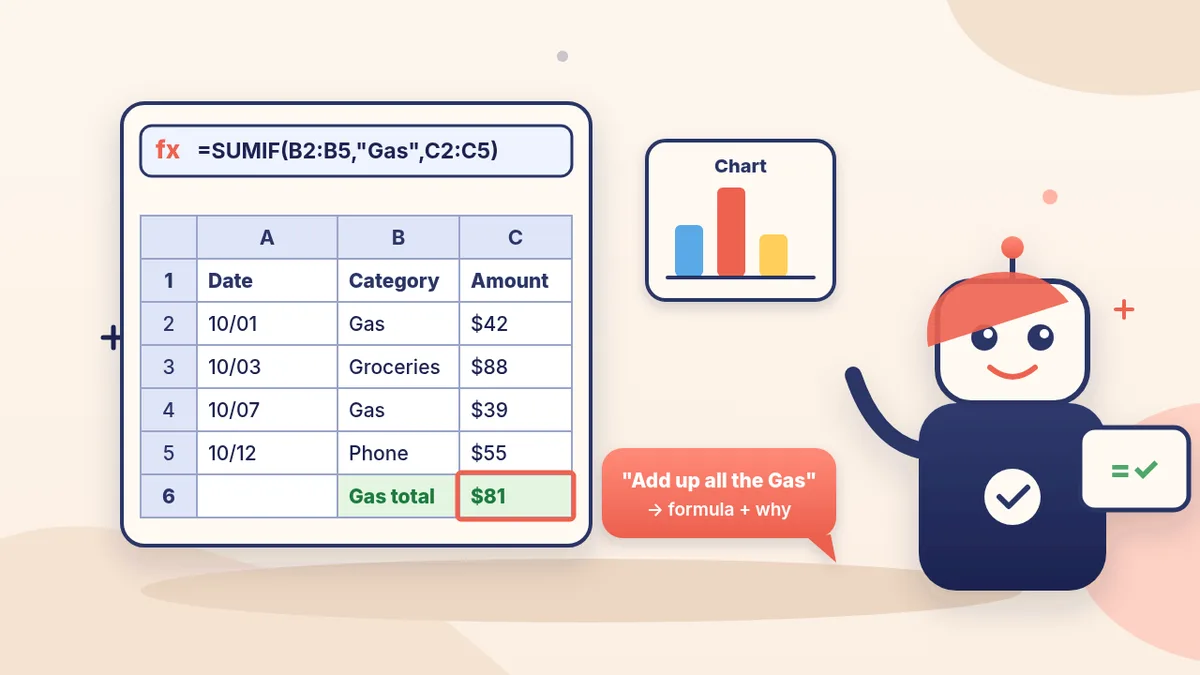
Most people who “hate spreadsheets” don’t hate the sheet. They hate remembering formula rules. ChatGPT flips that: you say what you want in plain words (“add up everything in column C that says gas”), and it writes the formula and explains it. Small business owners use this for sales, invoices and inventory, students for grades and lab data, and everyone else for budgets, bills and lists.
Spreadsheet words in plain English
- Cell: one box, named by column letter + row number. Microsoft’s example: B2 is column B, row 2.
- Range: a block of cells, like A10:A20 (column A, rows 10 through 20).
- Formula: a calculation. Microsoft says formulas in Excel always begin with an equal sign (=), and Google Sheets works the same way: type = in a cell, then the function.
- Function: a ready-made formula with a name, like =SUM(A1:A7) to add up A1 through A7.
- Relative vs “locked” ($): when you copy a formula down, normal references shift (=A1 becomes =A2). A $ locks it: $A$1 always points at A1. That’s why ChatGPT sometimes adds dollar signs. It’s on purpose.
| Way | What it’s good for | Where |
|---|---|---|
| Ask in a normal chat | “Write me a formula for…”, “What does this formula do?”, “Why this error?” | Any plan, phone or computer |
| Upload the file to ChatGPT | Summaries, trends, charts, tables. OpenAI lists XLSX, XLS, CSV and TSV. | Free and paid plans (plan limits apply), web and mobile apps |
| ChatGPT sidebar in Excel / Google Sheets | Builds, updates and explains the sheet right where it lives: trackers, budgets, cleanup, broken formulas | Free, Go, Plus, Pro, Business, Enterprise, Edu, K-12 (computer) |
🧰 Want the shortcut? Get the Starter Kit ($29)
Everything from our guides in one download: a 2-minute “pick your assistant” chart, step-by-step setup checklists for ChatGPT Projects, Claude Projects and agent-style assistants, 24 copy-paste bot recipes (personal and small business), a safety and permissions checklist, and troubleshooting fixes. Includes a ZIP of every recipe as a ready-to-paste text file.
Get the Starter Kit: $29 See what’s inside →
One-time payment, secure checkout by Stripe, instant download page right after checkout.
Step 1: Get your first formula from a normal chat (3 minutes)
- Open ChatGPT and start a new chat.
- Tell it which app (Excel or Google Sheets), what’s in each column (with the column letters), which rows your data is in, and what answer you want, in which cell.
- Ask for the formula plus a one-line explanation.
- Click the cell, paste the formula (it starts with =) and press Enter.
- Check it against 2 or 3 rows you can add up in your head. If it’s right, copy it down.
Why say which app? Most basic formulas work in both, but not all. Google’s help page lists functions from other spreadsheet programs that don’t work in Sheets (for example CALL, INFO and WEBSERVICE). Naming your app avoids that.
3 copy-paste prompts to try today
1. ✍️ Turn plain words into a formula
I use [EXCEL / GOOGLE SHEETS].
My data is in rows 2 to [LAST ROW]. Columns:
A = [e.g. Date], B = [e.g. Category], C = [e.g. Amount].
In cell [E2], I want: [e.g. the total of column C where
column B says "Gas"].
Give me the exact formula to paste, then explain it in one
plain-English sentence. Tell me if I should lock any cells
with $ before copying it down.
2. 🩺 Explain or fix a formula (or an error)
I use [EXCEL / GOOGLE SHEETS]. This formula is in [CELL]:
[PASTE THE FORMULA]
It shows: [THE ERROR OR WRONG RESULT, e.g. #N/A, or 0]
What I expected: [WHAT IT SHOULD SHOW].
Explain what the formula does step by step like I'm new,
tell me the most likely reason it's wrong, and give me the
fixed formula. Don't change what it's supposed to calculate.
Using the sidebar? OpenAI’s own example prompt is: “Why am I getting an error in cell B145? Explain the formula chain and propose a fix.”
3. 💵 Build a simple monthly budget from scratch
Build a simple monthly budget for [ME / MY HOUSEHOLD /
MY SMALL BUSINESS] in [EXCEL / GOOGLE SHEETS].
Columns: Category, Planned, Actual, Difference.
Categories: [e.g. Rent, Groceries, Gas, Phone, Insurance,
Savings, Fun]. Add a Total row and a formula for
Difference (Planned minus Actual).
If you're in my spreadsheet, build it on a NEW tab and don't
touch my other tabs. If you're in a chat, give me the table
and every formula with the cell it goes in.
In the ChatGPT sidebar, OpenAI’s example is even shorter: “Build a formatted monthly budget with categories, totals, and charts.” Either way, ChatGPT isn’t a financial or tax advisor (OpenAI says so too), so the numbers and choices are yours.
🔒 Members-only
Members get the full pack: 12 more spreadsheet prompts + a fill-in formula request card
Copy-paste prompts for the jobs people actually do in spreadsheets: total by category, count how many, look up a price from another tab, find and remove duplicates, split full names into first and last, fix messy dates, highlight overdue rows, percent change month to month, an invoice due-date tracker, an inventory reorder flag, a class grade calculator, and “make me a chart and tell me what it shows.” Plus a fill-in formula request card you can reuse forever.
Bot Club · $9/mo · cancel anytime. Your Member Library opens right after checkout.
Join Bot Club, unlock the full pack · $9/moStep 2: Use ChatGPT right inside your spreadsheet (computer)
OpenAI describes ChatGPT for Excel and Google Sheets as a sidebar inside your spreadsheet that can build, update and explain it, including big multi-tab files with formulas. It’s a separate install for each app:
📗 Excel (desktop or web)
- Open Excel.
- Go to Home → Add-ins.
- Search for ChatGPT and add it.
- Open ChatGPT from the ribbon.
- Sign in with your ChatGPT account.
📊 Google Sheets
- Install ChatGPT from the Google Workspace Marketplace.
- Open Google Sheets.
- Open ChatGPT from the Extensions menu.
- Sign in with your ChatGPT account.
How much can I use it? OpenAI says Free and Go include limited usage, and Plus and Pro use your plan’s agentic usage limit. Bigger workbooks and multi-step edits use more of that limit. Work or school account? Your admin may need to switch it on.
OpenAI’s tips for using it well:
- Be specific about what to change, what to keep and where. Their example: “Update assumptions on the Inputs tab only. Don’t change formatting. Summarize changes.”
- Ask for a plan first before big edits: “Before editing, outline exactly which tabs/ranges you’ll modify.”
- @ mention a sheet to focus it on one tab.
- Ask for a list of changes afterward, so you know exactly which cells it touched.
Step 3: Or upload the file and ask questions
Don’t want to install anything? Attach the spreadsheet in a regular chat (tap +; see how to upload a file to ChatGPT) and ask: “What are the top 5 categories by total? Make a bar chart.” OpenAI says ChatGPT can summarize trends and outliers, make tables and charts, and run calculations. Bar, line, pie and scatter charts can switch to an interactive view. Limits to know (OpenAI’s upload help page): spreadsheets up to about 50 MB, and Free users can upload 3 files per day.
Set the file up so it reads it right (OpenAI’s advice):
- Clear column headers in the first row, in plain words.
- One row per record (one sale, one bill, one student).
- Avoid several unrelated tables on one sheet, empty rows or columns splitting the data, and numbers that are only in pictures.
Scanned pages or photos of tables? OpenAI says it may not reliably read exact values from those, so use the real spreadsheet when the numbers matter.
Check its work (this part is not optional)
- Copy the file first. OpenAI’s advice for important work: duplicate the file so you can go back.
- Test on rows you can check by hand. OpenAI says outputs “may be incomplete or incorrect” and to review formulas, calculations and changed cells before relying on them.
- Watch for a half-read file. OpenAI notes a big or formula-heavy file may upload fine but not be fully analyzed. If an answer looks short, ask about one tab or column at a time, or split the file.
- Money, taxes, contracts: OpenAI says ChatGPT is not a financial, legal or tax advisor. Use it to build the sheet, then have a real person check anything that matters.
Privacy: what to leave out
- Delete or cover columns you don’t need ChatGPT to see, like full card or bank numbers, Social Security numbers and medical details. Our is my AI assistant safe? guide has the full “never paste” list.
- For the add-in, OpenAI says ChatGPT processes your prompt and the relevant spreadsheet context, some data logs may be stored with OpenAI for 30 days for safety and integrity, and under Microsoft’s add-in marketplace terms Microsoft may be able to read the workbook content and prompts. Customer lists at work? Check your company’s rules first.
Troubleshooting
- The formula shows as text instead of a number. Make sure it starts with = and that you pasted it into the cell (not into a note or comment).
- It works in one row but breaks when copied down. Use prompt #2 and ask whether it needs $ to lock a cell. That’s the most common fix.
- “That function doesn’t exist.” You probably got an Excel formula in Sheets (or the reverse). Say which app you use and ask for a version that works there.
- It changed cells I didn’t want changed. Undo, then ask the sidebar for a plan first and name the exact tab and range it may edit.
- The chart is the wrong kind. OpenAI says it may pick a method or chart type you didn’t want on the first try. Just name the chart type and the columns.
Running a business? Pair this with writing quotes and estimates with ChatGPT and 10 ChatGPT prompts for small business. Students: our ChatGPT study buddy guide shows how to learn the “why” instead of just copying answers.
Why Bot Club is only $9 a month
This guide gives you the first three spreadsheet prompts free. Bot Club is for skipping the trial and error: the 12 extra prompts (totals by category, lookups, duplicates, overdue highlights, invoice tracker, grade calculator and more) and the fill-in formula request card above, plus every other members-only pack (emails, quotes, social posts, voice scripts, picture prompts and more) in one Member Library, and a new recipe each month. One hour saved fighting a formula covers it. Cancel anytime from your Stripe receipt.
Want it done faster?
🧰 Starter Kit: $29
24 copy-paste bot recipes, setup checklists and a safety checklist, with a ZIP of every recipe as a text file.
Get the Starter Kit: $29🏆 Bot Club: $9/month
The 12 spreadsheet prompts and formula card above, every other members-only pack, and a new recipe every month. Cancel anytime.
Join Bot Club: $9/mo🛠️ Done-for-you setup
$199 setup + $49/month. Want an AI assistant set up for your business and tested on your real everyday tasks? We build it with you, then keep it tuned every month.
Get set up: $199Not sure which assistant fits you? Take the 2-minute AI sidekick quiz.
Want the numbers first, before the spreadsheet? See how to make a simple monthly budget with ChatGPT: the FTC’s 3-step method, your once-a-year costs divided by 12, and a check for forgotten subscriptions. Then come back and turn it into a sheet.
Try it on something useful: have ChatGPT build a side-gig income and expense log or a mileage log for tax season. Start with Get your tax papers ready with ChatGPT.
Want ChatGPT to build a whole report or slide deck, not just a formula? That’s a bigger hand-off; see ChatGPT Work for beginners.
Sources
- OpenAI Help Center: ChatGPT for Excel and Google Sheets (checked Oct 23, 2026)
- OpenAI Help Center: Data analysis with ChatGPT (checked Oct 23, 2026)
- OpenAI Help Center: Uploading files and audio to ChatGPT (checked Oct 23, 2026)
- Microsoft Support: Overview of formulas in Excel (checked Oct 23, 2026)
- Google Docs Editors Help: Add formulas & functions (checked Oct 23, 2026)
🎁 Free: 10 copy-paste ChatGPT prompts
Ten short copy-paste prompts from our free guides, each with a Copy button:
- Reply to a customer review (good or bad)
- A week of social posts in 5 minutes
- Match your resume to one job posting
- Practice the interview out loud
- “Use up my fridge” dinners
- A “tight week” budget dinner plan
- Fill in your “trip card”
- Plan a road trip like a human
- “Explain it like I’m 10”
- “Grade my answer, don’t write it”
Free with an email signup. We never sell your email.
Pick the easiest way to get going
Three simple options. Secure checkout by Stripe.
🧰 Starter Kit
- Pick-your-assistant chart
- Setup checklists
- 24 copy-paste bot recipes
- Safety checklist + troubleshooting
🏆 Bot Club
- New bot recipes every month
- Ready-made templates
- Monthly “get unstuck” Q&A in the members area
- Cancel anytime
🛠️ Done-for-you setup
- We set up your assistant with you
- Monthly tuning: fixes, updates
- New recipes as you go
📬 Get one fun bot trick every week
The Bot Whisperer newsletter: free, plain English, unsubscribe anytime.
Coming soon: sign-ups open shortly. Follow @teachbots to hear when they do.