🏆 Bot Club, $9/mo: new copy-paste bot recipes and ready-made templates every month, plus a monthly “get unstuck” Q&A post in the members area. Cancel anytime.
Join Bot ClubWhy set this up (and why it’s not spying)
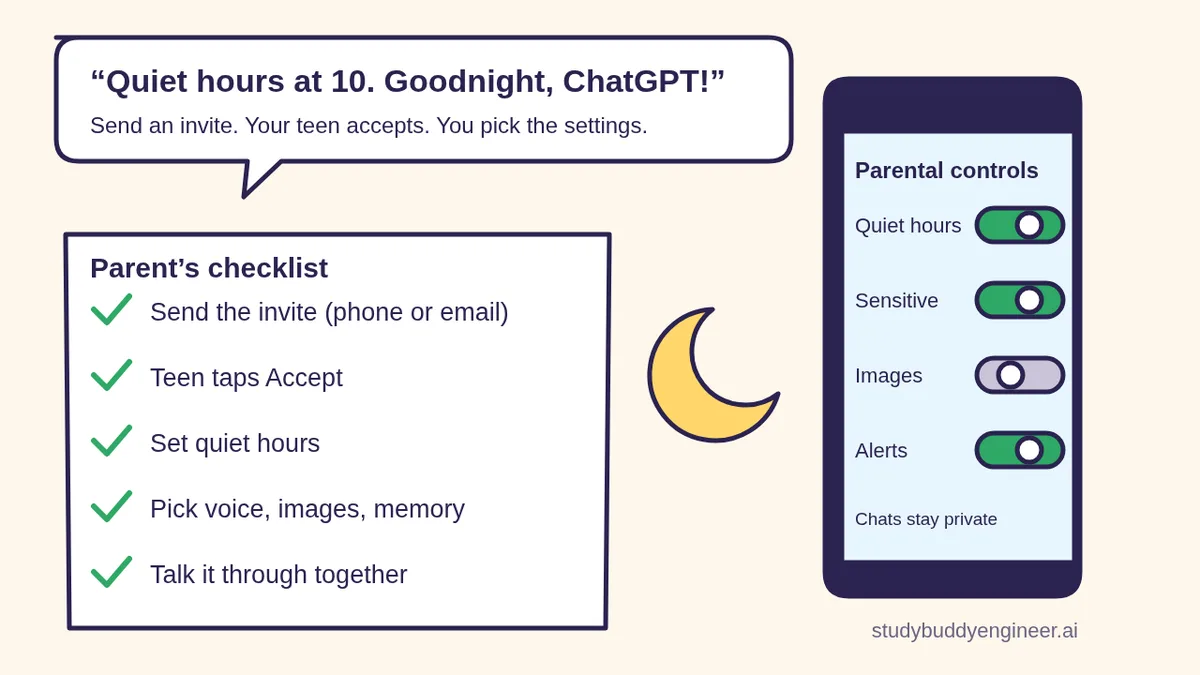
ChatGPT is a great homework helper, quiz buddy and idea machine for teens. Parental controls let you shape when and how your teen uses it, like setting a bedtime for the app or turning off image making, without reading their private chats. Think of it like house rules for the family car: you agree on the rules together, and the car still belongs in their hands.
The best part: it’s built into ChatGPT. There’s nothing extra to install, and OpenAI says ChatGPT for Teens (the teen version with age-appropriate protections) is available to eligible teen accounts on Free and paid personal plans.
Who can use ChatGPT, and what “ChatGPT for Teens” means
- Age 13 and up. OpenAI’s Terms of Use say you must be at least 13 (or the minimum age in your country), and anyone under 18 needs a parent or legal guardian’s permission.
- Teen protections turn on automatically. OpenAI says if account age info, verified age or age prediction indicates someone is under 18, ChatGPT automatically enables ChatGPT for Teens. You don’t have to switch it on.
- What teens get: learning-focused starter prompts, study mode with hints and step-by-step help, quizzes when available, reminders that encourage breaks, and built-in safeguards that help reduce sensitive or harmful content.
- Parental controls are optional extras on top of that: you link your account to your teen’s and manage selected settings.
Step 1: Link your accounts (5 minutes)
Either of you can start. Here’s the parent version, straight from OpenAI’s help page:
- Open Settings from your profile menu.
- Select Parental controls.
- Select Add family member.
- Under Invite family member, select Use phone or Use email.
- Enter your teen’s phone number or email address.
- Select Send.
Your teen gets a text or email with a link to connect their account (and may see a notification in ChatGPT). Once they accept, select their name under Family members to see their settings.
Teen starting it instead? They go to Settings > Parental controls > Invite a parent, choose phone or email, and select Send. If you already invited them, they open Settings > Parental controls and select Accept invite. OpenAI says one parent can link with several teens, but each teen can link to only one parent or guardian at a time.
Step 2: Choose the settings (the fun part)
Go to Settings > Parental controls and select your teen. Here’s every setting OpenAI lists, with its starting value:
| Setting | What it does | Starts as |
|---|---|---|
| Reduce sensitive content | Extra safeguards that help reduce graphic content, viral challenges, sexual or romantic roleplay, violent roleplay and extreme beauty ideals | On |
| Quiet hours | Times your teen can’t use ChatGPT (including ChatGPT Work). You can add more than one time block | Off, no hours set |
| Study hours | Times when eligible new chats start in study mode. Doesn’t block ChatGPT | Off, no hours set |
| Study mode | Makes new chats in the main ChatGPT start in study mode (not GPT or Project chats) | Off |
| Voice Mode | Whether your teen can talk to ChatGPT out loud | On |
| Image generation | Whether your teen can create and edit images | On |
| Reference saved memories | Whether ChatGPT uses saved memories to personalize answers | On where available (may be off in some regions) |
| Improve the model for everyone | Whether your teen’s chats can be used to help improve ChatGPT models | On |
| Health | Whether your teen can use Health in ChatGPT and connect health data | On where Health is available |
| Codex network access and Cloud browser | Whether ChatGPT Work can reach online services or browse public websites | On |
OpenAI says turning off most settings hides or blocks that feature for your teen, and your teen can see the settings but can’t change ones you manage while you’re linked. Some changes may only apply to new conversations. Not sure what a feature is? See our guides to voice mode, ChatGPT Images and ChatGPT Memory.
Step 3: Set quiet hours (a bedtime for the bot)
- Go to Settings > Parental controls.
- Select your teen under Family members.
- Turn on Quiet hours.
- Pick a start time and an end time. Add another block if you want one for school hours too.
Quiet hours can only be managed in Settings, not by asking in a chat. Study hours work differently: during those times, eligible new chats start in study mode (hints and step-by-step help instead of just answers), but ChatGPT stays open.
What you can and can’t see
- You can’t read their chats. Not the history, not live. OpenAI Support can’t give you transcripts either.
- Safety notifications, in limited situations. OpenAI says you may be notified if specially trained reviewers identify a serious self-harm concern, or behaviors that may be linked to disordered eating, or if your teen’s account is deactivated for conversations about acts of violence under OpenAI’s usage policies.
- What a notification includes: a brief description of the type of concern, account-deactivation info when relevant, and support resources. Never the conversation itself.
- How it arrives: by email, text (SMS) or push notification, depending on your contact info. Notifications are on by default once you link, and OpenAI says it may take up to a few hours after linking before they can be sent. Check Manage notifications under Safety notifications.
If you ever get one: OpenAI suggests checking in with your teen, asking about their immediate safety, listening without judgment and helping them reach someone they trust, a professional or a crisis line. If they may be in immediate danger, call 911.
Let ChatGPT help with the family talk
The settings take a few minutes. The conversation is what makes them stick. Paste these into a new chat (on your own account) and fill in the [BRACKETS].
🧰 Want the shortcut? Get the Starter Kit ($29)
Everything from our guides in one download: a 2-minute “pick your assistant” chart, step-by-step setup checklists for ChatGPT Projects, Claude Projects and agent-style assistants, 24 copy-paste bot recipes (personal and small business), a safety and permissions checklist, and troubleshooting fixes. Includes a ZIP of every recipe as a ready-to-paste text file.
Get the Starter Kit: $29 See what’s inside →
One-time payment, secure checkout by Stripe, instant download page right after checkout.
6 copy-paste prompts to try today
1. 🤝 “Draft our family AI agreement”
Help me write a one-page family agreement about
using ChatGPT for my [AGE]-year-old. Our goals:
[HOMEWORK HELP, CREATIVE PROJECTS, LESS LATE-
NIGHT SCREEN TIME]. Include: when it's OK to use
it, what counts as cheating at [SCHOOL NAME]
(I'll check the school's rules), what to do if
it says something upsetting or weird, and what
never to share (passwords, address, photos of
friends). Friendly tone, written TO my teen,
with a spot for both of us to sign.
2. 💬 “Help me explain parental controls without a fight”
My teen is [AGE] and might feel spied on if I
turn on ChatGPT parental controls. Help me
explain it in 5 short, honest sentences: I can
set quiet hours and choose features, but I
can't read their chats, they can see the
settings, and either of us can unlink (I get a
notice if they do). Then give me 3 calm
answers if they push back.
3. 🌙 “Pick quiet hours and study hours from our schedule”
Here's our weekly schedule: [SCHOOL HOURS,
PRACTICE, BEDTIME ON SCHOOL NIGHTS AND WEEKENDS].
Suggest Quiet hours (when ChatGPT is off) and
Study hours (when new chats start in study mode)
for my teen. Show them as simple time blocks I
can type into ChatGPT's Parental controls
settings, and explain each choice in one line.
4. 🎚️ “Which settings fit my teen?”
Interview me one question at a time (max 6)
about my [AGE]-year-old: what they use ChatGPT
for, whether they like voice or making images,
sleep, and anything I'm worried about. Then
recommend which ChatGPT parental control
settings to leave on or turn off. Search the
web for OpenAI's help page "Managing parental
controls in ChatGPT", link it, and only use
setting names from that page.
5. 📚 “Homework help vs. cheating: make it clear”
Make a simple "green, yellow, red" chart for my
teen about using ChatGPT for schoolwork. Green:
quizzing yourself, hints, explaining a topic.
Yellow: ask the teacher first. Red: turning in
writing you didn't write. Add 3 example prompts
for each color, plus a reminder that every
teacher's rules come first.
6. 🕵️ “Teach my teen to fact-check the bot”
Write a fun 10-minute challenge for my teen and
me: ask ChatGPT 5 questions about [A TOPIC THEY
LOVE], then check each answer against a real
source together. Give us a scorecard, 3 signs
an AI answer might be wrong, and one rule to
remember: "check anything important with a real
person or an official site."
🔒 Members-only
Members get the full pack: 10 more family AI prompts + a fill-in “Our Family AI Plan” card
Copy-paste prompts for a calm check-in script after a safety notification, a weekly 10-minute AI chat with your teen, a back-to-school settings refresh, a sleepover and shared-device plan, a grandparent-friendly explainer, a “what to do if ChatGPT says something upsetting” card, setting rules for younger siblings who aren’t 13 yet, an AI-and-privacy quiz, a plan for when your teen turns 18, and a coach-and-club version for youth leaders. Plus a fill-in Our Family AI Plan card to print and stick on the fridge.
Bot Club · $9/mo · cancel anytime. Your Member Library opens right after checkout.
Join Bot Club, unlock the full pack · $9/moUnlinking, and what happens at 18
- Either of you can unlink at any time with Unlink accounts. If your teen unlinks, OpenAI says you’re notified, and you can no longer manage their settings or get safety notifications.
- At 18: when ChatGPT identifies a linked account as 18 or older, it moves out of ChatGPT for Teens. OpenAI says both of you are notified, parental controls are removed, teen protections turn off and the account holder gets full control. Other settings don’t change automatically.
- Grown-up safety option: OpenAI also has Trusted Contact, a separate, optional feature for adults 18 and older (19 and older in Korea) to choose one person who can be notified about a serious safety concern involving suicide.
Troubleshooting
- The invite link opens ChatGPT but there’s no Accept button. OpenAI says to sign in on the web to the personal account that matches the email or phone number that got the invite, go to Settings > Parental controls, open the pending invite and select Accept.
- Sent it to the wrong address? Select the person marked Invitation sent, then Cancel invitation and send a new one. Expired? Just send a new one, or use Resend invitation.
- A setting change didn’t seem to work. Some changes apply only to new conversations. Have your teen start a new chat.
- You’re an adult stuck with teen protections. OpenAI says go to Settings > Account and select Verify age (OpenAI uses a service called Persona), then allow up to an hour and refresh.
- Still stuck? OpenAI says to contact OpenAI Support through its Help Center and include the exact error message.
Privacy: what to share with ChatGPT
For the prompts above, ChatGPT only needs your teen’s age and your family schedule. Don’t paste their full name, school, address, passwords or a photo of their screen. Want fewer chats saved? See ChatGPT Memory and Temporary Chat and Is my AI assistant safe? Setting up their accounts on a new phone too? Our passkeys guide explains the face-or-fingerprint way to sign in.
Why Bot Club is only $9 a month
This guide gives you the full setup and six family-talk prompts free. Bot Club is for the months after, when new questions come up: the 10 extra prompts above (a calm check-in script after a safety notification, a weekly AI chat, a back-to-school settings refresh, sleepover and shared-device rules, an explainer for grandparents, an “if it says something upsetting” card, a kind “not yet” for siblings under 13, a privacy quiz, a turning-18 talk and a coach-and-club version) and the fill-in Our Family AI Plan card, plus every other members-only pack (study help, scam checks, budgeting, holiday planning and more) in one Member Library, and a new recipe each month. Cancel anytime from your Stripe receipt.
Want it done faster?
🧰 Starter Kit: $29
24 copy-paste bot recipes, setup checklists and a safety checklist, with a ZIP of every recipe as a text file.
Get the Starter Kit: $29🏆 Bot Club: $9/month
The 10 family AI prompts and Our Family AI Plan card above, every other members-only pack, and a new recipe every month. Cancel anytime.
Join Bot Club: $9/mo🛠️ Done-for-you setup
$199 setup + $49/month. Run a school club, youth program, nonprofit or small business? We set up an AI assistant for your member questions, how-to handouts and everyday messages, tested on your real tasks, then keep it tuned every month.
Get set up: $199Got a student in the house? See AI for students for study-mode, flashcard and FAFSA guides.
Study Buddy Engineer is independent and is not affiliated with OpenAI. ChatGPT is a trademark of OpenAI. Features and menus vary by plan, region and app version. ChatGPT can make mistakes. Parental controls don’t replace talking with your teen, professional care or emergency services. In an emergency, call 911.
Sources
- OpenAI Help: Managing parental controls in ChatGPT (checked Nov 3, 2026)
- OpenAI Help: ChatGPT for Teens (checked Nov 3, 2026)
- OpenAI Help: What changes when a ChatGPT user turns 18 (checked Nov 3, 2026)
- OpenAI Terms of Use (effective Jan 1, 2026; checked Nov 3, 2026)
- 988 Suicide & Crisis Lifeline (checked Nov 3, 2026)
Keep going: related guides
- ChatGPT study mode and study buddy
- Is my AI assistant safe?
- ChatGPT Memory and Temporary Chat
- ChatGPT Free vs Plus: do you need to pay?
- Paying for college: FAFSA help
🎁 Free: 10 copy-paste ChatGPT prompts
Ten short copy-paste prompts from our free guides, each with a Copy button:
- Reply to a customer review (good or bad)
- A week of social posts in 5 minutes
- Match your resume to one job posting
- Practice the interview out loud
- “Use up my fridge” dinners
- A “tight week” budget dinner plan
- Fill in your “trip card”
- Plan a road trip like a human
- “Explain it like I’m 10”
- “Grade my answer, don’t write it”
Free with an email signup. We never sell your email.
Pick the easiest way to get going
Three simple options. Secure checkout by Stripe.
🧰 Starter Kit
- Pick-your-assistant chart
- Setup checklists
- 24 copy-paste bot recipes
- Safety checklist + troubleshooting
🏆 Bot Club
- New bot recipes every month
- Ready-made templates
- Monthly “get unstuck” Q&A in the members area
- Cancel anytime
🛠️ Done-for-you setup
- We set up your assistant with you
- Monthly tuning: fixes, updates
- New recipes as you go
📬 Get one fun bot trick every week
The Bot Whisperer newsletter: free, plain English, unsubscribe anytime.
Coming soon: sign-ups open shortly. Follow @teachbots to hear when they do.